Top Lenovo Computer Wipe Tool: Permanently Erase Data Securely
To ensure the personal data on Lenovo computer is gone forever, it's essential to wipe the computer drive permanently with a reliable data erasure software. DoYourData Super Eraser is such a professional tool that can wipe data with certified data wiping algorithms.
 Updated by Shirly Chen on September 4, 2026
Quick Navigation:
- Why Factory Reset on Lenovo Isn't Completely Secure
- Comparing Popular Lenovo Data Wiping Methods
- Method 1: Wipe Lenovo via Windows 'Reset This PC'
- Method 2: Wipe via OneKey Recovery / Novo Button
- Method 3: The Best Lenovo Computer Wipe Tool
- Method 4: How to Wipe Lenovo via BIOS / UEFI Secure Erase
- Conclusion
Planning to sell, donate, or trade in your old Lenovo laptop? Before handing it over to someone else, wiping your personal data should be your top priority. Simply deleting files or running a quick standard format is not enough. Anyone with basic data recovery software can easily retrieve your photos, personal records and other confidential files.
To truly protect your privacy, you need a specialized Lenovo computer wipe tool that overwrites data beyond repair. In this guide, we will analyze common data sanitization methods on Lenovo devices, explain step-by-step how to perform each method, and introduce the most reliable data erasure software: DoYourData Super Eraser.
Why Factory Reset on Lenovo Isn't Completely Secure
Many Lenovo users rely on built-in tools like Lenovo OneKey Recovery or Windows 'Reset This PC' before parting with their devices. While these tools wipe the operating system clean and restore factory settings, they leave underlying data fragments intact.
When Windows deletes a file or performs a standard format, it only clears the file directory system (the index pointer). The actual raw data stays hidden on the hard drive or SSD until new data overwrites it. Data recovery tools can easily read these unallocated sectors and reconstruct your private files.
If you want complete peace of mind, you need zero-chance data sanitization. A specialized Lenovo computer wipe tool overwrites every single storage sector with random binary code, ensuring no recovery software can ever restore it.
Comparing Popular Lenovo Data Wiping Methods
To help you choose the best solution, let's analyze the 4 primary methods Lenovo users try when attempting to clear their hard drives:
| Method | Permanency Level | Ease of Use | Best Use Case |
|---|---|---|---|
| 1. Windows Reset / Format | Low (Recoverable) | Very Easy | Routine system cleanup |
| 2. Lenovo OneKey / Novo Button | Low (Recoverable) | Easy | Restoring factory OS status |
| 3. DoYourData Super Eraser | 100% Irrecoverable | Very Easy | Selling, donating, or recycling PC |
| 4. BIOS Secure Erase | High (Permanent) | Difficult / Complex | Technical users with compatible NVMe |
Essential Checklist Before Wiping Your Lenovo Computer
To ensure a smooth transition when disposing of your computer, go through this checklist before running any wipe tool:
- Back Up Essential Files: Copy important photos, work files, and personal records to an external disk or cloud storage.
- Sign Out of All Accounts: Sign out of your Microsoft Account, Google Chrome, and software licenses.
- Save Passwords & Bookmarks: Export browser bookmarks, saved passwords, and 2FA recovery codes.
- Connect to Power: Ensure your Lenovo laptop is connected to a power outlet so it doesn't shut down mid-process.
Method 1: Wipe Lenovo via Windows 'Reset This PC'
Windows includes an integrated factory reset feature that reinstalls the operating system and wipes user files. Here is how to perform a full system reset with data cleaning enabled:
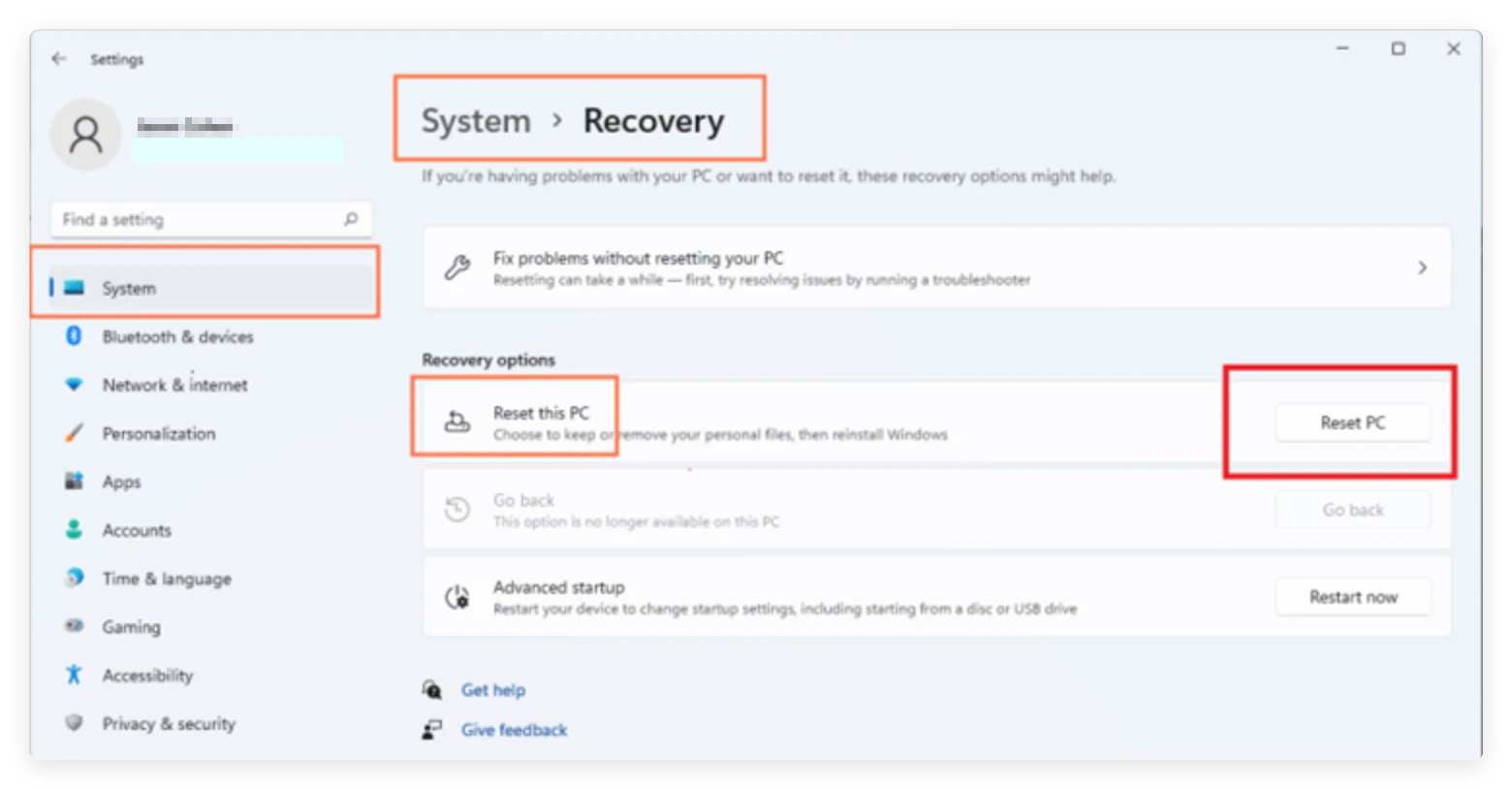
Step 1: Open Recovery Settings. Click the Start menu, open Settings (or press Windows Key + I), then go to System > Recovery (on Windows 11) or Update & Security > Recovery (on Windows 10).
Step 2: Initiate Reset. Under the 'Reset this PC' section, click the Reset PC (or Get Started) button.
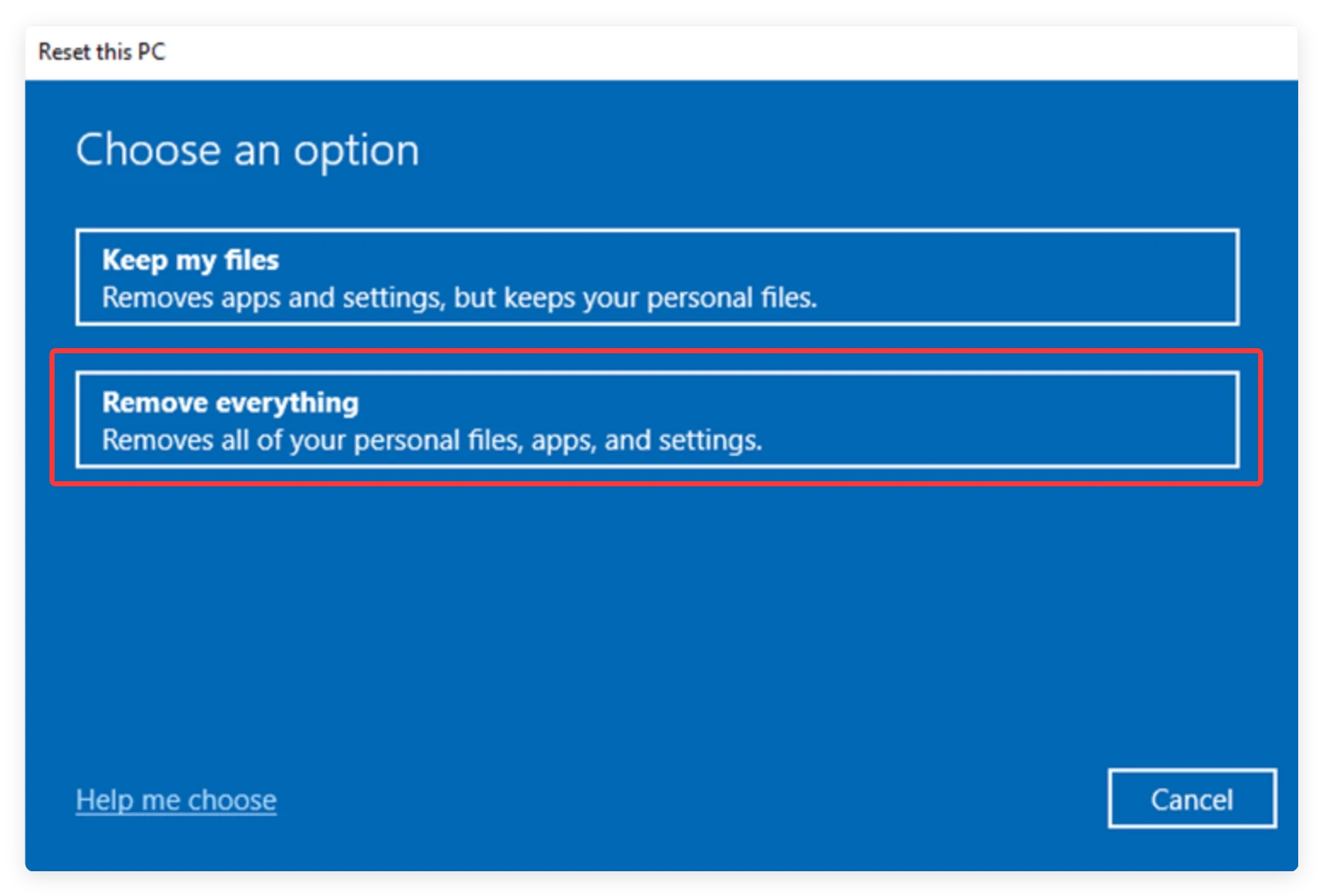
Step 3: Choose 'Remove Everything'. When prompted, choose 'Remove everything'. This ensures all personal files, apps, and settings are removed.
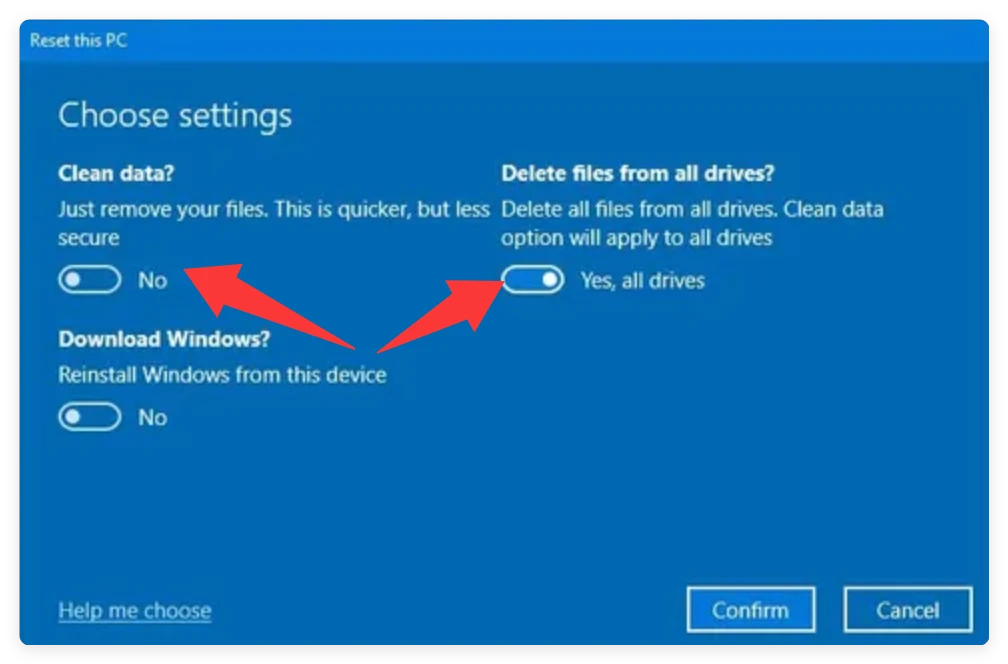
Step 4: Enable Full Data Cleaning. Select either 'Local reinstall' or 'Cloud download'. On the additional settings screen, click Change settings and toggle 'Clean data?' to Yes. This forces Windows to perform a multi-pass clean instead of a quick delete. You can also choose to delete files from all the other drives on the computer.
Step 5: Confirm and Begin. Review your selections and click Reset. The process will restart your computer and take 30 to 60 minutes.
Method 2: Wipe via OneKey Recovery / Novo Button
Many Lenovo laptops come equipped with a hardware Novo Button or built-in OneKey Recovery software designed to restore the factory default state.
Step 1: Shut Down the Computer. Turn off your Lenovo laptop completely and disconnect any external USB devices.
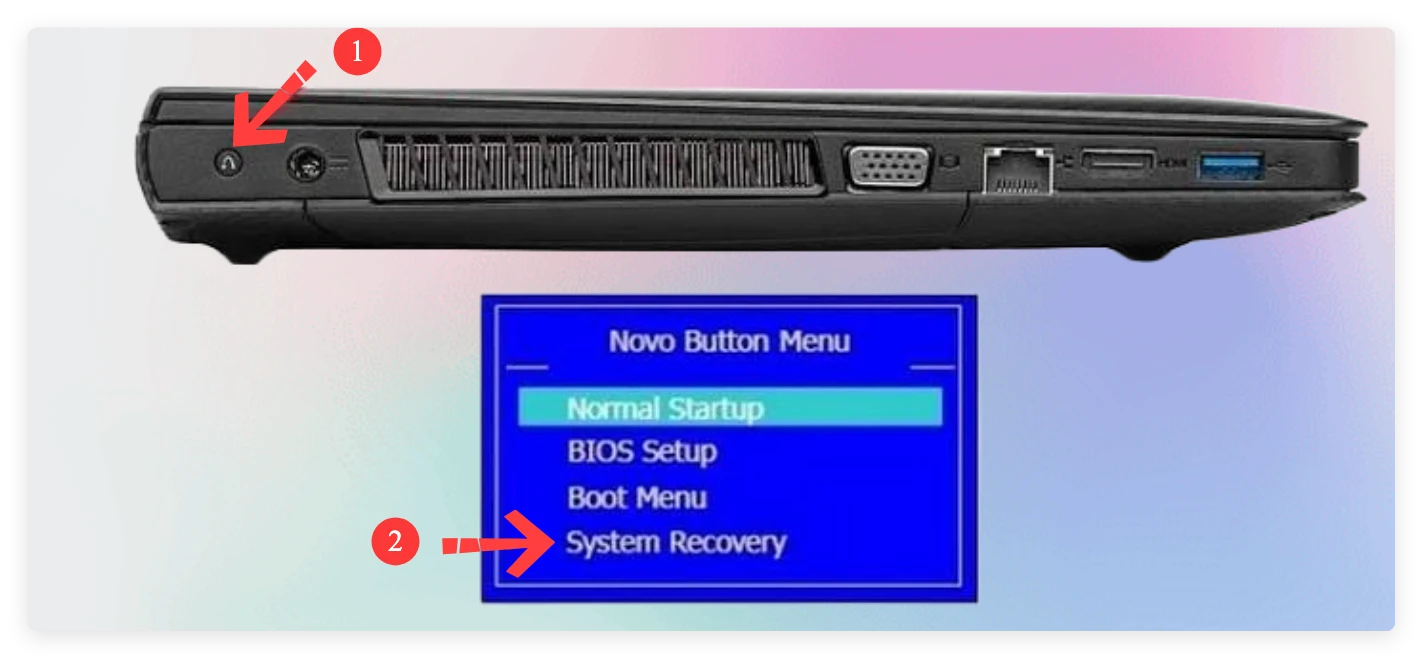
Step 2: Press the Novo Button. Locate the Novo Button (a small circular pinhole marked with an inverted horseshoe arrow on the side or near the power button). Use a SIM ejector tool or unfolded paperclip to press the button.
Step 3: Select System Recovery. The Novo Button Menu will appear on the screen. Use the keyboard arrow keys to select 'System Recovery' and press Enter.
Step 4: Select Factory Restore. In the OneKey Recovery wizard, select 'Restore from initial backup' to revert the system to factory state.
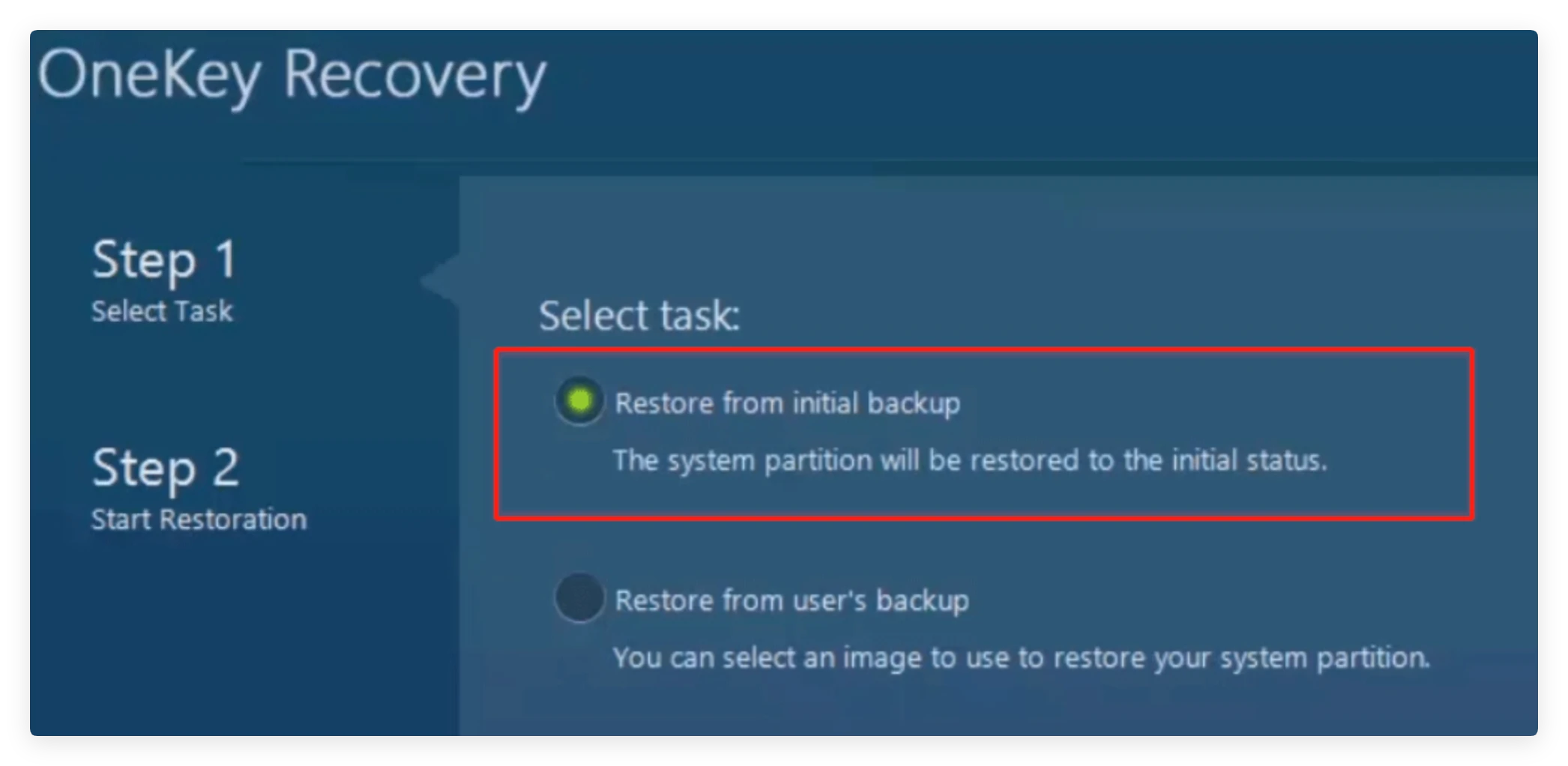
Step 5: Execute Recovery. Click Next and confirm the warning to start the recovery process.
Method 3: The Best Lenovo Computer Wipe Tool
DoYourData Super Eraser is a powerful, professional-grade data erasure tool designed for Windows and Mac. Whether you are using a Lenovo ThinkPad, IdeaPad, Yoga, Legion, or ThinkCentre desktop, DoYourData ensures your personal files, sensitive business documents, and browsing histories are permanently destroyed.
DoYourData Super Eraser
- The best data wipe tool for Lenovo computer.
- Support multiple international data wiping levels.
- Easy to use and secure to wipe data permanently.
Key features of DoYourData Super Eraser include:
- Certified Erasure Algorithms: Supports military and government standards like DoD 5220.22-M, NIST 800-88, and Gutmann.
- Comprehensive Hardware Support: Safely wipes mechanical HDDs, high-speed NVMe/SATA SSDs, external hard drives, USB flash drives, and SD cards.
- SSD Optimization: Prevents write-cycle wear on SSDs while ensuring absolute data destruction.
- Flexible Wiping Modes: Offers selective file shredding, entire partition wiping, and free space wiping without reformatting.
Step-by-Step Guide for DoYourData Super Eraser:
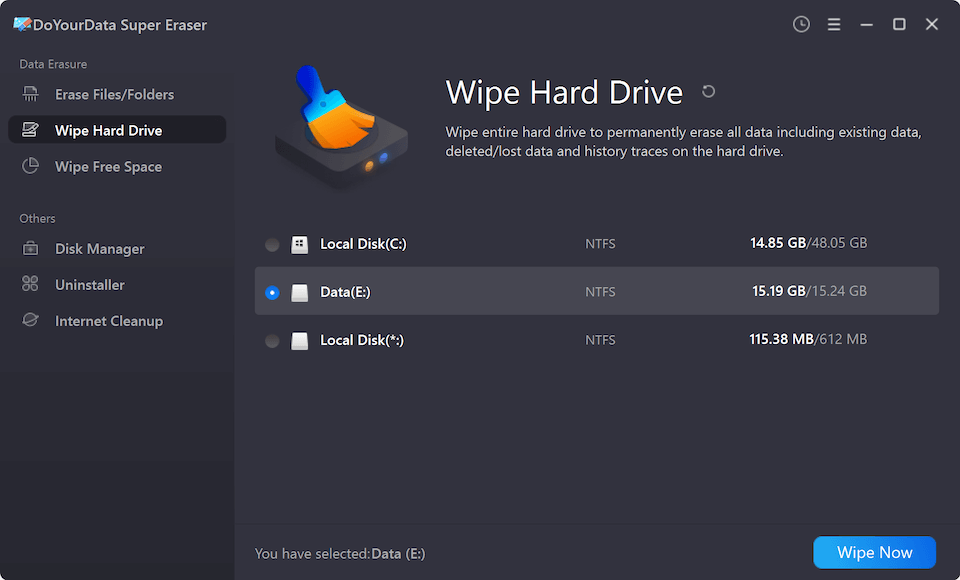
Step 1: Select Wiping Mode & Choose Your Drive. Launch DoYourData Super Eraser on your Lenovo computer. From the left side menu, select Wipe Hard Drive. Select the target drive or partition you wish to destroy completely, then click the Wipe Now button.
Step 2: Choose a Data Erasure Standard. Select your preferred data erasure standard from the dropdown menu (e.g., DoD 5220.22-M 3 passes or NIST 800-88). Higher pass counts provide deeper destruction.
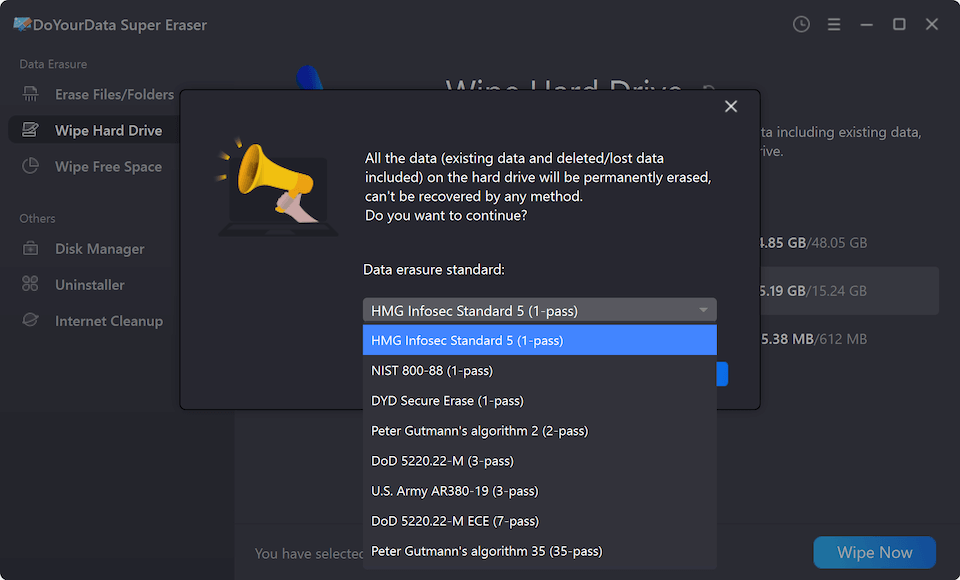
Step 3: Confirm and Start Permanent Wiping. A confirmation popup will remind you that this action cannot be undone. Click the Continue button to start wiping data permanently. Wait for the process to finish.
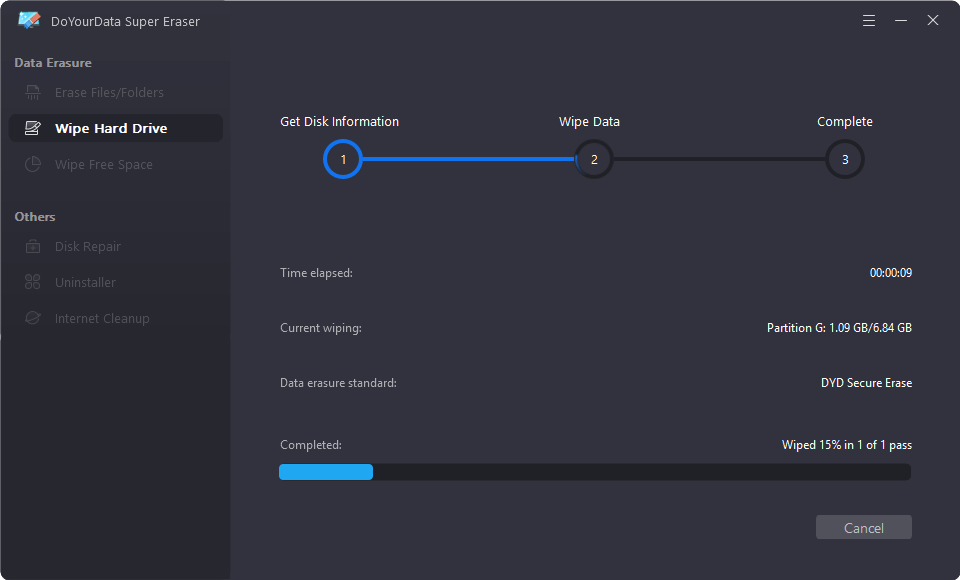
💡 Note: If you need to wipe the system disk on Lenovo computer, you can first factory reset the system and ensure to remove everything. Then use DoYourData Super Eraser to wipe the free space of the system disk.
Method 4: How to Wipe Lenovo via BIOS / UEFI Secure Erase
For advanced technical users with solid-state drives (SSDs), Lenovo BIOS provides a hardware-level Drive Sanitization / Secure Erase feature.
Step 1: Enter BIOS Setup. Shut down your Lenovo computer completely. Turn it back on and repeatedly tap F1 or F2 (or press the Novo button and select BIOS Setup) to enter the UEFI utility.
Step 2: Locate Security Options. Navigate to the Security tab using arrow keys and locate 'Storage Device Security', 'Drive Sanitization', or 'NVMe Command'.
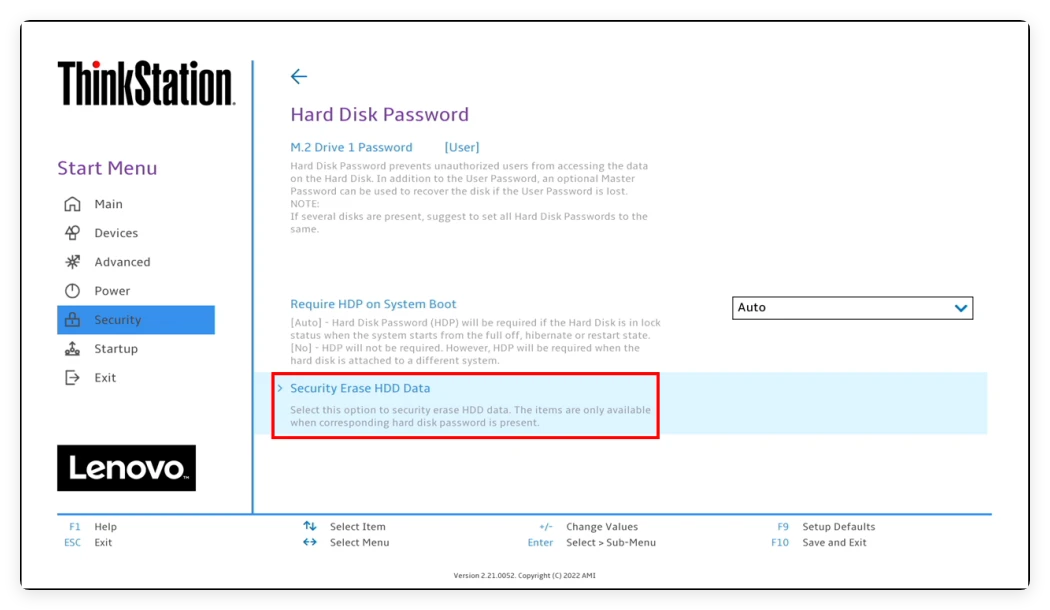
Step 3: Select the Storage Drive. Select your primary solid-state drive and choose 'Secure Erase' or 'Sanitize Storage Device'.
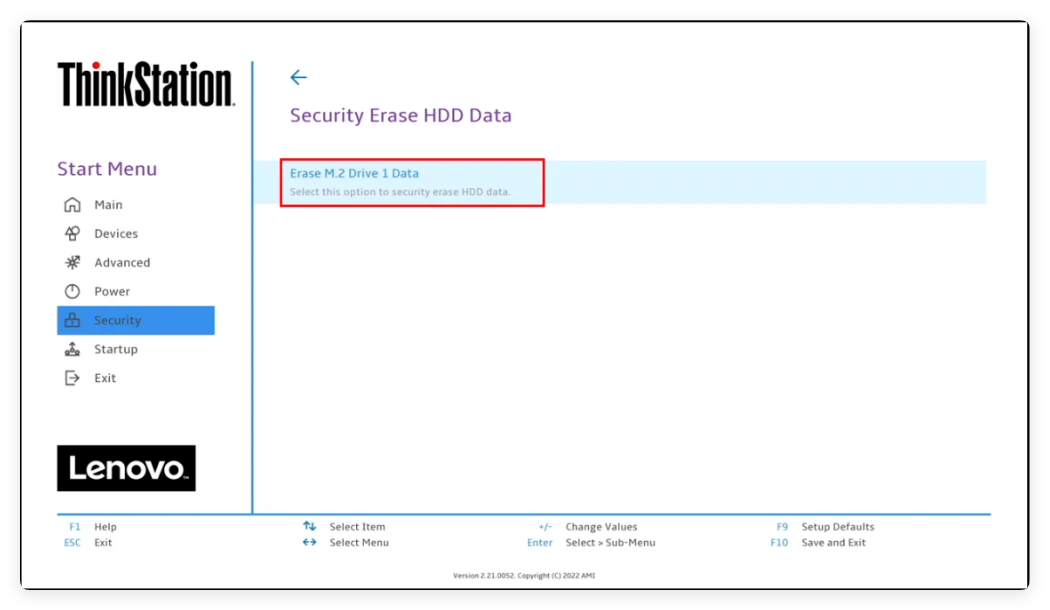
Step 4: Confirm Sanitization. Set a temporary drive password if required, confirm that you accept all data destruction, and execute the purge.
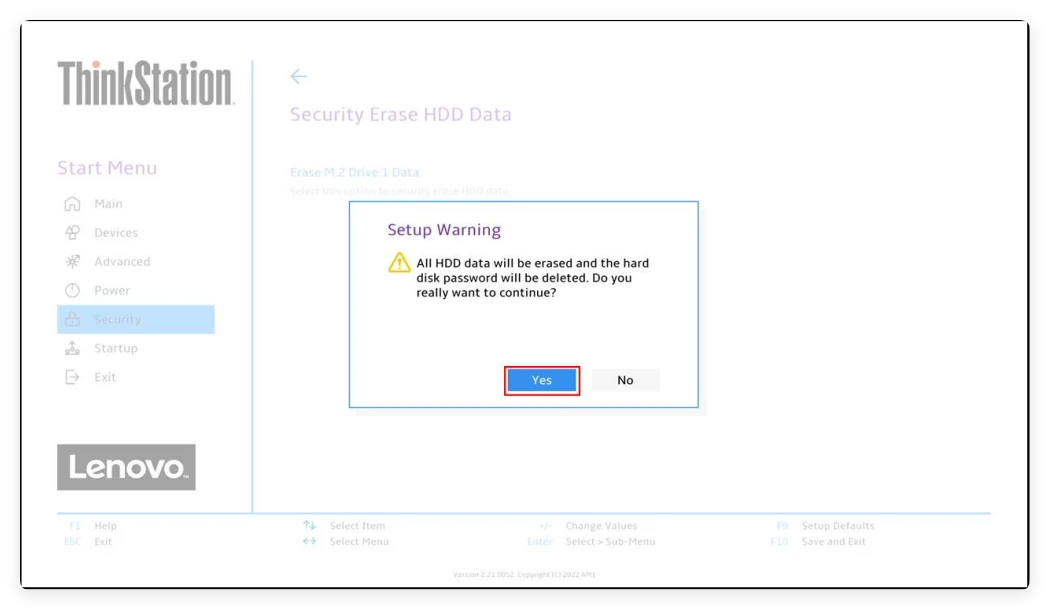
Step 5: Exit and Restart. Once finished, exit BIOS and restart the machine.
Conclusion
Protecting your privacy is essential when getting rid of an old laptop. While built-in Windows resets, Novo Button options, and BIOS tools offer basic options, they either leave data recoverable or require complex technical steps. By using a trusted Lenovo computer wipe tool like DoYourData Super Eraser, you guarantee that your personal files, sensitive passwords, and confidential records are erased permanently and securely with absolute peace of mind.
DoYourData Super Eraser
DoYourData Super Eraser, the award-winning data erasure software, offers certified data erasure standards including U.S. Army AR380-19, DoD 5220.22-M ECE to help you securely and permanently erase data from PC, Mac, HDD, SSD, USB drive, memory card or other device, make data be lost forever, unrecoverable!
Written & Updated by Shirly Chen
Shirly Chen has been writing data recovery, data erasure articles for DoYourData over 4 years. She has been working as a professional website content writer & editor for quite a long time. She also writes articles about disk clone, Mac optimization, disk backup, etc.