How to Clear Internet History and Tracking Cookies Permanently
Clicking 'Clear History' in Google Chrome, Microsoft Edge, or Firefox does NOT permanently remove your browsing records from your hard drive. Standard browser deletion leaves internet caches, tracking cookies, and form data recoverable using standard data recovery tools. To clear internet history and tracking cookies permanently software, use DoYourData Super Eraser.
 Updated by Shirly Chen on October 13, 2026
Quick Navigation:
- Why Built-In Browser 'Clear History' Buttons Leave You Exposed
- Clear Internet History and Tracking Cookies Using Software
- Advanced Privacy: Wiping Free Space to Prevent Recovery
- Best Practices for Maintaining Ongoing Browser Privacy
- FAQs about Clearing Browser History and Cookies
- Conclusion
Every single website you visit, form you fill out, and video you stream leaves a digital trail on your computer. Web browsers like Chrome, Safari, Edge, and Firefox store vast amounts of data locally on your storage drive to speed up future page loads.
This stored data includes your browsing history, download logs, login passwords, cached images, and tracking cookies. While convenient for daily browsing, keeping these records around poses serious privacy risks. Anyone who sits at your computer—or recovers your hard drive later—can easily view your entire online activity.
Most people believe that clicking the built-in 'Clear Browsing Data' button solves the problem. Unfortunately, standard browser cleaning leaves plenty of hidden files behind in your disk sectors. If you want true privacy, you need a specialized tool designed to clear internet history and tracking cookies permanently.
Why Built-In Browser 'Clear History' Buttons Leave You Exposed
When you select 'Delete browsing history' directly inside your web browser, it only removes the user-facing database references. The underlying data files often remain intact on your computer's storage sectors.
1. Hidden Cache Files and Residual Indexing
Browsers store tens of thousands of tiny cache files across your system directories. Standard browser wiping routines frequently miss orphaned files, temporary logs, and background indexing records.
2. Persistent Tracking Cookies and Local Storage
Third-party tracking cookies and HTML5 local storage objects are designed to track your online behavior across multiple websites. Many modern trackers regenerate themselves automatically even after a basic browser cleanup.
3. Unwiped Free Space on Your System Drive
When your browser deletes cache files or history logs, your operating system marks that disk space as 'available' without erasing the actual binary data. Data recovery software can easily resurrect these files until the sectors are completely overwritten.
Clear Internet History and Tracking Cookies Using Software
To ensure all traces of your web browsing are completely wiped out, DoYourData Super Eraser provides a dedicated privacy cleaning tool. Follow these simple steps to perform a thorough internet cleanup:
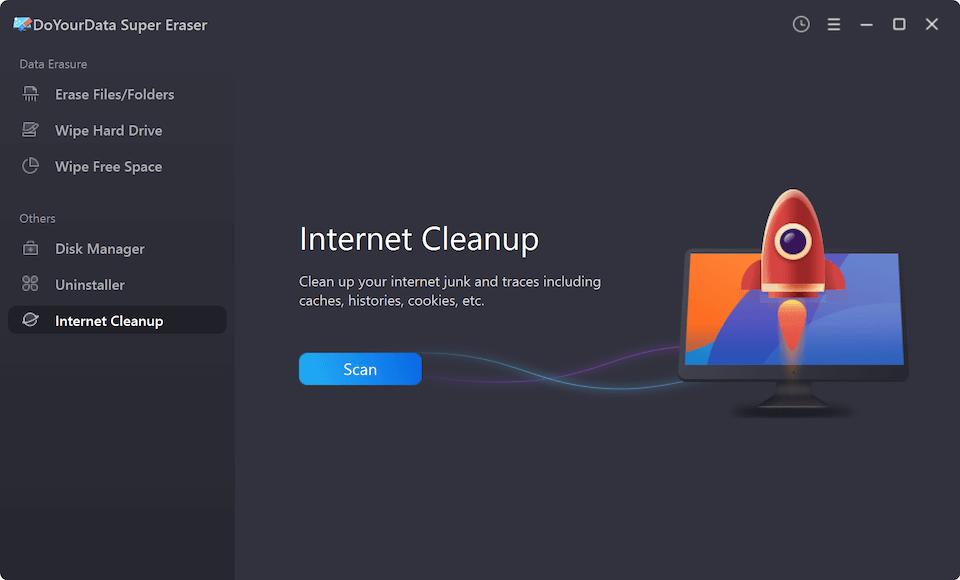
Step 1: Choose the 'Internet Cleanup' Function
Download, install, and launch DoYourData Super Eraser on your computer. From the main application dashboard, locate and choose the 'Internet Cleanup' function.
DoYourData Super Eraser
- Reliable data erasure and browser cleanup tool.
- Wipe data permanently to avoid data recovery.
- 100% safe and easy-to-use data erasure software.
Step 2: Click the Scan Button to Search for Browser Data
Click the 'Scan' button. The software will automatically scan your computer system and detect all installed web browsers (including Chrome, Edge, Firefox, and Internet Explorer), locating stored history logs, cache files, and tracking cookies.
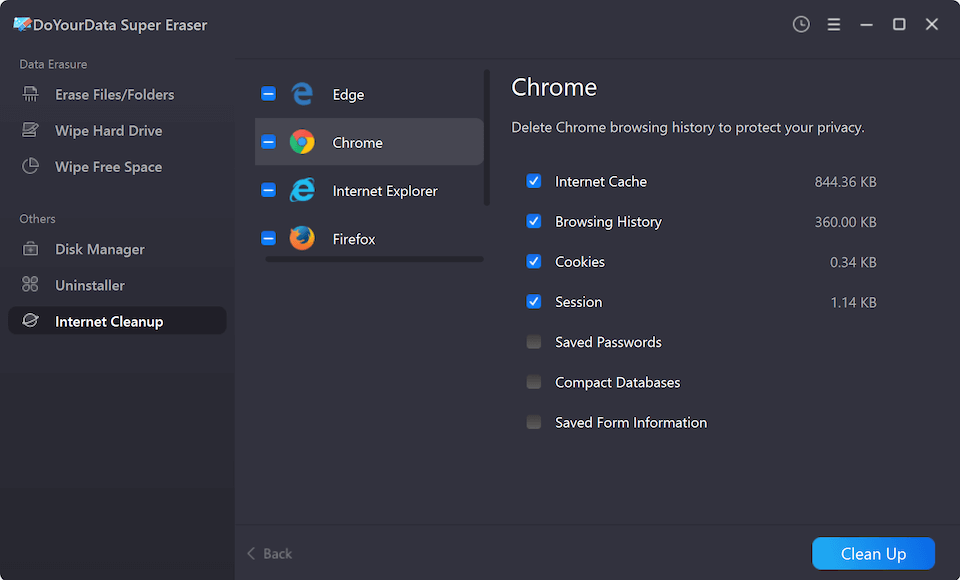
Step 3: Select History, Cookies, and Additional Items
After the scan is finished, review the detected items on your screen. Choose the history records and tracking cookies you want to remove. You can also select other related browser items if necessary.
Step 4: Click 'Clean Up' to Remove Information
Click the 'Clean Up' button to remove the selected browsing information from your active browser storage directories immediately.
Advanced Privacy: Wiping Free Space to Prevent Recovery
If you want to ensure the removed data cannot be recovered in any way by forensic software or data recovery tools, follow these additional disk sanitization steps:
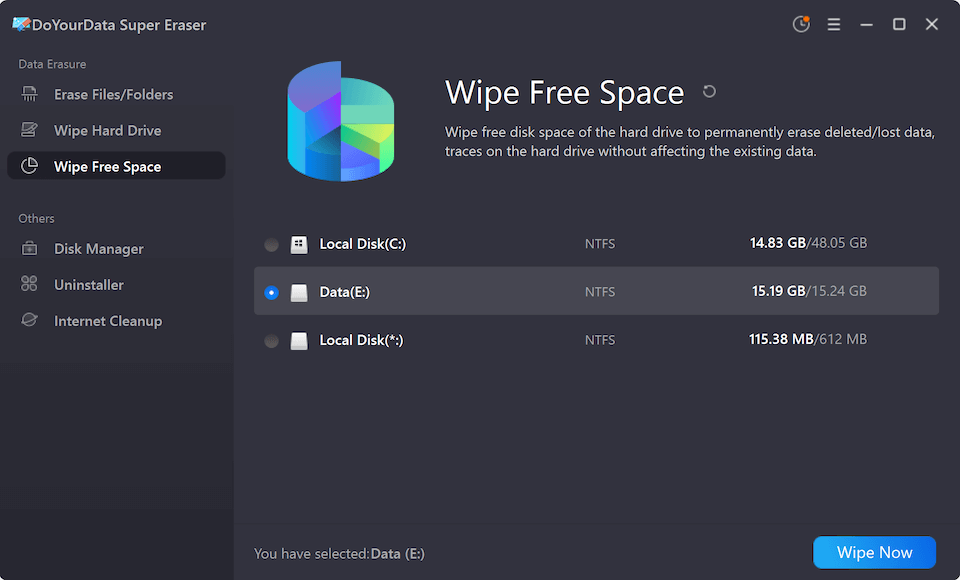
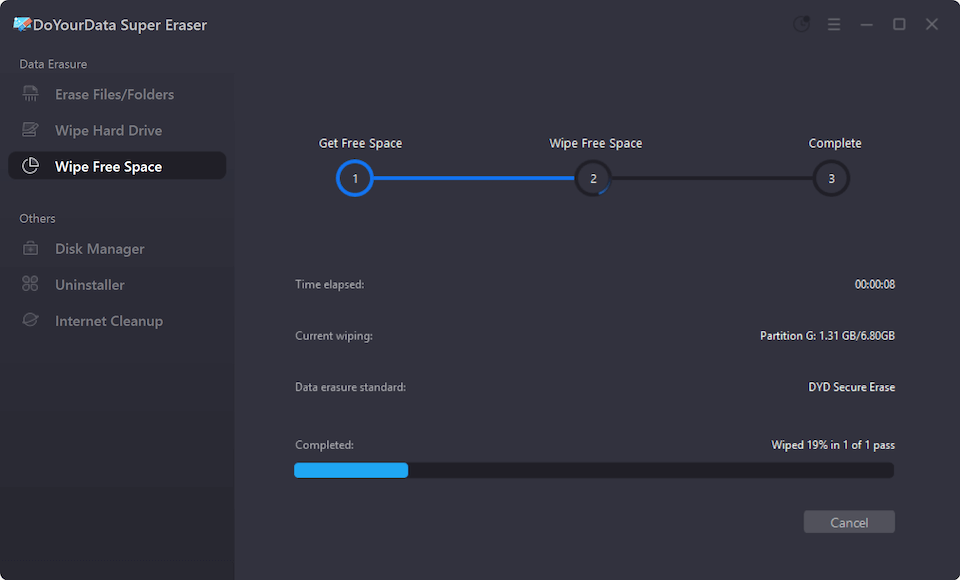
Step 1: Switch to 'Wipe Free Space' Mode
In DoYourData Super Eraser, change your active mode from Internet Cleanup to 'Wipe Free Space'.
Step 2: Select the Drive Where Your Browser Data Is Stored
Select the specific drive where your browser data is stored. By default, internet history and browser profiles are saved on your system drive (C: drive).
Step 3: Click 'Erase Now' to Select a Data Wiping Method
Click the 'Erase Now' button to choose your preferred data wiping method (such as 1-pass zero overwriting or military-grade DoD 3-pass standards).

Step 4: Click 'Continue' to Start Wiping
Click the 'Continue' button to start wiping. The removed data on the drive will be permanently overwritten and destroyed beyond any possibility of recovery.
Best Practices for Maintaining Ongoing Browser Privacy
In addition to using powerful erasure software, these daily habits help keep your browsing private:
- Block Third-Party Trackers: Configure your browsers to block third-party tracking cookies by default in privacy settings.
- Leverage Incognito Mode: Use private browsing or incognito windows when checking sensitive accounts on shared computers.
- Schedule Monthly Cleanups: Run a routine internet cleanup and free space wipe monthly to prevent digital clutter from accumulating.
FAQs about Clearing Browser History and Cookies
Conclusion
Your online browsing habits and tracking cookies belong to you alone. Relying on basic browser buttons leaves hidden traces scattered across your local storage drive, risking your personal privacy.
By choosing a dedicated tool to clear internet history and tracking cookies permanently software like DoYourData Super Eraser, you can thoroughly clean your browsers and wipe your drive free space. Take control of your digital privacy today and browse with total peace of mind.
DoYourData Super Eraser
DoYourData Super Eraser, the award-winning data erasure software, offers certified data erasure standards including U.S. Army AR380-19, DoD 5220.22-M ECE to help you securely and permanently erase data from PC, Mac, HDD, SSD, USB drive, memory card or other device, make data be lost forever, unrecoverable!
Written & Updated by Shirly Chen
Shirly Chen has been writing data recovery, data erasure articles for DoYourData over 4 years. She has been working as a professional website content writer & editor for quite a long time. She also writes articles about disk clone, Mac optimization, disk backup, etc.