Complete Guide: Deleted File Recovery for 2026 MacBook Neo
We are all prone to accidental mistakes. A single hasty moment spent clearing out folders can lead to selecting an essential directory, executing a 'Command + Delete' shortcut, and cleaning out the Trash bin before you realize what just happened. Fortunately, you can use Do Your Data Recovery for Mac to get back the deleted files.
 Updated by Justin Kenny on May 21, 2026
Quick Navigation:
- Critical Gaps in Legacy Mac Recovery Guides
- The Solution: Do Your Data Recovery for Mac
- FAQs about Deleted File Recovery on MacBook Neo
- Final Verdict
Bringing home the new 2026 MacBook Neo is incredibly exciting. Apple's budget-friendly addition to its silicon lineup packs a punch, pairing a highly efficient A18 Pro processor with an ultra-slim, completely fanless aluminum chassis. It handles school assignments, creative text writing, multi-tab web research, and photo browsing in beautiful, absolute silence. However, no matter how clever or modern our hardware gets, the human element hasn't changed.

If you are staring at an empty folder path in a sudden panic, take a deep breath. Your lost data is likely still written on the storage sectors. In this home-user-friendly, actionable guide, we will step through exactly how data operations run on your machine and explain how to perform a comprehensive accidental deletion file recovery for 2026 MacBook Neo laptops using automated, advanced software tools.
Critical Gaps in Legacy Mac Recovery Guides
To secure a high data recovery success rate today, we must address three technical gaps that other websites completely leave out:
1. Failing to Understand the Fanless Passive Thermal Profile
Traditional recovery applications run endless drive-sweeping loops that force processor cores to 100% capacity. While actively cooled laptops use loud fans to manage this heat, fanless devices like the MacBook Neo face aggressive thermal throttling. Preventing this requires a recovery tool engineered with efficient, low-overhead search logic that protects your A18 Pro chip.
2. Mischaracterizing TRIMMING Timing Windows on Solid-State Memory
Someone often oversimplify Mac security by claiming Apple Silicon SSD recovery is impossible due to automated TRIM commands. In reality, TRIM does not execute instantaneously across the entire drive. This delay creates a vital recovery window. Utilizing a specialized utility immediately after data loss allows you to target and extract un-TRIMMED flash blocks, successfully restoring complete files.
The Solution: Do Your Data Recovery for Mac
To safely navigate complex APFS directory splits, manage hardware encryption blocks, and locate missing files over high-speed unified storage spaces, you need an optimization-aware application. Do Your Data Recovery for Mac is a highly trusted utility purpose-built to navigate modern Apple architectures, from the entry-level 2026 MacBook Neo to high-capacity M5 professional systems.
Do Your Data Recovery for Mac
- Data recovery software optimized for MacBook Neo.
- Support data recovery for deleted files on MacBook Neo.
- Recover photos, videos, documents, and more.
DoYourData bridges the gap between commercial-level data engineering and clean, household simplicity. It features an intuitive wizard interface that completely automates data tracking, ensuring home users can achieve professional-grade results without needing to pay an expensive technical repair shop. Best of all, it features a 100% risk-free scanning layer, allowing you to run comprehensive deep scans and fully preview every recoverable file before making any financial commitment.
Why DoYourData is the Perfect Fit for the 2026 MacBook Neo:
- Comprehensive Search Capabilities: Effortlessly pulls back deleted folders from formatted partitions, emptied Trash bins, system update errors, and sudden software crashes.
- Extensive Format Recognition: Recognizes over a thousand file variations, covering your essential imagery (JPEG, PNG, HEIC), media tracks (MP4, MOV), office files (DOCX, PDF, XLSX), and compressed zip files.
- Interactive Pre-Recovery Previews: Includes an integrated visual preview window. If you can read a document or see an image clearly inside the preview screen, it means its block structures are whole and fully salvageable.
- Universal File System Support: Maintains perfect compliance across Apple's built-in APFS and HFS+ formats, along with external environments like exFAT, FAT32, and NTFS hard drives.
Step-by-Step Tutorial: How to Recover Your Deleted Files
Let's walk through the actual recovery steps. If you are trying to rescue a large volume of data, please connect an external USB-C flash drive or external SSD to your laptop before starting. You will need a safe location to save your recovered files so you don't overwrite any lost items during the process.
Step 1: Download and Install Do Your Data Recovery
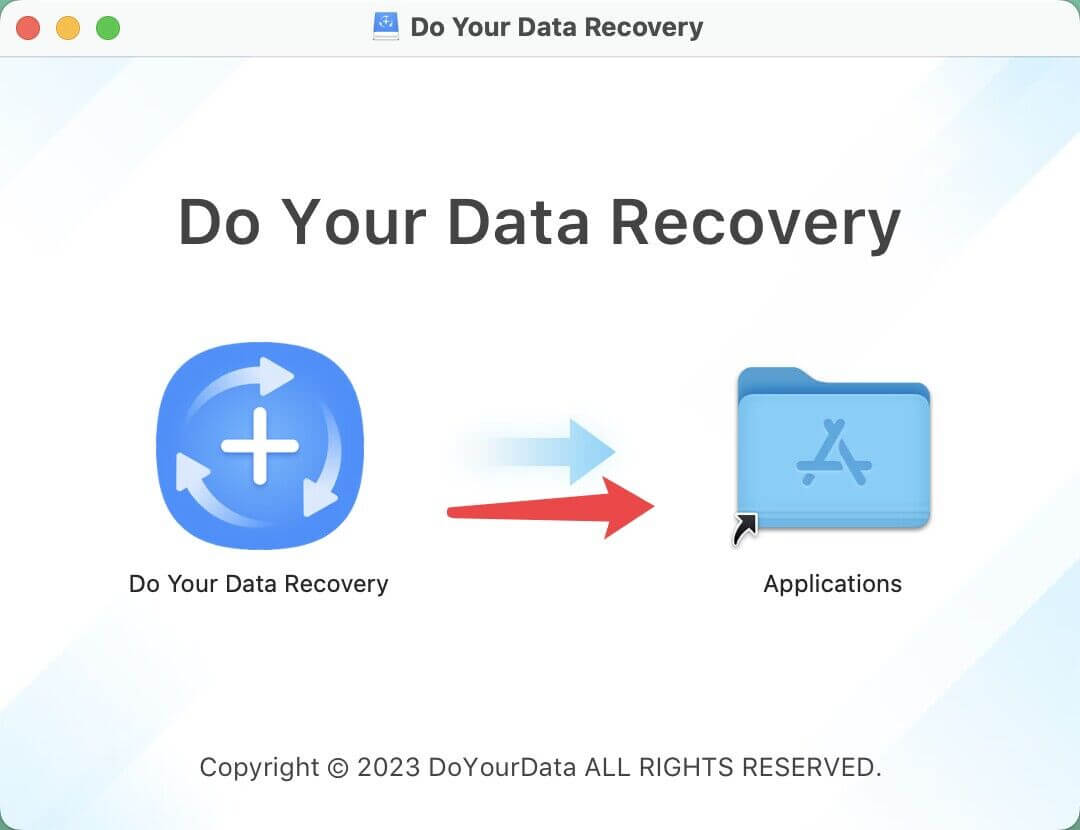
Download the software first. Open your download folder, double-click the installation package, and drag the DoYourData icon directly into your Applications directory. Launch the program from your Launchpad.
Step 2: Choose Your Macintosh HD Storage Volume
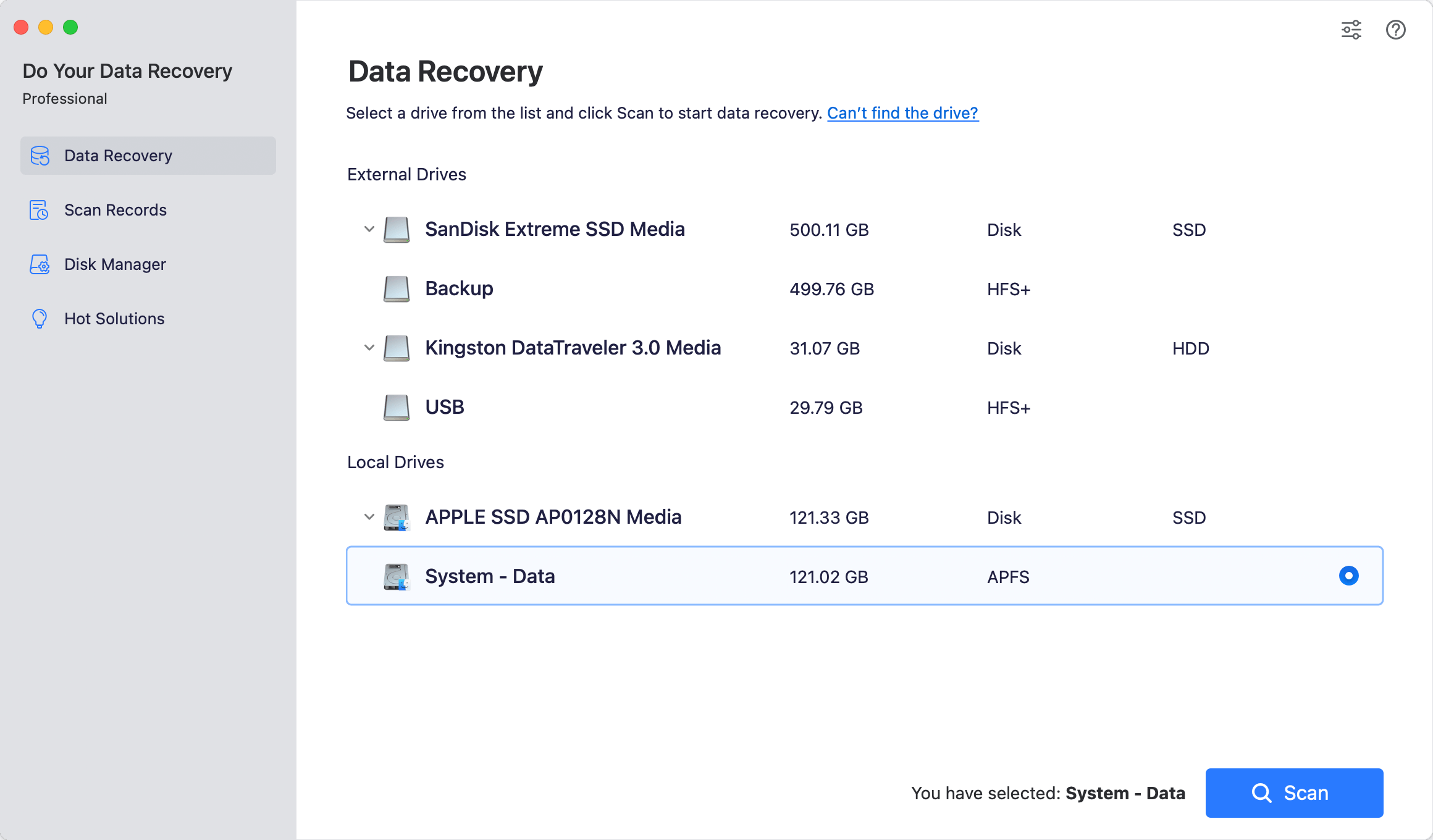
The main software dashboard will open up. Highlight your primary built-in hard drive—typically labeled 'Macintosh HD' or 'Apple SSD'. Click the blue Scan button located in the lower-right corner.
Step 3: Let the Automatic Dual-Layer Scan Run
DoYourData will automatically deploy its optimized scanning framework. It runs a lightning-fast quick scan first, then immediately continues into a deep scan to reconstruct raw file signatures from deep within the storage sectors.

Step 4: Filter and Preview Your Deleted Files
Once the scan finishes, browse through the cleanly organized folders on the left panel (such as Photos, Videos, or Documents) or use the search bar to locate specific file names or file extensions. Click on any item to open the live preview window and verify its health.

Step 5: Recover and Export Your Files to an External Drive
Mark the check-boxes next to the specific folders or files you want to salvage, then click the prominent Recover button. When the folder selection prompt appears, choose your connected external thumb drive or portable hard drive.
Tips: Never save the files back onto your internal MacBook Neo SSD during this stage, as doing so can permanently overwrite other deleted files that are still waiting to be rescued!

FAQs about Deleted File Recovery on MacBook Neo
Final Verdict:
Accidentally losing critical documents or personal photo folders is incredibly stressful, but with specialized modern tools on your side, data loss doesn't have to be permanent. Do Your Data Recovery for Mac offers everyday home users the ideal balance of deep-scanning precision and automated simplicity, perfectly tuned to match the advanced performance of your 2026 MacBook Neo.
Don't let automatic background system operations or cache updates risk your missing files. Secure your download of Do Your Data Recovery today, run a completely free drive scan, and reclaim your important data with absolute peace of mind. Take quick action to secure your files!
Do Your Data Recovery for Mac
Do Your Data Recovery for Mac, one of the best Mac data recovery software, can help you easily and completely recover deleted, formatted or lost files from Mac HDD/SSD, external HDD/SDD, USB drive, memory card, digital camera, or other storage devices.
Written & Updated by Justin Kenny
Justin Kenny is a writer & editor of DoYourData. He joined DoYourData in 2016 and focuses on writing articles about Windows data recovery, Mac data recovery, external device data recovery, hard drive clone, data erasure, Mac cleanup, computer issue fixes, etc. He is a super fan of Apple devices and is big on testing new digital device and system utility software.