How to Get Data Off an Old Hard Drive?
If you have an old hard drive, you may need to get data off it and save the files to a new drive. You can easily move data from the old hard drive if it's still accessible and working normally. If there are issues with the drive and cannot access the data on the drive directly, you can use the software Do Your Data Recovery to recover data from the old hard drive.
 Updated by Justin Kenny on February 04, 2026
Quick Navigation:
- Identify the Type of An Old Hard Drive
- What You Need Before Getting Data Off An Old Hard Drive?
- Methods to Get Data Off An Old Hard Drive
- Recovering Data from a Damaged or Corrupted Drive
- FAQs about Getting Data Off An Old Hard Drive
- Conclusion
Old hard drives often contain valuable data—family photos, work files, school projects, or important documents. Whether the drive came from an old computer, a broken laptop, or a retired external storage device, recovering its data is usually possible with the right tools and methods.
This guide explains how to safely and effectively get data off an old hard drive, even if it no longer boots or isn't detected properly.
Identify the Type of An Old Hard Drive
Before you begin, it's important to know what kind of hard drive you're working with. This determines which cables, adapters, or enclosures you'll need.
Internal vs External
- Internal drives come from desktops or laptops and require adapters or enclosures.
- External drives usually connect directly via USB.
HDD vs SSD
- HDD (Hard Disk Drive): Uses spinning disks, common in older systems.
- SSD (Solid State Drive): Faster, no moving parts, more common in newer devices.
Connection Types
- SATA: Most common in modern drives
- IDE (PATA): Older 3.5" and 2.5" drives
- USB: External drives
Laptop vs Desktop Drives
- 2.5-inch drives: Usually from laptops
- 3.5-inch drives: Usually from desktops
What You Need Before Getting Data Off An Old Hard Drive?
Gathering the right tools will save time and prevent damage.
Essential Tools
- USB-to-SATA/IDE adapter
- External hard drive enclosure
- Working computer (Windows or Mac)
- Power adapter (for 3.5" drives)
- Data cable
Optional Tools
- Data recovery software
- Screwdrivers (for removing drives)
- Anti-static wrist strap
Safety Tips
- Never open the hard drive casing
- Avoid static electricity
- Handle the drive carefully
- Do not drop or shake it
Methods to Get Data Off An Old Hard Drive
Depending on the status of the old hard drive, there are different ways to get data from the drive in different situations. Here we will show you the common ways to get data off an old hard drive.
Method 1: Connect the Drive Using a USB Adapter
This is the easiest and most common method.
- Connect the hard drive to the USB adapter
- Plug the adapter into your computer
- Power on the drive (if required)
- Wait for detection
- Open File Explorer (Windows) or Finder (Mac)
- Copy your files to another drive
If the Drive Appears
You can browse folders and copy data just like a normal USB drive.
If the Drive Doesn't Appear
- Try a different USB port
- Use another cable
- Check Disk Management (Windows) or Disk Utility (Mac)
Method 2: Install the Drive Inside a Desktop PC
If adapters aren't available, installing the drive internally is another option.
- Turn off the PC
- Open the case
- Connect SATA/IDE cables
- Power on the system
- Access the drive via File Explorer
This method is more technical but reliable for stubborn drives.
Method 3: Use an External Hard Drive Enclosure
An enclosure turns your internal drive into an external USB drive.
Benefits:
- Better protection
- Easy plug-and-play
- Reusable
Here is how:
- Insert the drive into the enclosure
- Close it securely
- Connect via USB
- Transfer files
Accessing Data from a Non-Booting Computer
If the old computer won't start, you still have options.
Option 1: Remove the Drive
Take the drive out and connect it to another computer using an adapter.
Option 2: Use a Bootable USB
Create a Linux or recovery USB to access files without booting the main OS.
Option 3: Network Transfer
If the system partially works, transfer files over Wi-Fi or Ethernet.
What If the Drive Is Not Detected?
A drive may fail to show up due to:
- Corrupted file system
- No drive letter assigned
- Bad cable
- Partition errors
Windows Fixes
- Open Disk Management
- Assign a drive letter
- Check for unallocated space
- Run CHKDSK
Mac Fixes
- Open Disk Utility
- Run First Aid
- Mount the disk manually
Recovering Data from a Damaged or Corrupted Drive
When an old hard drive is damaged or corrupted, accessing your files can be more difficult—but not impossible. The success of recovery depends on whether the problem is logical (software-related) or physical (hardware-related). Understanding the difference helps you choose the right recovery method and avoid making the situation worse.
Types of Hard Drive Damage
Logical Damage (Software Issues)
This is the most common and easiest to fix.
Examples:
- Deleted files
- Formatted drive
- RAW file system
- Corrupted partitions
- Virus damage
- File system errors
Good news:
Data recovery software can usually fix these issues.
Physical Damage (Hardware Issues)
These problems involve the drive's internal components.
Examples:
- Clicking or grinding noises
- Drive not spinning
- Burnt electronics
- Water or fire damage
- Dropped hard drive
- BIOS not detecting the drive
Warning:
DIY recovery can make things worse
Professional recovery is recommended
Using Data Recovery Software (For Logical Damage)
If your drive is detected but files are missing or inaccessible, data recovery software is your best option. You can use the reliable and professional tool Do Your Data Recovery to recover the lost data from an inaccessible old hard drive.
What Recovery Software Can Do
- Restore deleted files
- Recover formatted data
- Fix RAW partitions
- Extract data from corrupted file systems
- Recover photos, videos, documents, and emails
Step-by-Step Recovery Process
Step 1: Download and install Do Your Data Recovery on your main system drive — not on the damaged drive.
Do Your Data Recovery
- Most reliable data recovery software for Windows and Mac.
- Recover data from inaccessible, formatted, or lost partition.
- Support data recovery for videos, audio, pictures, documents, etc.
Step 2: Use a USB adapter or enclosure to connect the old hard drive to the computer. Then run the data recovery software and choose the old hard drive.
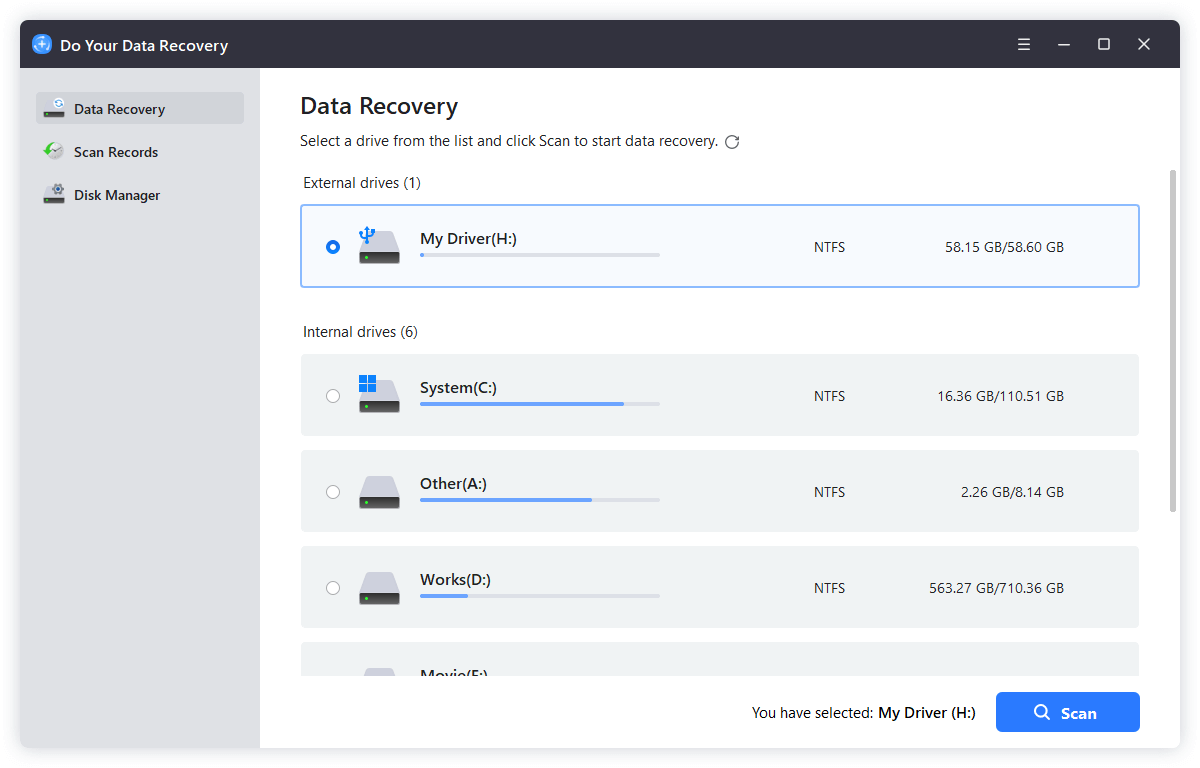
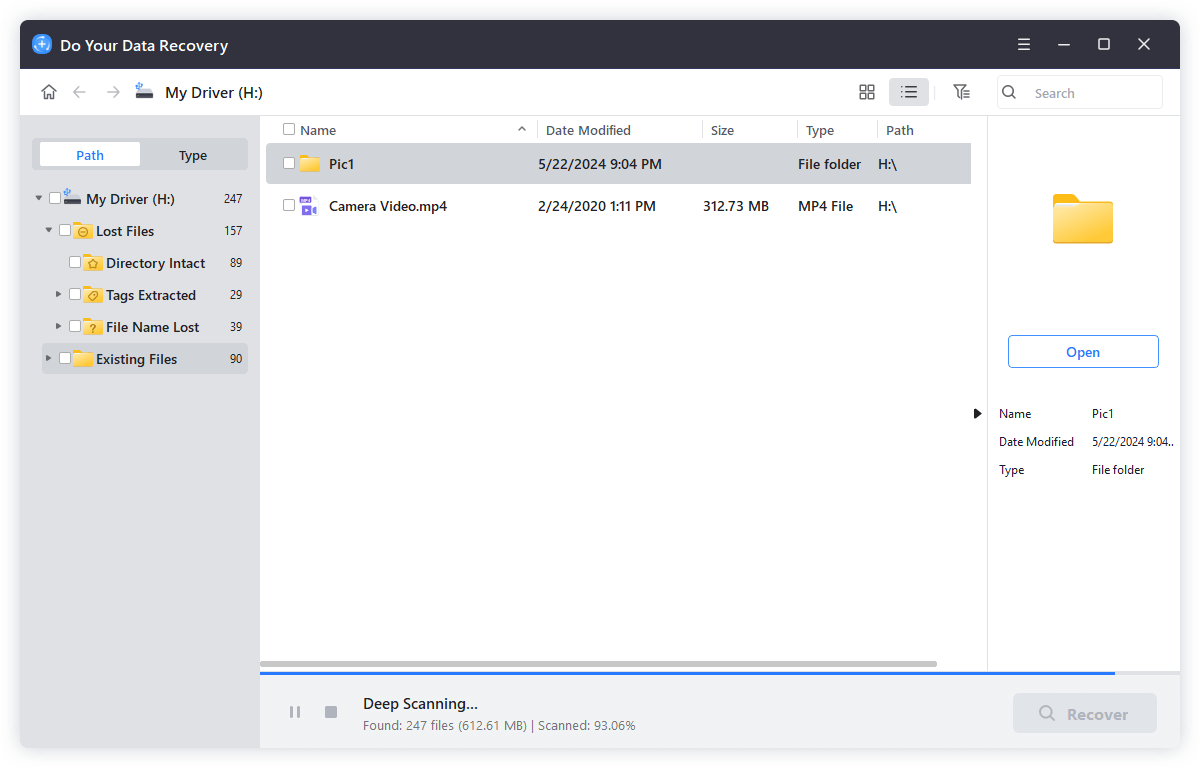
Step 3: Click the Scan button and the software will scan the inaccessible old hard drive. It will run quick scan first and then the deep scan automatically.
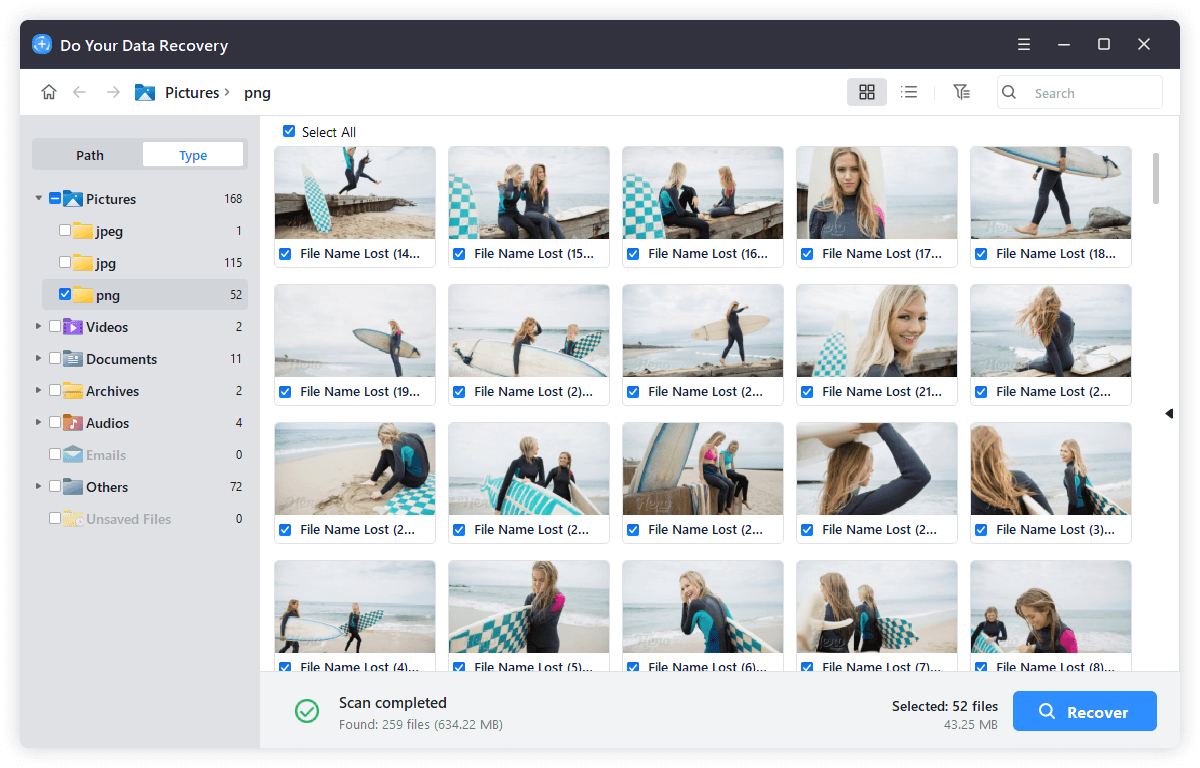
Step 4: After the scanning is finished, you can located the wanted files and the software let you preview photos, documents, and videos. Choose the files and click Recover button to save the files to another drive. Never save recovered files back to the same drive.
Tips for Better Recovery Results
- Stop using the damaged drive immediately
- Avoid formatting it again
- Don't run repair tools before recovery
- Keep the drive cool
- Use deep scan for older drives
When to Use Professional Data Recovery Services
Professional recovery is necessary when:
- The drive makes clicking noises
- It doesn't spin
- It smells burnt
- It was exposed to water
- It suffered a heavy drop
- Firmware is corrupted
What Professionals Do
- Open drives in clean rooms
- Replace damaged parts
- Repair firmware
- Extract platters
- Rebuild data structures
Cost
- Logical recovery: $100–$400
- Physical recovery: $500–$3000+
Success Rate
- Logical issues: Very high
- Mechanical damage: Moderate
- Severe damage: Depends on condition
Risks of DIY Physical Recovery
Never open a hard drive yourself. Why?
- Dust destroys platters
- Static damages electronics
- Misalignment causes data loss
- Permanent damage is likely
Only certified clean-room labs should open drives.
Special Cases
Very Old IDE Drives
You'll need an IDE-to-USB adapter with external power.
Mac vs Windows Drives
Mac drives use HFS+/APFS. Windows drives use NTFS/FAT32. Use cross-platform software if needed. For example, if you want to fully read and write NTFS drive on Mac, you can use the software DoYourData NTFS for Mac.
Encrypted Drives
You'll need the original password or encryption key.
RAID or NAS Drives
These require special reconstruction tools or services.
Backing Up Recovered Data
Once you recover your files, protect them by backing up then to multiple safe places and manage them with proper methods.
3-2-1 Backup Strategy: 3 copies; 2 different medial; 1 off-site.
Best Storage Options
- External hard drives
- Cloud storage
- NAS systems
- USB flash drives
Organization Tips
- Sort by category
- Rename files clearly
- Create folders
After backing up the files to a storage, open important files to ensure they're not corrupted.
Preventing Data Loss in the Future
How to protect your data from data loss in the future? Here are the Best Practices:
- Regular backups
- Use cloud + local storage
- Monitor drive health
- Replace old drives
- Avoid unsafe shutdowns
FAQs about Getting Data Off An Old Hard Drive
Can I recover data from a dead hard drive?
Yes, if the damage is logical. Physical damage may require professionals.
How long does recovery take?
From minutes to several hours depending on size and damage.
Is it safe to open a hard drive?
No. Opening it destroys the clean environment inside.
What if my drive is encrypted?
You need the original password or recovery key.
Conclusion
Getting data off an old hard drive is usually straightforward with the right tools. USB adapters, enclosures, and recovery software can handle most situations. Even if the drive is damaged, professional recovery services offer a last resort.
The key steps are:
- Identify the drive type
- Use the correct connection method
- Copy data safely
- Back up your files
With patience and the proper approach, your valuable data can be saved—no matter how old the drive is.
Do Your Data Recovery
The safe, powerful and easy-to-use data recovery program to help you recover deleted, formatted or lost data, recover lost data from damaged hard drive, from HDD, SSD, USB flash drive, memory card, digital camera, etc, fix damaged drive and external devices.
Written & Updated by Justin Kenny
Justin Kenny is a writer & editor of DoYourData. He joined DoYourData in 2016 and focuses on writing articles about Windows data recovery, Mac data recovery, external device data recovery, hard drive clone, data erasure, Mac cleanup, computer issue fixes, etc. He is a super fan of Apple devices and is big on testing new digital device and system utility software.