How Do I Get Rid of Temporary Files?
There are different methods to remove temporary files from Windows, Mac or mobile devices. For example, if you want to easily get rid of temporary files or any other junk files on Mac, you can use the tool DoYourData MacClean360.
 Updated by Jerena on May 15, 2026
Quick Navigation:
- Why You Should Clear Temporary Files Regularly
- How to Get Rid of Temporary Files on Windows
- How to Get Rid of Temporary Files on macOS
- Cleaning Temporary Files on Mobile Devices
- Managing Browser Junk
- Troubleshooting: Why Won't Some Files Delete?
- FAQs about Temporary Files Cleanup
- Conclusion
Temporary files are like the digital dust bunnies of your computer or smartphone. They accumulate silently in the background while you browse the web, install software, or update your operating system. While they serve a purpose in the short term—helping apps load faster or supporting active installations—they often outstay their welcome.

Over time, these files can eat up gigabytes of storage, leading to sluggish performance, software glitches, and the dreaded "storage full" notification. If you’ve been wondering, "how do I get rid of temporary files?" you’re in the right place. This guide provides a step-by-step walk-through to reclaim your storage and speed up your devices safely.
Why You Should Clear Temporary Files Regularly
Before we dive into the "how," let's talk about the "why." Cleaning your system isn't just about making room for new photos; it's about digital hygiene.
- Recover Massive Disk Space: Collectively, small temp files can consume significant storage.
- Boost Performance: Clearing junk helps optimize file indexing and system operations.
- Resolve Software Glitches: Corrupted cache files are often the culprit behind app crashes.
- Protect Your Privacy: Browser caches store your history and session data.
How to Get Rid of Temporary Files on Windows
Windows is notorious for generating a high volume of temporary data. Here are the most effective ways to clean house.
Method 1. The Modern Way: Windows Storage Settings
For Windows 10 and 11 users, the built-in storage settings offer the most transparent way to see what is taking up space.
- Open Settings and navigate to System > Storage.
- Click on Temporary Files.
- Windows will scan your drive and categorize the junk, including Windows Update Cleanup, Recycle Bin, and Downloads.
- Select the categories you want to clear and click Remove Files.

Method 2. The Classic Way: Disk Cleanup
If you prefer the "old school" but reliable method, Disk Cleanup is still your best friend.
- Press Windows + S and type Disk Cleanup.
- Select your primary drive (usually C:).

- To go deeper, click Clean up system files. This allows you to delete old Windows installation folders (Windows.old) which can be tens of gigabytes in size.

Method 3. Automated Cleanup with Storage Sense
Don't want to do this manually? Enable Storage Sense to let Windows handle it for you.
Go to Settings > System > Storage and toggle on Storage Sense.

You can configure it to run daily, weekly, or monthly, and even set it to empty your Recycle Bin automatically.
How to Get Rid of Temporary Files on macOS
macOS manages files differently, but it still stores significant amounts of cache and logs.
Method 1. Manual User Cache Removal
- Open Finder and click Go > Go to Folder.
- Type ~/Library/Caches and press Enter.
You can delete the contents of these folders. However, avoid deleting the folders themselves.
Method 2. Built-in Storage Management
Click the Apple Menu > System Settings > General > Storage. macOS will provide tailored recommendations to optimize your storage and remove large files you no longer need.

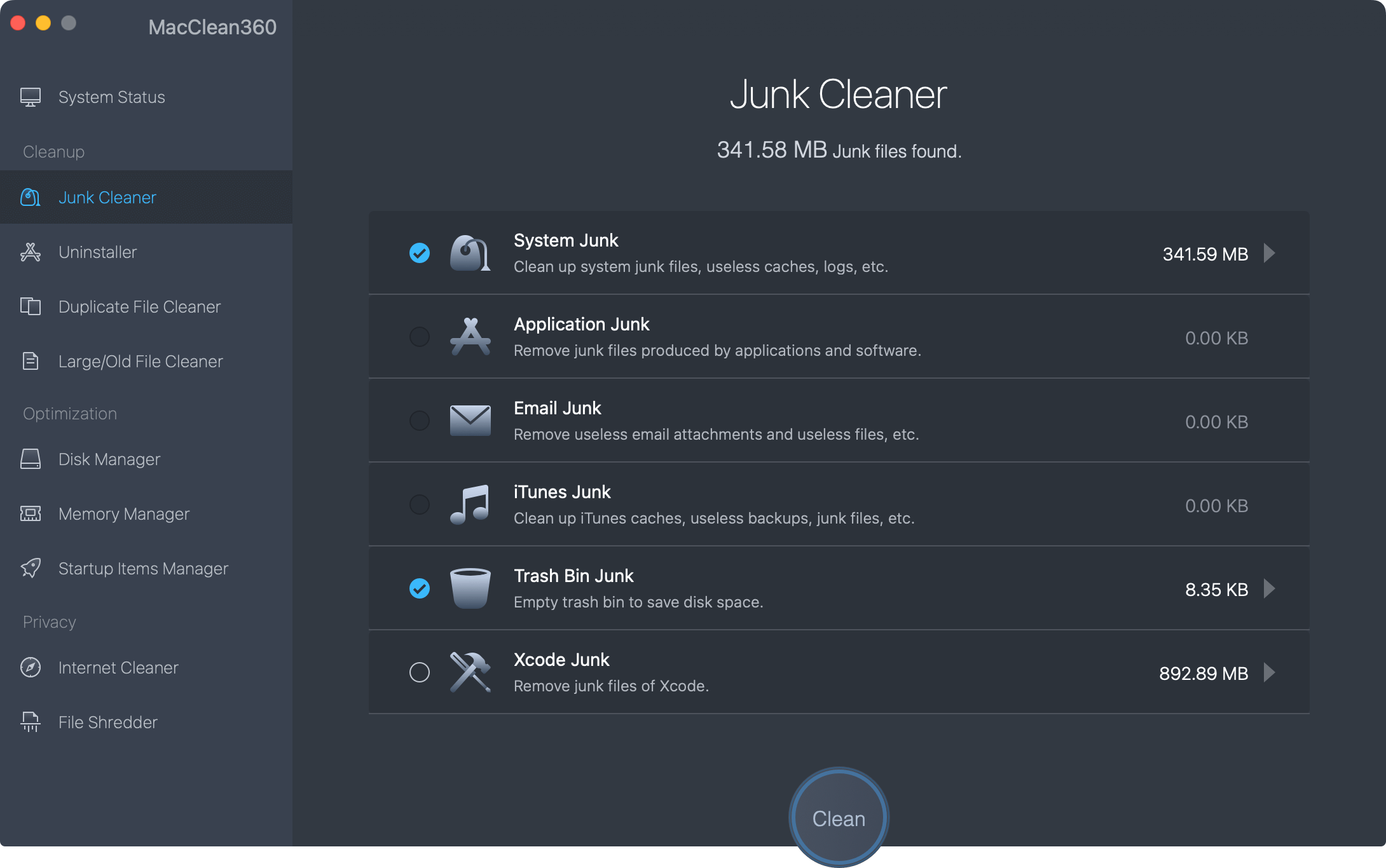
Method 3. Professional Cleanup with DoYourData MacClean360
While manual cleaning works, macOS hides many system caches and "Other" data that are hard to find. DoYourData MacClean360 is a professional-grade tool designed to deep-clean your Mac with one click.
MacClean360 - Best Mac Cleaner
- Easily clear temporary files or other junk data.
- Comprehensive cleanup and optimization tool.
- Safe and easy to free space and speed up Mac.
The software offers full of features to clear temporary files or other junk data on Mac:
- Junk Cleaner: It scans for system junk, app cache, logs, and mail attachments that the built-in utility might miss.
- App Uninstaller: When you drag an app to the Trash, it often leaves behind "residue" files. MacClean360 removes every trace.
- Duplicate Finder: It identifies and removes identical files that are wasting space.
- Performance Tools: Beyond just cleaning, it helps manage startup items to speed up your boot time.
Cleaning Temporary Files on Mobile Devices
Android: Clear App Cache
Android apps can accumulate massive caches over time.
Go to Settings > Apps, select a heavy app (like TikTok or Chrome), tap Storage, and hit Clear Cache.

📍 Note: Avoid "Clear Data" unless you want to log back into the app from scratch.
iPhone: Offload and Refresh
iOS is more restrictive, but you can still reclaim space.
- Clear Safari Cache: Go to Settings > Safari > Clear History and Website Data.

- Offload Apps: Go to Settings > General > iPhone Storage and enable Offload Unused Apps. This deletes the app but keeps your personal data intact.

Managing Browser Junk
Regardless of your device, your web browser is likely the biggest creator of temporary files
Browser |
How to Clean |
|---|---|
Google Chrome |
Three dots > Settings > Privacy and Security > Clear browsing data. |
Microsoft Edge |
Settings > Privacy, search, and services > Choose what to clear. |
Safari (Mac) |
Safari > Preferences > Privacy > Manage Website Data > Remove All. |
Firefox |
Settings > Privacy & Security > Cookies and Site Data > Clear Data. |
Troubleshooting: Why Won't Some Files Delete?
If you encounter an "Access Denied" or "File in Use" error, don't panic.
- Restart Your Device: This closes background processes that may be "locking" the files.
- Close Running Apps: Ensure the specific program associated with the file is fully closed.
- Use Safe Mode: In Windows, booting into Safe Mode allows you to delete stubborn system-level temp files.
FAQs about Temporary Files Cleanup
- Regular Users: Once a month.
- Gamers & Power Users: Every two weeks.
- Low Storage Devices: Weekly to prevent performance drops.
Conclusion
Getting rid of temporary files is one of the easiest ways to maintain a healthy, fast device. Whether you use the built-in Windows tools, manage your iPhone storage, or use a dedicated cleaner like DoYourData MacClean360 for your Mac, the result is the same: more space and a smoother experience. Make digital cleaning a part of your routine, and your hardware will thank you!
MacClean360
All-in-one Mac maintenance tool to clean up all types of junk data by 1 click, remove old/duplicate files, uninstall unwanted apps, clean up browser junk data, manage disk, permanently shred files, speed up slow Mac, manage startup items on Mac.
Written & Updated by Jerena
Jerena is an senior editor of DoYourData. Since 2017, Jerena has written hundreds of articles about computer technology, Mac optimization, data recovery, data erasure, disk clone, hard drive fixes, NTFS for Mac, etc. She likes to help users to solve computer issues and recover lost data, etc.