How to Securely Erase SSD on MacBook Neo?
How to permanently erase data from SSD on MacBook Neo? Using the software DoYourData Super Eraser, which is optimized for A18 Pro MacBook Neo. The software can wipe data in different way and make sure the wiped data is no longer recoverable.
 Updated by Shirly Chen on May 22, 2026
Quick Navigation:
- The Reality of Modern SSDs: Why the Old Methods Fail
- Step-by-Step Guide: How to Securely Erase SSD on MacBook Neo
- FAQs Regarding MacBook Neo SSD Data Erasure
- Final Thoughts
So, you are ready to upgrade, pass along, or trade in your brand-new MacBook Neo? That is exciting! But before you clean the screen and pack it into its original box, there is one critical thing you need to handle: your data. Our laptops hold everything—from financial tax forms and saved browser passwords to deeply personal photos and work documents. Simply dragging these files into the Trash and emptying it does not actually delete them; it just hides them from your sight until new data overwrites them.
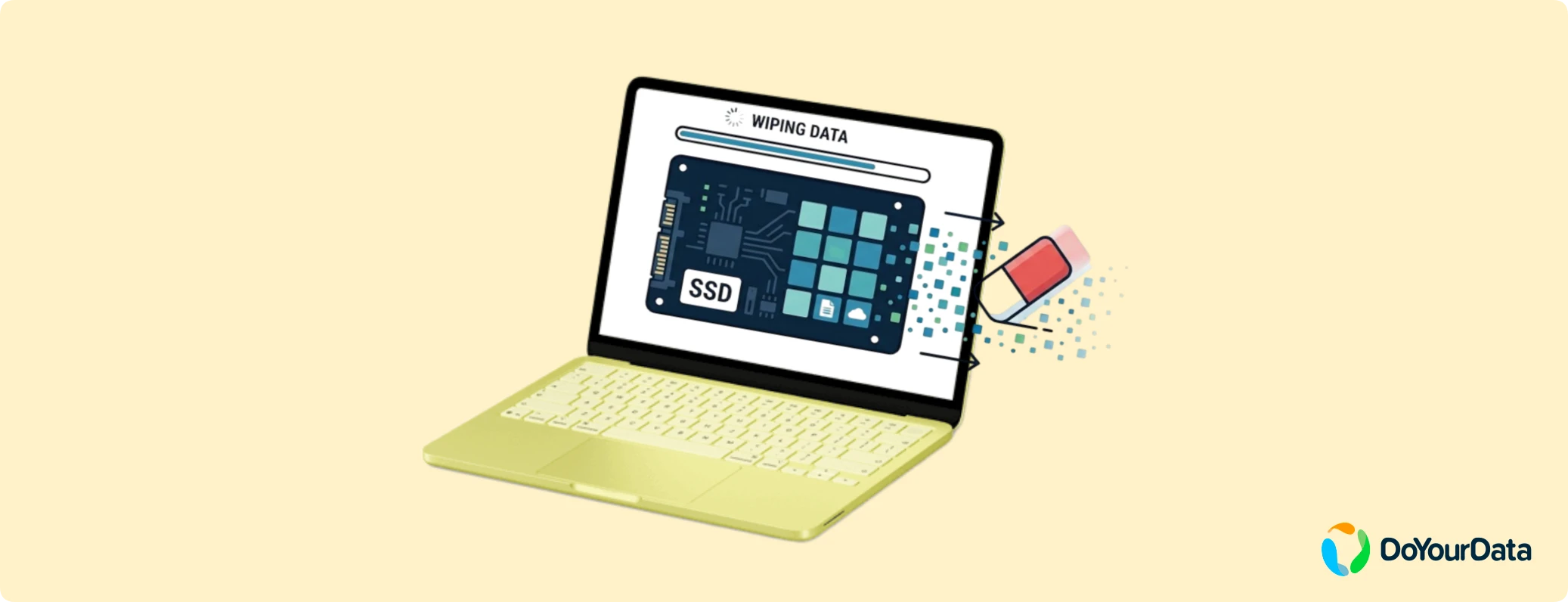
If you want to protect your privacy and ensure your sensitive files are gone for good, you need a true, military-grade wipe. In this comprehensive guide, we will break down exactly how to securely erase SSD on MacBook Neo step by step. We will also dive into the hardware realities of the 2026 MacBook Neo, explain why standard built-in tools might leave you exposed, and introduce you to professional software like DoYourData Super Eraser for Mac to give you total peace of mind. Let’s dive right in!
The Reality of Modern SSDs: Why the Old Methods Fail
If you have ever wiped an older Mac with a traditional Hard Disk Drive (HDD), you probably remember overwriting the drive multiple times with zeros to obliterate the files. However, the MacBook Neo utilizes an ultra-fast, state-of-the-art solid-state drive (SSD). SSDs store data completely differently than older mechanical hard drives, meaning those traditional secure-erase tricks no longer work.
Modern Mac SSDs rely on an internal management system known as the Flash Translation Layer (FTL) and sophisticated wear leveling. When you delete a file, the FTL moves data around continuously to ensure all parts of the storage chip wear out at the exact same rate. Because of this, standard built-in formatting utilities like Apple's Disk Utility cannot pinpoint specific physical blocks to overwrite them. Worse yet, leftover data traces often linger in hidden sectors or backup blocks, easily recoverable by specialized data recovery software.
Step-by-Step Guide: How to Securely Erase SSD on MacBook Neo
To solve the unique challenges of modern SSD architectures and passive thermal cooling, DoYourData Super Eraser for Mac stands out as the ultimate choice. This professional-grade data erasure software is designed to safely bypass the Flash Translation Layer, targeting deep, hidden blocks of your SSD to ensure that once your files are wiped, they are gone forever. No recovery software on earth—not even what is used by state intelligence agencies—can bring them back.
DoYourData Super Eraser for Mac
- Optimized for A18 Pro MacBook Neo to make it run smoothly.
- Utilize certified algorithms, including DoD 5220.22-M, NIST SP 800-88, etc
- Completely wipe and overwrite data to avoid data recovery.
Key Features at a Glance:
- Erase Files/Folders: Selectively shred specific private files or folders without wiping your entire computer.
- Wipe Free Disk Space: Permanently erase the invisible fragments of previously deleted files without touching your existing data.
- Wipe Entire Hard Drive: Commercially sanitize the entire SSD before selling or giving away your MacBook Neo.
- Apple Silicon Compatible: Full native integration with M-series architectures and macOS Tahoe/Sequoia frameworks.
Ready to secure your machine? Below is the complete home-user roadmap to securely erase your data using DoYourData Super Eraser for Mac.
🎈 Please remember: Data erasure is completely permanent. Before you begin, double-check that you have backed up any precious photos or important files to another drive.
Option 1: Selectively Erasing Sensitive Files and Folders
If you plan to keep using your Mac but want to make sure specific confidential files—like banking details or corporate documents—are completely unrecoverable, follow these steps:
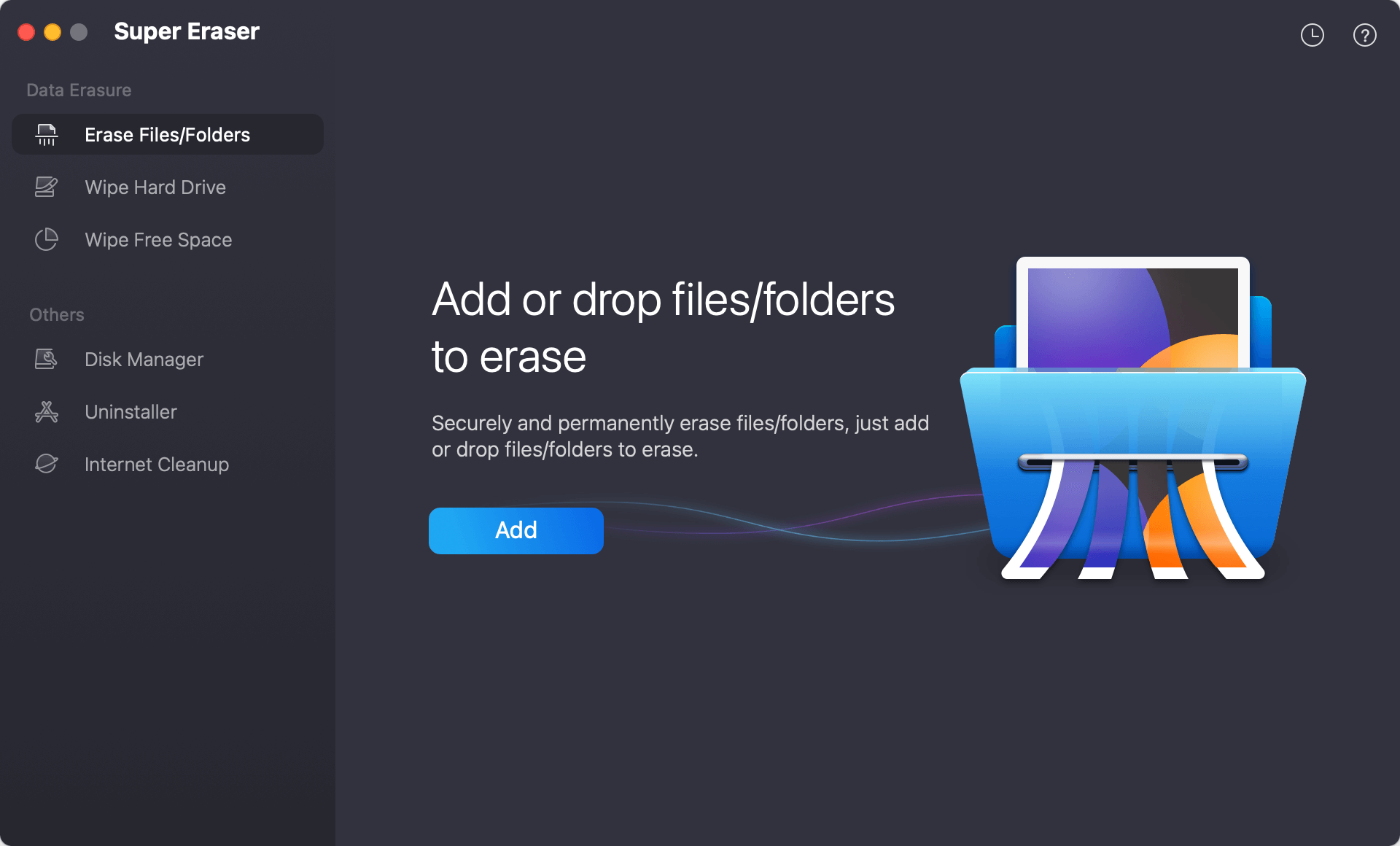
Step 1: Launch the application and select the first module on the left side menu: Erase Files/Folders.
Step 2: Click the Add button to select the specific files or folders you want to destroy. You can browse through your documents or drag and drop them directly into the window.
Step 3: Choose a data erasure standard and start shredding files. The software will bypass the wear-leveling layers, overwrite the selected files at a block level, and completely shred them within seconds.
Option 2: Full Drive Decontamination Before Sale
If you are passing your external SSD along to a complete stranger, you need to make sure all your personal data is gone forever from the SSD. Here is how to erase everything safely:
Step 1: Run the software and choose Wipe Hard Drive module. Select the external SSD you want wipe completely.
Step 2: Select a data wiping method to start wiping all data from the selected SSD.
Step 3: Once it' done, all data is gone for good. There is no problem to sell or donate it.
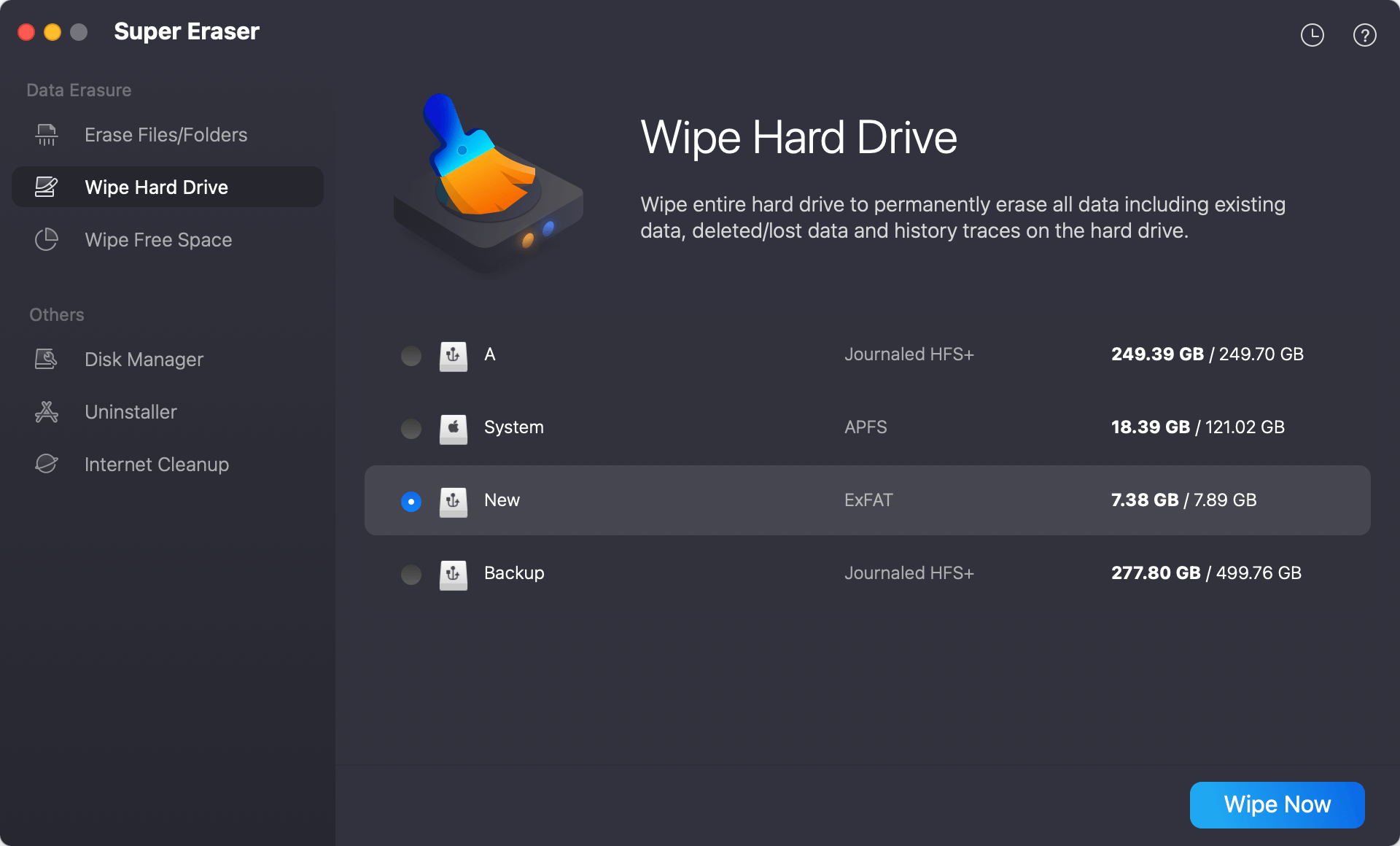
🪧 How to wipe Apple SSD of MacBook Neo? Normally, it's not able to wipe the system drive directly. If you want to do that, you can first factory reset the macOS to ensure all personal data is removed. Then run DoYourData Super Eraser for Mac to wipe free space of the MacBook Neo system SSD.
Option 3: Wiping Residual Deleted Data via 'Wipe Free Space'
Have you already dragged tons of old files into your Trash and emptied it over the months? Those files are still resting silently in your SSD storage blocks. To scrub those invisible traces away without altering your current apps or operating system settings, use this method:
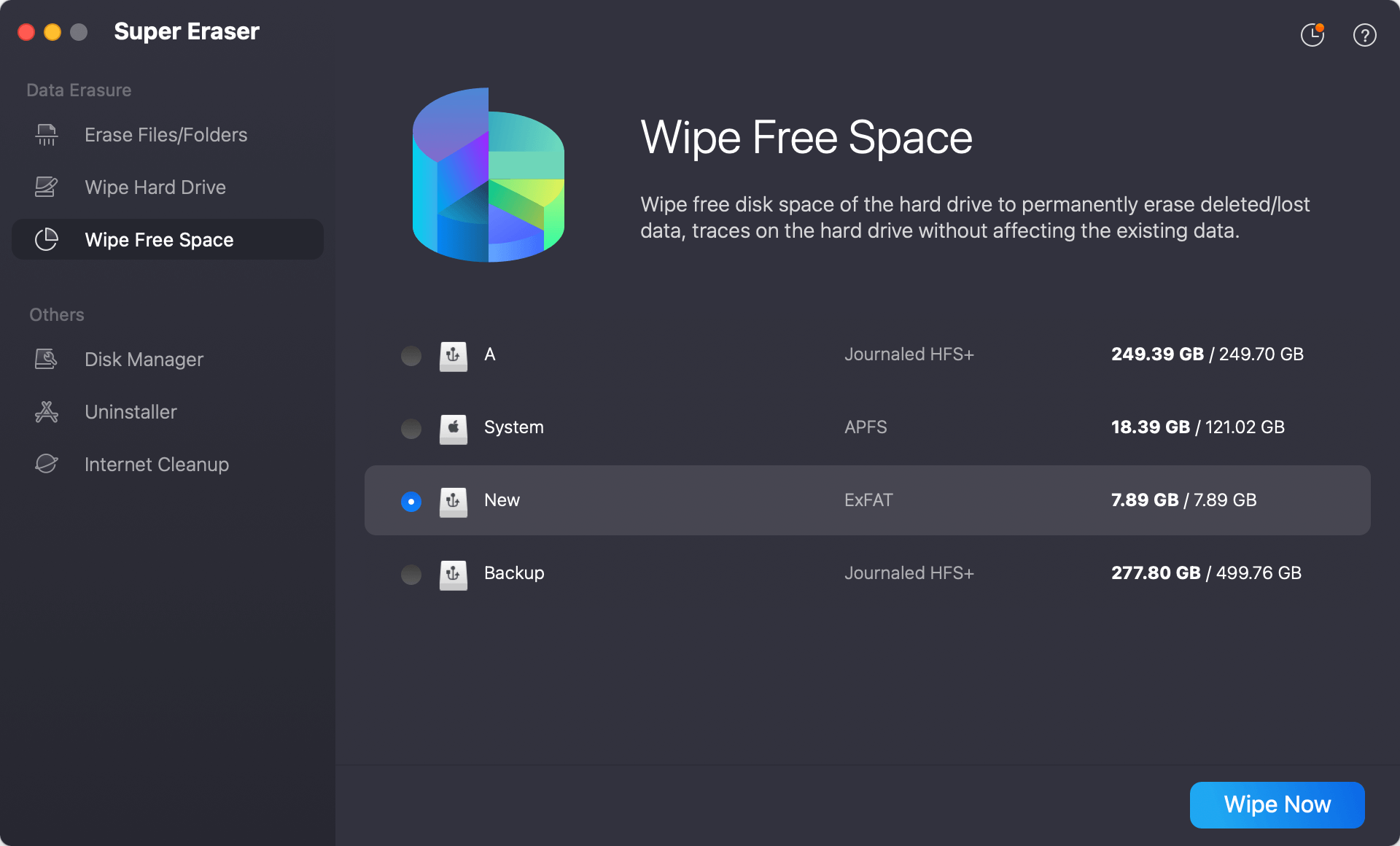
Step 1: Navigate to the third module in the sidebar panel labeled Wipe Free Space.
Step 3: Check the box next to your primary Macintosh HD SSD partition.
Step 4: The program will scan the unallocated space on your SSD and securely overwrite it, permanently destroying any hidden, previously deleted data traces while leaving your current active files entirely untouched.
FAQs Regarding MacBook Neo SSD Data Erasure
Final Thoughts:
Taking the time to securely wipe your drive is the single best way to safeguard your personal life and professional data before saying goodbye to a computer. By understanding the special hardware balance of the MacBook Neo's fanless design and avoiding outdated wiping techniques, you protect both your privacy and your premium hardware.
With a trusted, dedicated tool like DoYourData Super Eraser for Mac, the process becomes incredibly straightforward, completely safe, and 100% permanent. Don't leave your personal security to chance—shred your data, wipe your free space, and step forward with absolute peace of mind!
DoYourData Super Eraser for Mac
DoYourData Super Eraser for Mac is a 100% safe, powerful and easy-to-use data erasure program. It offers certified data erasure standards including Peter Gutmann, U.S. Army AR380-19, DoD 5220.22-M ECE to permanently erase data from Macs and external devices, making data recovery be impossible.
Written & Updated by Shirly Chen
Shirly Chen has been writing data recovery, data erasure articles for DoYourData over 4 years. She has been working as a professional website content writer & editor for quite a long time. She also writes articles about disk clone, Mac optimization, disk backup, etc.