How to Clear Free Disk Space on MacBook Neo Securely
Deleting files from MacBook Neo will not ensure the deleted data is unrecoverable. In some cases, you may need to ensure the deleted files are gone forever. DoYourData Super Eraser can permanently clear free disk space and completely clear the deleted information.
 Updated by Shirly Chen on May 25, 2026
Quick Navigation:
- Why Standard Mac Cleanup Tools Fall Short
- Ultimate Solution to Erase Free Space on MacBook Neo
- Bonus: Safe Habits to Maximize Storage Efficiency
- FAQs about Wiping Free Disk Space
- Conclusion
The cutting-edge MacBook Neo, running on the advanced architecture of macOS Tahoe, delivers spectacular speed and performance. However, like any hardware powerhouse, it eventually runs into the universal challenge of digital management: accumulating clutter. Whether you are dealing with dense creative files, continuous browser caches, or bulky system files, keeping your storage clean is critical to sustaining peak system speeds.
But here is a fundamental risk that most standard cleanup guides completely skip: clicking 'Move to Trash' and choosing 'Empty Trash' does not actually delete your data. Until new data overwrites that exact sector, the original file remains fully intact behind the scenes. This leaves a massive window of vulnerability where anyone with commercial, off-the-shelf data recovery software can scan your drive and reconstruct your private files, financial documents, or intellectual assets. To truly safeguard your privacy, you must learn how to clear free disk space on MacBook Neo securely.
Why Standard Mac Cleanup Tools Fall Short
If you browse the web for advice on optimizing Mac storage, you will find hundreds of identical articles suggesting you empty your trash, delete old iOS backups, or clear browser cookies. While these steps are fine for regaining nominal storage capacity, they create a false sense of security regarding privacy. Here is the critical information those standard articles lack:
- Modern SSD Incompatibility: Standard tutorials often reference outdated methods like using the native Disk Utility 'Erase Free Space' slider or Terminal commands (such as 'srm'). On modern MacBook Neo models equipped with high-speed solid-state drives (SSDs), Apple has disabled these features entirely. This is because SSD architecture utilizes wear leveling controllers to spread data write operations evenly across cells, meaning older data overwriting tools are completely ineffective and can shorten your hardware's lifespan.
- Hidden App Traces: Deleting an application by dragging it to the trash leaves behind dozens of system links, including configuration files, local caches, and deep registry keys buried inside hidden folders. These orphaned fragments occupy valuable disk space and retain operational traces that can compromise your user privacy.
- Recovery Exposure: Simply emptying your Trash changes nothing about the files previously written to the disk. They sit in the unallocated space waiting to be overwritten. For an active home user, weeks or months might pass before those blocks are naturally rewritten by macOS, exposing sensitive personal data to extraction tools.
Ultimate Solution to Erase Free Space on MacBook Neo
To bridge this gap and provide an enterprise-grade security layer optimized for everyday home users, a dedicated tool is necessary. DoYourData Super Eraser for Mac is a powerful, highly sophisticated software suite designed to completely eradicate digital footprints without compromising the operational integrity or structural lifespan of your MacBook Neo's SSD storage. It complies with modern data protection standards, ensuring that once a file or empty sector is wiped, it is permanently non-recoverable by any technology on earth.
DoYourData Super Eraser for Mac
- Wipe free disk space to make the removed data gone forever.
- 3 data erasure modes for file shredding and data wiping.
- Permanently wipe data and guarantee the data is unrecoverable
💡 Note: Because the MacBook Neo runs on advanced SSD technology, native Apple features will not securely overwrite free space. DoYourData Super Eraser for Mac utilizes specialized algorithms designed specifically to navigate SSD controllers safely and efficiently.
Steps to Clear Free Disk Space Securely Using DoYourData
DoYourData Super Eraser for Mac features a highly streamlined, intuitive visual interface that makes professional-grade file destruction simple for any home user. Follow these precise steps to clear your free space securely:
Step 1: Launch the application and select the option titled 'Wipe Free Space'. Check the box next to your primary startup drive (typically named 'Macintosh HD') or select any secondary external drive where you have recently removed sensitive data.
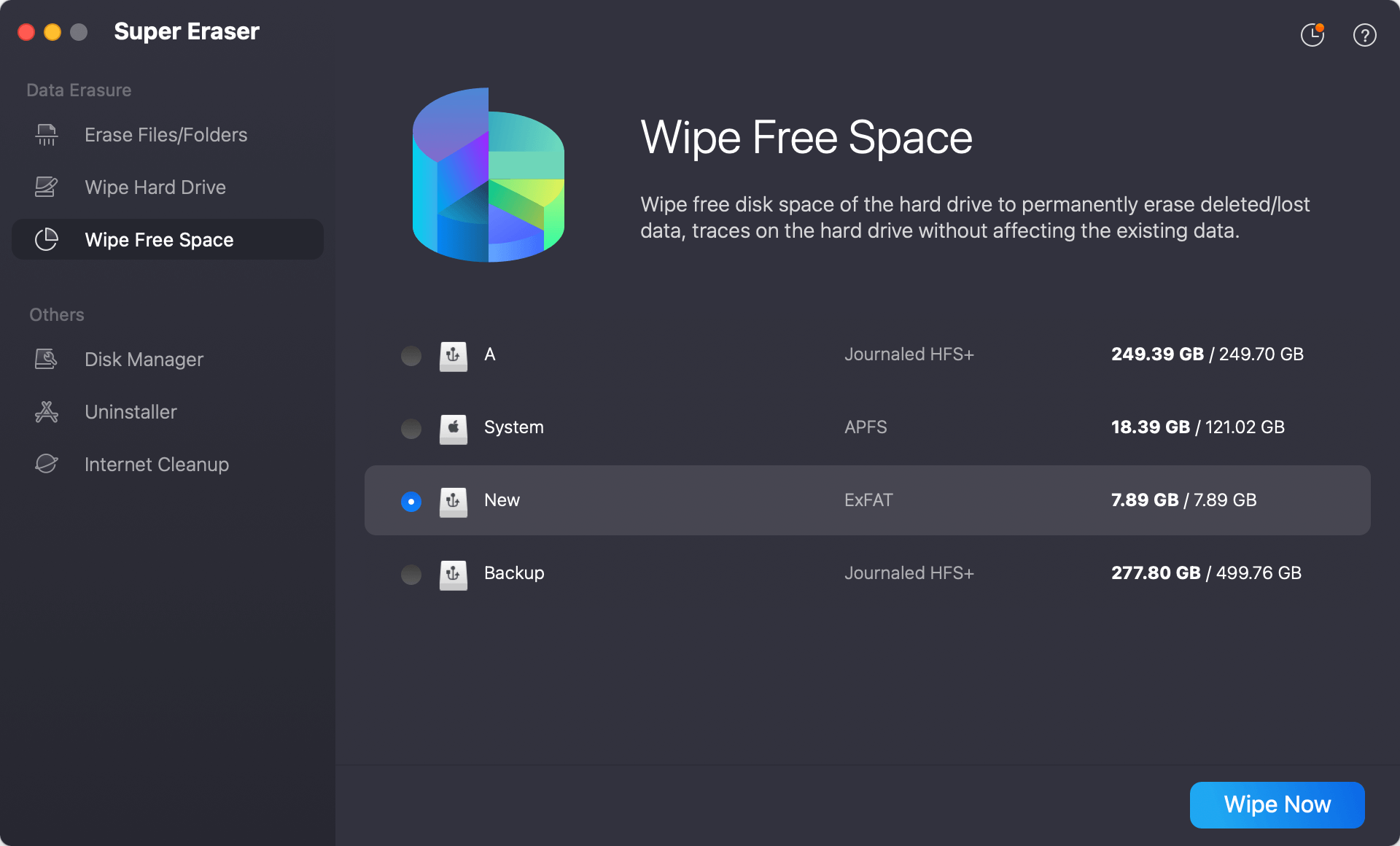
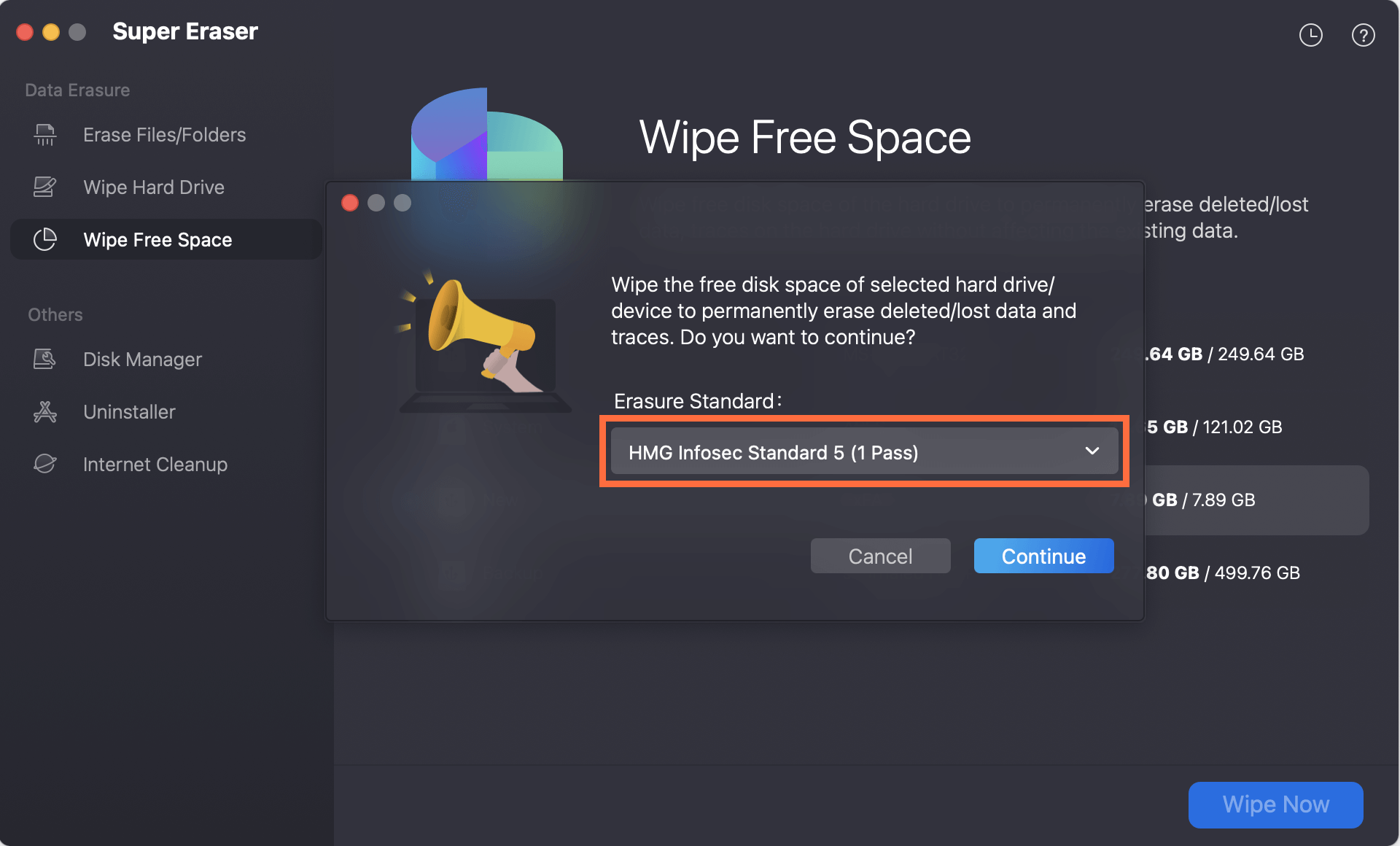
Step 2: Click the Wipe Now button located at the bottom right corner of the application screen. DoYourData Super Eraser will ask you to select a secure erasure algorithms to completely overwrite all deleted fragments.
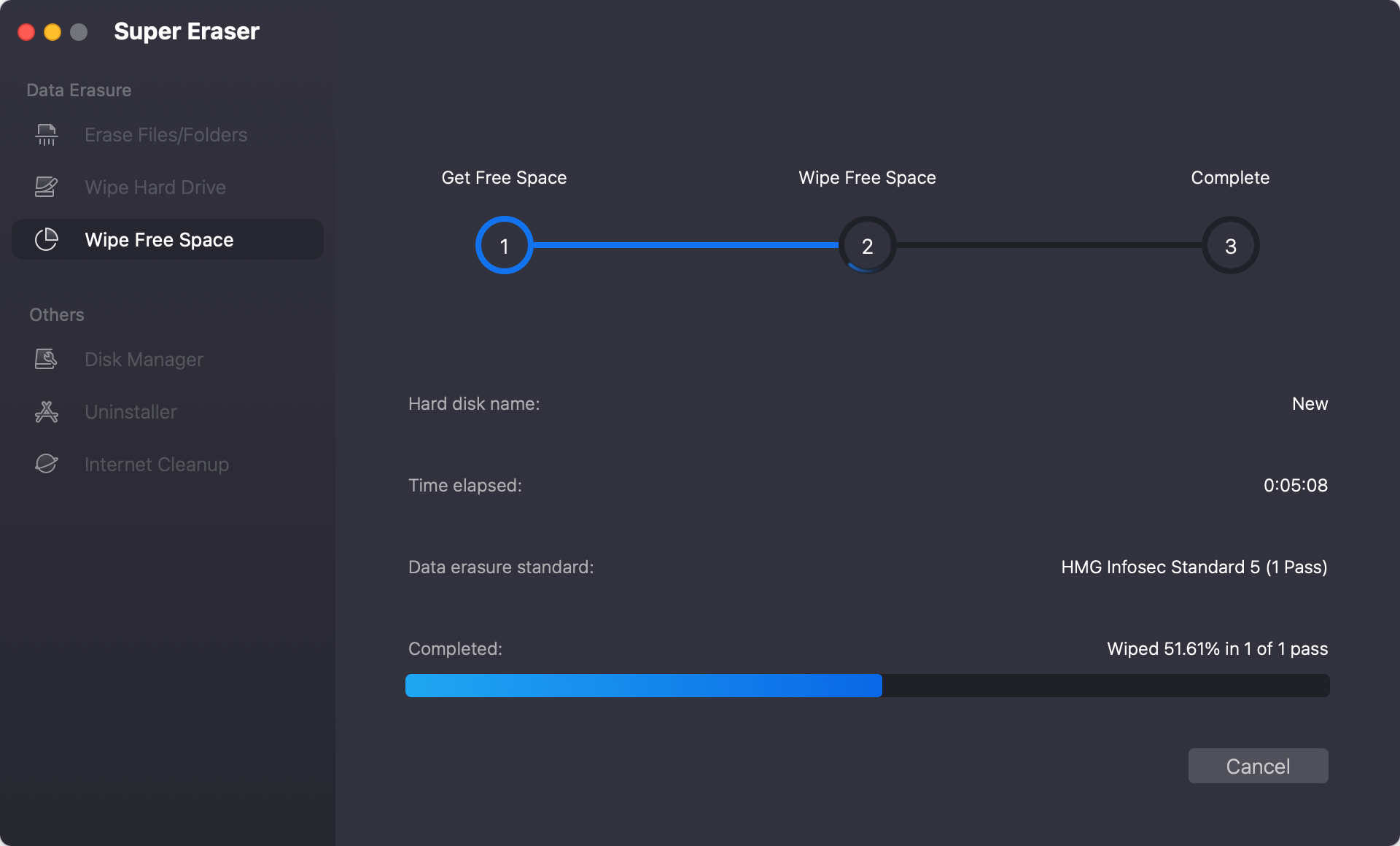
Step 3: Allow the software to execute its workflow uninterrupted. Because secure erasure writes pseudorandom data sequences over the empty sectors, this process may take some time depending on the size of your free space.
Once complete, you will receive a clean, clear confirmation screen signaling that your free disk space is fully secured against all forms of data recovery.
Bonus: Safe Habits to Maximize Storage Efficiency
To complement your newly secured free space and maintain a lean, peak-performing MacBook Neo, incorporate these simple, native housekeeping habits into your monthly digital routine:
- Leverage Native Storage Tools: Go to the Apple menu -> System Settings -> General -> Storage. Review the tailored recommendations provided by macOS Tahoe to automate cloud offloading via iCloud, clear watched TV shows, and automatically schedule the removal of standard trash items after 30 days.
- Surgical Cache Removal: Open Finder, click on the 'Go' menu in the top status bar while holding down the 'Option' key to reveal the hidden 'Library' folder. From there, navigate into the 'Caches' directory. You can safely clear application caches that have ballooned over time; if an active application requires them, it will simply recreate a clean version when reopened.
- Locate Hidden Mega Files: Open Finder, hit Command + F to activate search filters, and modify the criteria dropdown from 'Kind' to 'File Size'. Adjust the next parameter to 'is greater than' and input 500 MB. This instant, system-wide scan spotlights forgotten 4K video rendering projects, old installers (.dmg), and massive zip files that are choking your disk space.
FAQs about Wiping Free Disk Space
Conclusion
Maintaining a fast, optimized MacBook Neo is essential for productivity, but protecting your data privacy is equally critical. Simply deleting files and emptying your Trash leaves invisible fragments behind that anyone with basic file recovery software can easily retrieve. Because modern Apple SSD architecture has rendered native disk overwriting methods obsolete, a smart, dedicated utility is required to secure your unallocated drive space. By implementing a professional solution like DoYourData Super Eraser for Mac, you bridge this tech gap entirely. Its advanced, SSD-safe algorithms overwrite your free disk space with complex pseudorandom patterns, ensuring your deleted personal files, financial data, and credentials are permanently gone and physically non-recoverable. Take control of your digital privacy today—download DoYourData Super Eraser for Mac and safely clear your free space with total peace of mind.
DoYourData Super Eraser for Mac
DoYourData Super Eraser for Mac is a 100% safe, powerful and easy-to-use data erasure program. It offers certified data erasure standards including Peter Gutmann, U.S. Army AR380-19, DoD 5220.22-M ECE to permanently erase data from Macs and external devices, making data recovery be impossible.
Written & Updated by Shirly Chen
Shirly Chen has been writing data recovery, data erasure articles for DoYourData over 4 years. She has been working as a professional website content writer & editor for quite a long time. She also writes articles about disk clone, Mac optimization, disk backup, etc.