Top 5 Data Recovery Software for macOS Tahoe in 2026
When data loss happened on macOS Tahoe, it's essential to recover the data immediately with a reliable software. Here in this guide, a few professional and effective Mac data recovery software is recommended, such as Do Your Data Recovery for Mac. You can download the software to help you get back missing files easily.
 Updated by Justin Kenny on January 15, 2026
Quick Navigation:
- How to Evaluate Data Recovery Software for macOS Tahoe?
- 5 Best Data Recovery Software for macOS Tahoe
- FAQs about macOS Tahoe Data Recovery
- Final Verdict
Data loss remains one of the most disruptive problems for Mac users—especially after major operating system upgrades like macOS Tahoe. Whether files disappear after an OS update, a disk is accidentally formatted, or an external drive becomes unreadable, the urgency to recover lost data is real. While Apple continues to strengthen system security and file system integrity, those same protections can complicate data recovery if the right tools are not used.
macOS Tahoe introduces updated APFS behavior, stricter permissions, and deeper system-level safeguards. As a result, not all legacy data recovery tools perform reliably on this version of macOS. Choosing compatible, read-only, and actively maintained software is critical to ensure successful recovery without risking further data corruption.

This article evaluates the top 5 data recovery software for macOS Tahoe, based on real-world recovery scenarios, performance, ease of use, and overall value. Whether you are a casual user or a technical professional, this guide will help you choose the right recovery solution for your specific needs.
How to Evaluate Data Recovery Software for macOS Tahoe?
To ensure accuracy and relevance, each tool was evaluated using the following criteria:
macOS Tahoe Compatibility
- Full support for the latest macOS Tahoe system architecture
- Compatibility with Apple silicon (M-series) and Intel Macs
File System and Device Support
- APFS and HFS+ recovery
- External drives, SSDs, USBs, SD cards, and Time Machine disks
Recovery Scenarios
- Accidental deletion
- Formatted or erased disks
- Corrupted partitions
- macOS upgrade failures
Performance and Reliability
- Scan speed and depth
- File detection accuracy
- Stability during long scans
Usability and Features
- Clean interface and guided recovery
- File preview before recovery
- Filtering and search options
Pricing and Value
- Free scan or preview availability
- Transparent licensing models
- Fair pricing relative to features
5 Best Data Recovery Software for macOS Tahoe
Top 1. Do Your Data Recovery for Mac — Best Overall
Do Your Data Recovery for Mac consistently ranks as the most balanced data recovery tool for Mac users, and its compatibility with macOS Tahoe makes it the top overall choice.
Key Features
- Full support for APFS and HFS+
- Recovery from internal and external drives
- Deep scan and quick scan modes
- File preview before recovery
- Extra disk health and protection tools
Do Your Data Recovery for Mac’s interface is designed for non-technical users, guiding them through the recovery process step by step. On macOS Tahoe, it performs particularly well when recovering accidentally deleted files and data lost after OS upgrades.
| ✅ Pros: | ❌ Cons: |
|---|---|
|
|
Best Use Case
Do Your Data Recovery for Mac is ideal for users who want reliable recovery without technical complexity, especially after macOS Tahoe updates or accidental deletions.
Do Your Data Recovery for Mac
- Fully compatible with mascOS Tahoe and Apple Silicon Macs.
- Support data recovery for pictures, videos, documents, etc.
- Recover data from HDD, SSD, USB flash drive, memory card...
Top 2. Stellar Data Recovery — Best for APFS and System Drive Recovery
Stellar Data Recovery is a long-standing name in the data recovery industry, known for its structured approach and strong APFS handling.
Key Strengths
- Advanced APFS volume scanning
- Support for encrypted drives
- Recovery from macOS system disks
- Targeted file-type scanning
Stellar performs well in scenarios involving corrupted partitions or system crashes following macOS Tahoe upgrades. It provides detailed scan results and precise filtering, making it useful for users recovering specific file types.
| ✅ Pros: | ❌ Cons: |
|---|---|
|
|
Best Use Case
Best suited for users recovering data from internal macOS Tahoe system drives or APFS volumes with structural issues.
Top 3. PhotoRec — Best Free Data Recovery Software for macOS Tahoe
PhotoRec is an open-source recovery tool that stands out for one reason: it is completely free.
Key Characteristics
- Signature-based raw file recovery
- Supports hundreds of file formats
- Works independently of file systems
PhotoRec bypasses file systems entirely and recovers data based on known file signatures. This makes it effective even when partitions are severely damaged. However, it lacks a graphical interface and does not preserve original filenames or folder structures.
| ✅ Pros: | ❌ Cons: |
|---|---|
|
|
Best Use Case
PhotoRec is best for technically confident users who need free recovery and are willing to manually sort recovered files.
Top 4. R-Studio — Best for Advanced Users and Deep Scans
R-Studio is a professional-grade recovery solution designed for IT specialists, system administrators, and advanced users.
Advanced Capabilities
- Raw file recovery and hex-level scanning
- RAID and network recovery
- Custom file signature definitions
- Extensive filtering and diagnostics
On macOS Tahoe, R-Studio excels at recovering data from severely corrupted disks and complex storage setups. However, its interface and terminology may overwhelm beginners.
| ✅ Pros: | ❌ Cons: |
|---|---|
|
|
Best Use Case
R-Studio is ideal for professionals handling advanced recovery cases or working with multiple storage configurations.
Top 5. Donemax Data Recovery for Mac — Best Budget-Friendly Option
Donemax Data Recovery for Mac offers a practical balance between price and performance for macOS Tahoe users.
Highlights
- Straightforward recovery process
- Good APFS support
- Compatible with Apple silicon Macs
- Fast scans for common data loss scenarios
While it lacks some advanced features found in premium tools, iBoysoft performs reliably for everyday recovery needs, such as deleted files or formatted external drives.
| ✅ Pros: | ❌ Cons: |
|---|---|
|
|
Best Use Case
Best for home users or small businesses looking for effective recovery at a lower cost.
Which Data Recovery Software Should You Choose?
Choose Do Your Data Recovery for Mac if:
- You want the best all-around solution
- You prefer simplicity and high success rates
- You are recovering files after a macOS Tahoe update
Choose Stellar Data Recovery if:
- You are recovering data from APFS system drives
- You need structured and precise recovery tools
Choose PhotoRec if:
- You need a free solution
- You are comfortable with command-line tools
Choose R-Studio if:
- You handle professional or enterprise-level recovery
- You need maximum control and flexibility
Choose Donemax if:
- You want reliable recovery at a lower price
- Your recovery needs are straightforward
Software |
Best For |
Free Version |
Starting Price |
|---|---|---|---|
DoYourData |
Overall best recovery |
Yes (preview) |
Paid |
Stellar |
APFS & system recovery |
Limited |
Paid |
PhotoRec |
Free recovery |
Fully free |
Free |
R-Studio |
Advanced & professional use |
Demo |
Paid |
Donemax |
Budget users |
Preview |
Paid |
Steps to Recover Data on macOS Tahoe
Here we will use Do Your Data Recovery for Mac as an example to show you the steps to recover data on macOS Tahoe.
Step 1. Download and install the software Do Your Data Recovery on your Mac.

 Download
 Buy Now
Step 2. Launch the software and select the drive from where you lost data.
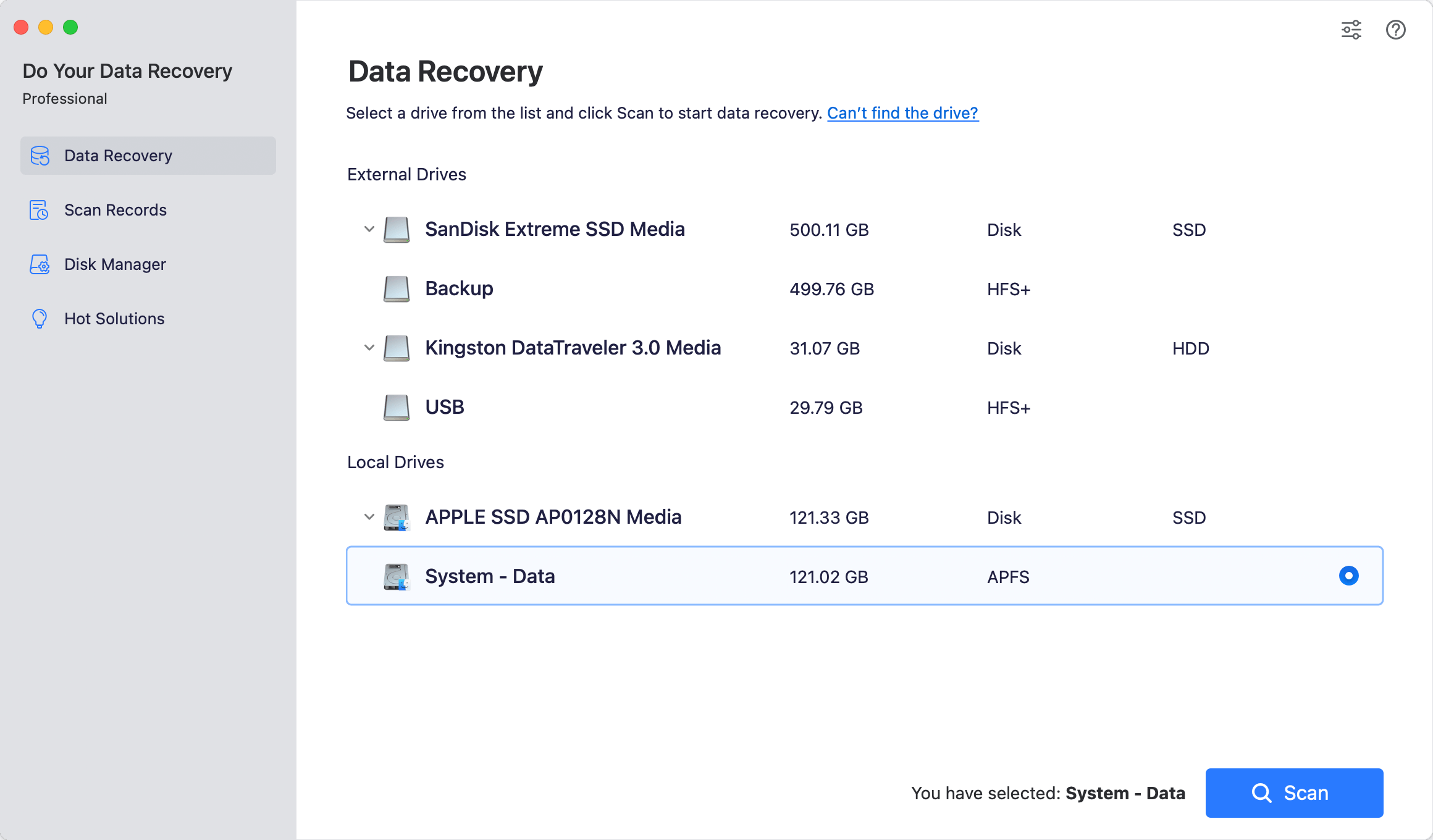
Step 3. Click the Scan button and the software will start to scan the selected drive. It will deeply search for missing files and just wait patiently.

Step 4. After the scanning process is finished, you need to locate the missing files and preview them first. At last, select wanted files and save to another drive.

macOS Tahoe Data Recovery Best Practices
- Stop using the affected drive immediately to avoid overwriting recoverable data
- Install recovery software on a different disk, not the one you are recovering from
- Recover files to an external drive
- Avoid repeated scans, which can stress failing hardware
- If recovery software fails, consider professional data recovery services
FAQs about macOS Tahoe Data Recovery
Final Verdict
macOS Tahoe users have several strong data recovery options, but the best choice depends on technical comfort, budget, and recovery scenario. Do Your Data Recovery for Mac stands out as the best overall solution, while Stellar Data Recovery excels in APFS system recovery. For free recovery, PhotoRec remains unmatched, and professionals will appreciate the depth of R-Studio. Budget-conscious users can confidently choose Donemax Data Recovery for Mac.
Data loss is stressful, but with the right macOS Tahoe–compatible software, recovery is often possible—and safe.
Do Your Data Recovery for Mac
Do Your Data Recovery for Mac, one of the best Mac data recovery software, can help you easily and completely recover deleted, formatted or lost files from Mac HDD/SSD, external HDD/SDD, USB drive, memory card, digital camera, or other storage devices.
Written & Updated by Justin Kenny
Justin Kenny is a writer & editor of DoYourData. He joined DoYourData in 2016 and focuses on writing articles about Windows data recovery, Mac data recovery, external device data recovery, hard drive clone, data erasure, Mac cleanup, computer issue fixes, etc. He is a super fan of Apple devices and is big on testing new digital device and system utility software.