Restore Mac to Previous Date: Complete Guide
Since macOS lacks native restore points, recovery relies on prior backups. The article covers five methods: rolling back via Time Machine , reinstalling the OS in Recovery Mode , recovering files from iCloud , using a Bootable Installer for unbootable systems, or using Donemax Disk Clone to create an external bootable mirror for instant recovery. Ultimately, the guide emphasizes that maintaining regular backups is essential for a stress-free system recovery.
 Updated by Ricky Lin on May 19, 2026
Quick Navigation:
- Can You Restore a Mac to a Previous Date?
- Common Problems When Restoring Mac
- Best Practices to Avoid Future Data Loss
- Conclusion
Restoring your Mac to a previous date can save you from serious headaches. Whether your system became unstable after an update, an app installation caused crashes, files were accidentally deleted, or malware affected performance, rolling your Mac back to an earlier state can quickly fix the issue.

Unlike Windows System Restore, macOS does not offer a traditional "restore point" feature. Instead, Apple provides several powerful recovery options—primarily through Time Machine and macOS Recovery Mode. In this detailed guide, you'll learn all available methods to restore your Mac to a previous date safely and effectively.
Can You Restore a Mac to a Previous Date?
Yes, but only if you have a backup. macOS does not automatically create system restore points like Windows. Instead, restoration depends on:
- Time Machine backups
- Mac clone backup
- iCloud backups (limited data)
- Bootable macOS installers
- Reinstalling macOS
If you never enabled backups, your options become limited. That's why enabling regular backups is critical.
Method 1: Restore Mac to a Previous Date Using Time Machine (Best Method)
Time Machine is Apple's built-in backup solution and the most reliable way to restore your Mac to an earlier date. Time Machine automatically creates:
- Hourly backups (last 24 hours)
- Daily backups (last month)
- Weekly backups (older data)
It stores everything: apps, system files, settings, and personal data.
If Time Machine was enabled before your issue occurred, you can restore your entire Mac exactly as it was on a selected date.
Requirements Before Restoring
Before you start, make sure you have:
- A Time Machine backup drive
- Access to your Mac
- Stable power supply (important during restore)
How to Restore Entire Mac Using Time Machine
Step 1: Plug in the external drive containing your Time Machine backups.
Step 2: Enter macOS Recovery Mode
- Intel Mac: Restart and hold Command (⌘) + R.
- Apple Silicon Mac: Shut down. Press and hold the Power button until "Options" appears, then select it.
Step 3: In macOS Utilities, choose: Restore from Time Machine Backup

Step 4: Choose your external drive.
Step 5: Select the backup from the specific date you want to restore.
Step 6: Click Continue and wait. The process may take 30 minutes to several hours depending on data size.
Once complete, your Mac will reboot into the exact state it was in on that selected date.
How to Restore Specific Files Instead of Entire System
If you don't need a full system rollback:
- Open Finder.
- Click the Time Machine icon.
- Browse Time Machine Backups.
- Scroll through the timeline.
- Select the file or folder.
- Click Restore.
This method is perfect for recovering accidentally deleted documents.
Pros and Cons of Time Machine Restore
👍 Pros
- Complete system rollback
- Safe and reliable
- Easy to use
- No technical knowledge required
👎 Cons
- Requires prior backup
- Can take hours for large systems
Method 2: Restore Mac to a Previous Date Using Donemax Disk Clone
If you want a foolproof, plug-and-play way to roll your Mac back to a previous state without dealing with recovery partitions or time-consuming backup extractions, creating a bootable clone is an excellent alternative.
Using DoYourClone for Mac, you can create an exact, bit-by-bit copy of your Mac's internal hard drive onto an external drive.
DoYourClone for Mac
- Make a full copy of the Mac hard drive.
- Create bootable clone backup for macOS.
- Easy-to-use Mac disk cloning software.
How to Clone and Restore Your Mac:
- Create the Full Clone: Connect an external hard drive to your Mac, open Donemax Disk Clone, and select the Clone OS feature to clone your entire Mac drive onto the external disk.
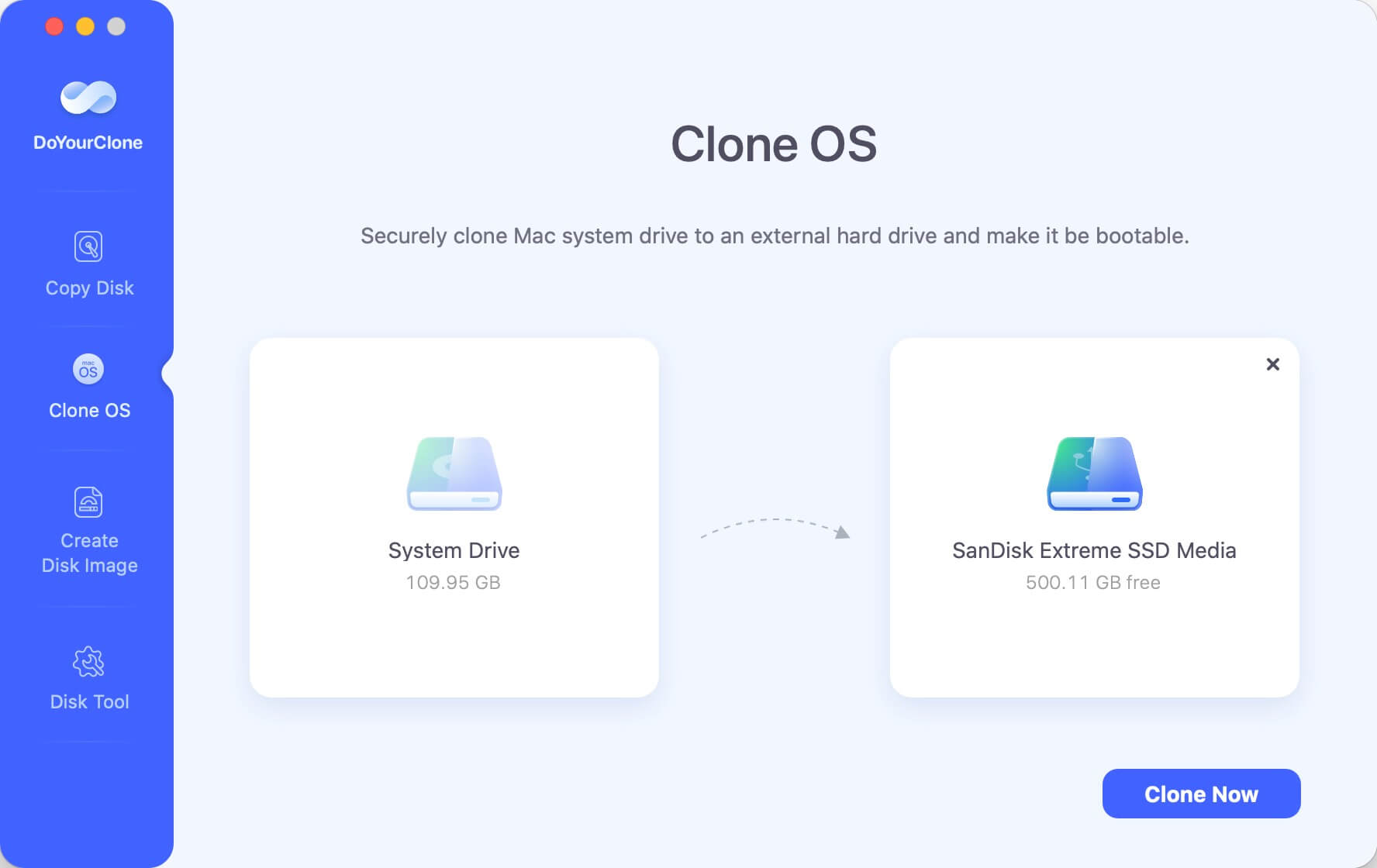
- Boot Directly from the Clone: If your Mac encounters system instability, crashes, or data loss later on, simply shut down your Mac.
- Select the Boot Drive:
- Intel Mac: Turn on your Mac and immediately press and hold the Option key.
- Apple Silicon Mac: Press and hold the Power button until the startup options screen appears.
- Restore Status instantly: Select the external cloned drive as your boot disk. Your Mac will boot up immediately into the exact state it was in when you performed the clone, allowing you to use your system normally or clone the data back to the internal drive.
👍 Pros:
Instant Recovery: No need to wait hours for files to extract; you boot up and work directly from the drive.
Total Independence: Works even if your Mac's internal drive completely fails or won't boot into Recovery Mode.
👎 Cons
Static Snapshot: Unlike Time Machine, it only saves the exact moment you ran the clone (no hourly/weekly version history).
Storage Heavy: Requires an external drive with enough capacity to mirror your entire Mac drive.
Method 3: Restore Mac Using macOS Recovery Mode (Without Time Machine)
If you don't have a backup, you can reinstall macOS. This does not restore to a previous date, but it can fix system corruption.
Step 1: Enter Recovery Mode
Use the same method described above (Intel or Apple Silicon).
Step 2: Choose "Reinstall macOS"
Select Reinstall macOS and follow on-screen instructions. macOS will reinstall the operating system without deleting your personal files (in most cases). However, always back up data if possible before proceeding.

What Happens During Reinstallation?
- System files are replaced
- Corrupted OS files are fixed
- Personal data usually remains
- Apps remain installed (though some may require reconfiguration)
Limitations
- Cannot restore deleted files
- Cannot revert system settings to a specific past date
- Doesn't remove all malware (in rare cases)
Method 4: Restore Mac to Previous Date Using iCloud
If you use iCloud, some data may be recoverable. iCloud can restore:
- Contacts
- Calendars
- Reminders
- Safari bookmarks
- Files stored in iCloud Drive
How to Restore Files from iCloud
- Go to iCloud.com.
- Log in with your Apple ID.
- Click Account Settings.
- Scroll to Data Recovery.
- Select files to restore.
- Confirm restoration.
Note: iCloud typically keeps deleted files for 30 days only.
Limitations of iCloud Restore
- Does not restore macOS system
- Cannot roll back apps
- Limited recovery window (30 days)
Method 5: Restore Mac Using a Bootable Installer
This method is useful if:
- Your Mac won't boot
- Recovery Mode fails
- You want a clean installation
Create a Bootable macOS Installer
You'll need:
- USB drive (at least 16GB)
- macOS installer downloaded from the App Store
Use Terminal to create a bootable installer (Apple provides official commands for each macOS version).
Restore Using Bootable Drive
- Insert USB drive.
- Start Mac while holding Option key (Intel) or hold Power (Apple Silicon).
- Choose bootable installer.

- Erase disk (optional).
- Install macOS.
- Restore data from backup afterward.
This method is more advanced and ideal for severe system corruption.
Common Problems When Restoring Mac
1. Time Machine Backup Not Showing
Solution:
- Check drive connection
- Restart Mac
- Run Disk Utility > First Aid
2. Mac Stuck During Restore
Solution:
- Be patient (large backups take time)
- Ensure stable power
- Restart if frozen for several hours
3. Restore Failed Error
Solution:
- Try another backup date
- Repair backup disk using Disk Utility
- Check for disk errors
4. Not Enough Disk Space
If restoring to a smaller SSD, you may encounter space errors. Consider:
- Deleting unnecessary files
- Upgrading storage
- Performing selective restore
How Long Does It Take to Restore a Mac?
Restore time depends on:
- Backup size
- Drive speed (SSD vs HDD)
- USB vs Thunderbolt connection
- Mac model
Estimated times:
- Small backup (100GB): 30–60 minutes
- Medium backup (300GB): 1–3 hours
- Large backup (1TB+): 4+ hours
Patience is essential.
Best Practices to Avoid Future Data Loss
Restoring a Mac to a previous date is only possible with preparation. Follow these best practices:
1. Enable Time Machine Immediately
Go to:
System Settings > General > Time Machine
Select a backup drive and turn it on.
2. Use Multiple Backup Methods
Combine:
- External Time Machine backup
- Cloud storage backup
- Periodic manual backup
3. Keep macOS Updated
Updates fix bugs and reduce corruption risks.
4. Maintain Disk Health
Use Disk Utility periodically to run First Aid.
5. Avoid Suspicious Downloads
Malware infections often lead users to restore their systems.
Conclusion
Restoring your Mac to a previous date is completely possible—but only if you prepared in advance.
The safest and most effective method is using Time Machine or disk cloning software (like DoYourClone for Mac. It allows you to roll back your entire system to a specific date with minimal effort. If you don't have a backup, reinstalling macOS can fix system issues, but it cannot truly return your Mac to a previous state.
If you haven't enabled backups yet, now is the time. A simple external drive can save years of data and countless hours of stress.
Taking proactive steps today ensures that the next time something goes wrong, restoring your Mac will be fast, easy, and stress-free.
DoYourClone for Mac
DoYourClone for Mac, one of the best Mac disk cloning software, can help you clone HDD, SSD, external storage device on Mac, upgrade HDD to SSD, create full disk image backup, etc. It also can clone everything from your Mac to an external HDD/SSD and create a full bootable clone backup. 100% safe and easy-to-use.
Written & Updated by Ricky Lin
Ricky Lin is an senior editor of DoYourData who lives in Adelaide, Australia. He is interested in writing technology articles related with data recovery, computer issue fixes, disk clone, iPhone data recovery, video edit, Mac optimization, etc. He Joined DoYourData in 2019 and have written 500+ articles to help both Windows users and Mac users to solve data or computer problems.