Home > Hard Drive Solutions for Mac
Top 5 NTFS for Mac Tools for M5 Chip Mac | 2026
To make NTFS drives writable on M5 chip or other Macs, a third-party NTFS for Mac tool is required. DoYourData NTFS for Mac is highly recommended for daily use and professional works. The software is reliable and transfer data fast. With simple interface, any user can handle the software to make NTFS drives writable on M5 chip or other Macs. Latest macOS Tahoe is fully supported.
 Updated by Justin Kenny on Jannuary 12, 2026
Quick Navigation:
- Why You Need NTFS for Mac on M5 Chip?
- Key Features to Look for in An NTFS for Mac Tool
- Top 5 NTFS for Mac Tools for M5 Chip Macs
- Security & Data Safety Considerations
- How to Install and Use NTFS for Mac Tool on M5 Chip Mac?
- FAQs about NTFS for Mac Tools for M5 Chip
- Conclusion
Apple's M-series chips have transformed the Mac ecosystem with impressive performance, efficiency, and security. The latest M5 chip continues this trend, delivering faster speeds, better AI acceleration, and improved system stability. However, one long-standing limitation remains: macOS still provides only read-only access to NTFS drives by default.
NTFS (New Technology File System) is Microsoft's primary file system for Windows. Many external hard drives, SSDs, USB flash drives, and even SD cards are formatted in NTFS because of its reliability and support for large files. When you connect such a drive to your Mac, you can read files but cannot copy, edit, or delete them without third-party software.
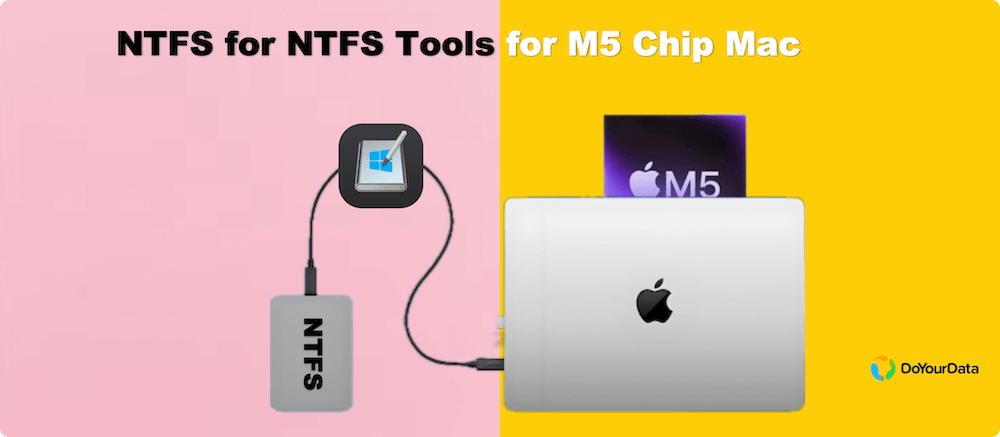
For M5 chip Mac users, choosing the right NTFS for Mac tool is essential. Not all tools are fully optimized for Apple Silicon, and poor compatibility can lead to performance issues or even data loss. This article explores the top 5 NTFS for Mac tools for M5 chip Macs, comparing their features, performance, security, and pricing to help you make the best choice.
Why You Need NTFS for Mac on M5 Chip
macOS NTFS Limitations
macOS can natively read NTFS drives, but write support is disabled. This means:
- You can open files
- You can copy files from the NTFS drive
- You cannot copy files to the NTFS drive
- You cannot edit or delete files
This is a major inconvenience for users who regularly switch between macOS and Windows.
Common Use Cases
- Sharing files between Mac and Windows systems
- Using NTFS-formatted external SSDs for video editing
- Accessing NTFS backup drives
- Working with NTFS USB drives at school or work
Why M5 Chip Compatibility Matters
The M5 chip uses Apple Silicon architecture, which differs significantly from Intel Macs. NTFS tools must be optimized for:
- ARM-based processors
- Apple's security model (System Extensions)
- macOS Sequoia and future versions
Poorly optimized tools may cause slow speeds, system crashes, or permission issues.
Key Features to Look for in an NTFS for Mac Tool
Before choosing a tool, consider the following:
1. Full Read/Write Support: The tool should allow seamless file creation, editing, and deletion on NTFS drives.
2. Apple Silicon (M5) Compatibility: Native support for M1–M5 chips ensures better performance and stability.
3. Speed & Performance: High read/write speeds are crucial for large files like videos and backups.
4. Ease of Use: A clean interface and automatic mounting make daily use simpler.
5. Security: The tool should comply with Apple's System Extension requirements and avoid risky kernel extensions.
6. Pricing: Look for fair licensing, free trials, and long-term value.
Top 5 NTFS for Mac Tools for M5 Chip Macs
Top 1. DoYourData NTFS for Mac
DoYourData NTFS for Mac is one of the most established NTFS solutions. It has been around for years and is known for its high performance and enterprise-level reliability.
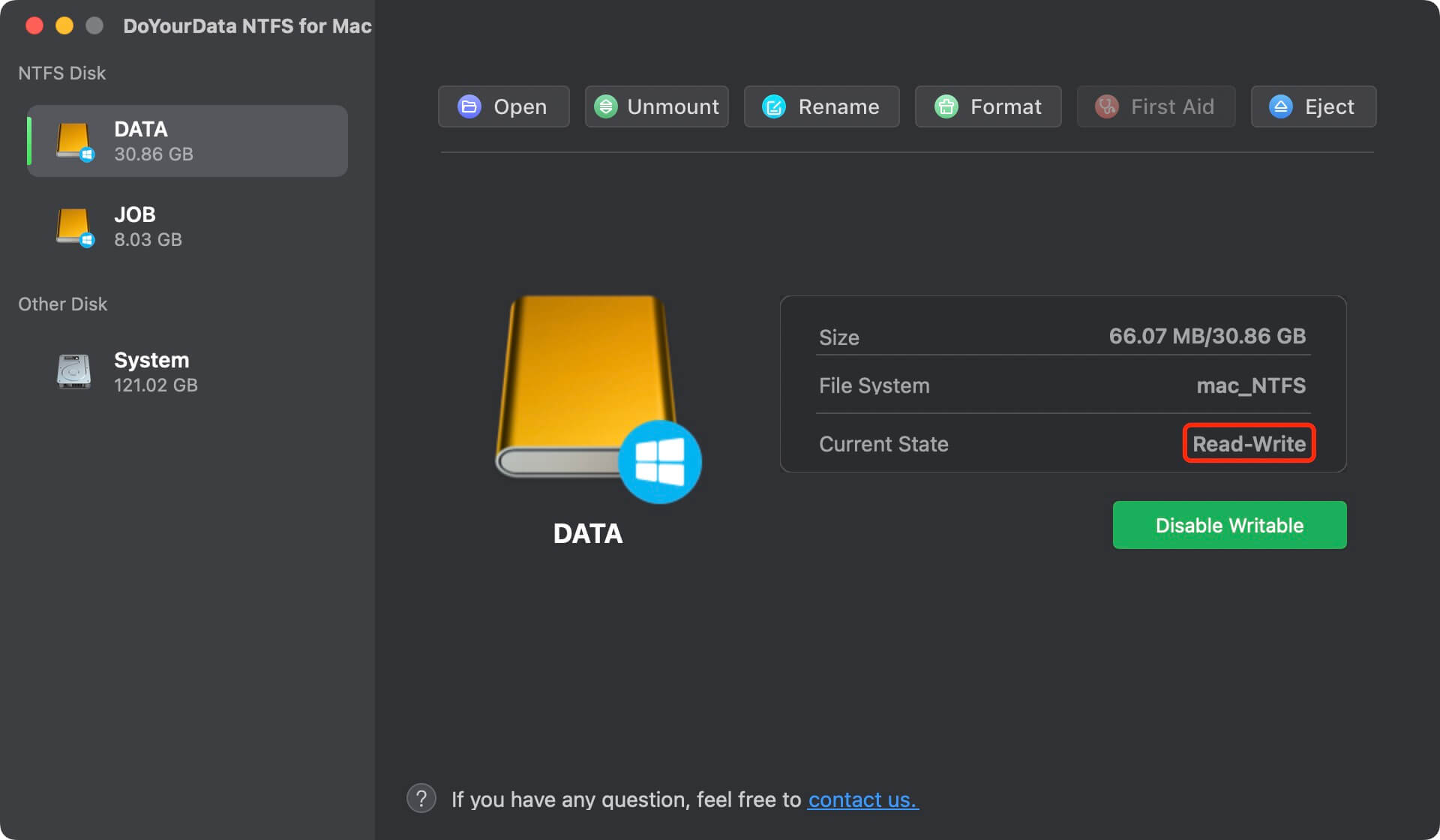
DoYourData offers full Apple Silicon support, including optimized drivers for M1 through M5 chips.
Key Features:
- Full read/write NTFS access
- Automatic drive mounting
- Disk utility integration
- High-speed data transfer
- macOS Tahoe support
DoYourData NTFS for Mac
- Fully compatible with M5 chip Macs.
- Support Latest macOS Tahoe 26.
- Easy to enable NTFS writable access on Mac.
Pros:
- Excellent performance
- Very stable
- Professional-grade reliability
Cons:
- Paid software
- Interface looks slightly dated
Best For:
Power users, professionals, and anyone working with large NTFS drives daily.
Top 2. Tuxera NTFS for Mac
Tuxera NTFS is another long-standing NTFS driver widely used in enterprise environments, including embedded systems and network storage.
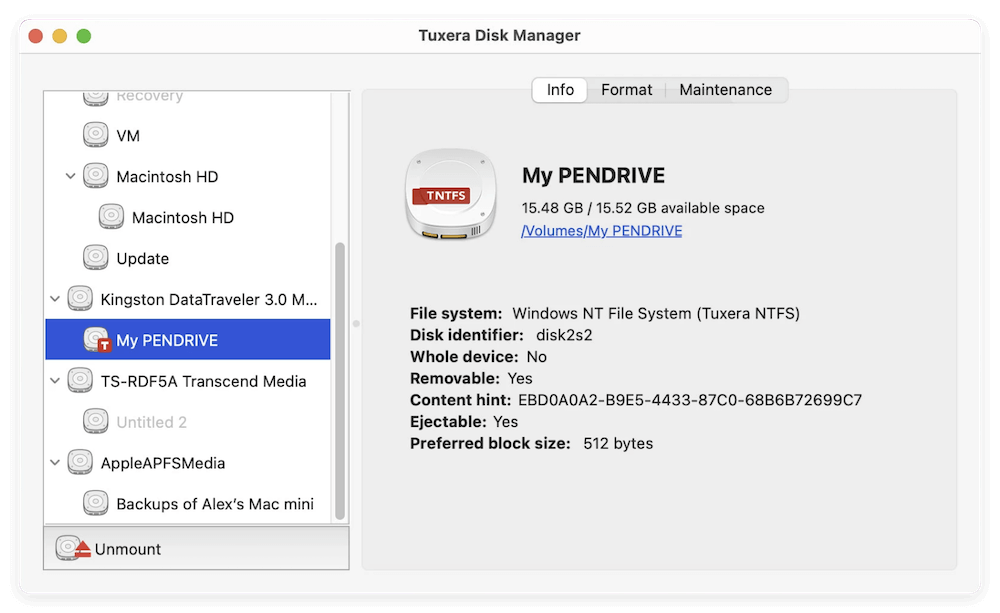
Tuxera provides optimized drivers for M-series Macs, ensuring smooth performance on M5 systems.
Key Features:
- Full NTFS read/write support
- Advanced caching for faster speeds
- NTFS disk repair tools
- Command-line support
Pros:
- Fast performance
- Advanced technical features
- Good stability
Cons:
- Less beginner-friendly
- Interface is basic
Best For:
Advanced users, IT professionals, and developers who want more control.
Top 3. Donemax NTFS for Mac
Donemax NTFS for Mac is another simple and reliable tool to enable NTFS writable access on Mac. The software can do the job without installing additional system extensions (kext) and you don't need to change the system security level in recovery mode.
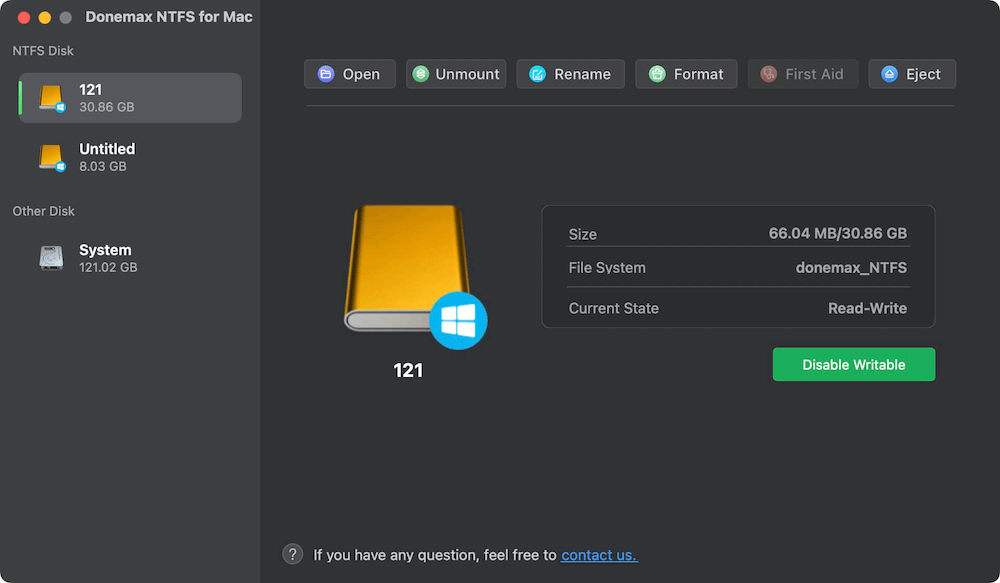
Works well with Apple silicon Macs, including the latest M5 chip Macs. It's easy to use and very friendly for users.
Key Features:
- NTFS read/write access
- Easy to use.
- Apple Silicon support
Pros:
- One-click to enable NTFS writable.
- User-friendly
- Reliable performance
Cons:
- Slightly higher price
- Not as fast as DoYourData
Best For:
Users who already use Donemax tools for backup or data recovery.
Top 4. iBoysoft NTFS for Mac
iBoysoft focuses on simplicity and user-friendly design, making NTFS access easy for everyday users.
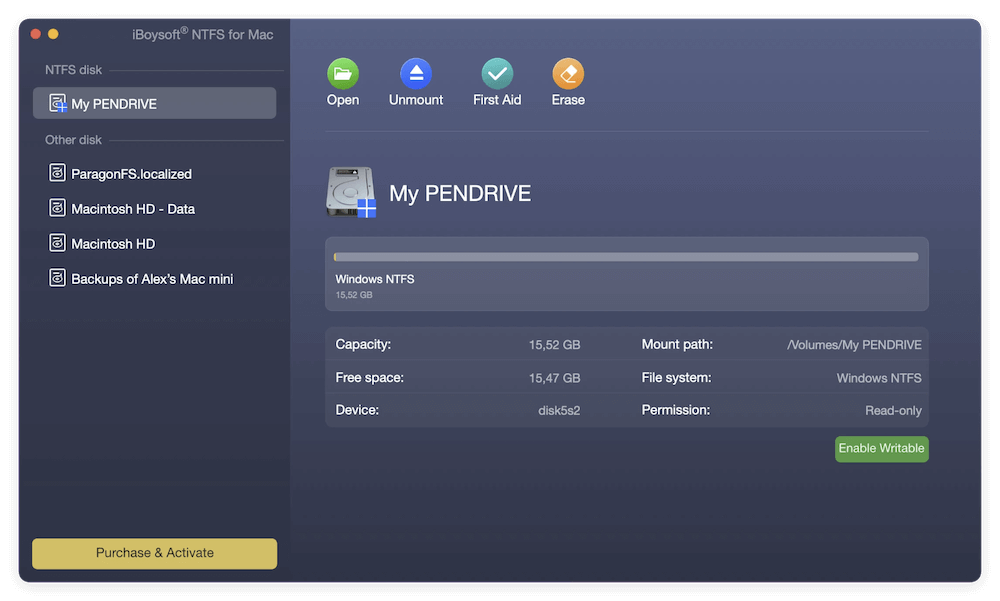
The interface is clean, modern, and simple to use, even for beginners.
Key Features:
- One-click NTFS mounting
- Read/write support
- Disk management tools
- Apple Silicon compatibility
Pros:
- Easy to use
- Clean interface
- Good customer support
Cons:
- Slightly slower than DoYourData for large files
- Fewer advanced features
Best For:
Beginners and casual users who want hassle-free NTFS access.
Top 5. Mounty for NTFS (Free Option)
Mounty is a lightweight, free NTFS solution that enables write access using macOS's hidden NTFS support.
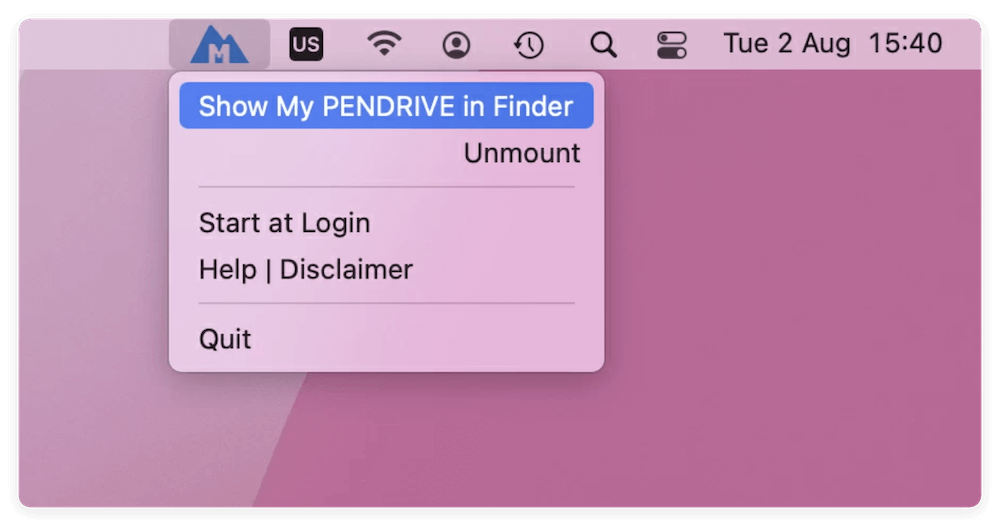
While Mounty works on Apple Silicon, it relies on macOS's experimental NTFS write capability, which is not officially supported by Apple.
Key Features:
- Free
- Simple interface
- Lightweight
Pros:
- No cost
- Easy to install
- Good for basic use
Cons:
- Less stable
- Risk of data corruption
- Slower speeds
Best For:
Casual users who only occasionally need NTFS write access.
Performance Comparison on M5 Chip Macs
Tool |
Speed |
Stability |
CPU Usage |
Best Use Case |
|---|---|---|---|---|
DoYourData |
Excellent |
Very High |
Low |
Professional work |
Tuxera |
Very Good |
High |
Moderate |
Technical users |
Donemax |
Very Good |
High |
Low |
For Beginners |
iBoysoft |
Good |
High |
Moderate |
Everyday use |
Mounty |
Fair |
Medium |
Low |
Occasional use |
DoYourData and Tuxera consistently deliver the best performance on M5 Macs, especially for large file transfers.
Final Verdict: Which IS the Best NTFS for Mac Software for M5 Chip?
Best Overall
DoYourData NTFS for Mac: Fast, stable, and professional-grade.
Best for Advanced Users
Tuxera NTFS for Mac: Great performance with technical features.
Best for Beginners
Donemax NTFS for Mac: Easy to handle and friendly for beginners.
Best for Recovery Users
iBoysoft NTFS for Mac: Simple, clean, and easy to use.
Best Free Option
Mounty for NTFS: Good for basic, non-critical use.
Security & Data Safety Considerations
System Extensions vs Kernel Extensions
Modern NTFS tools use System Extensions, which are safer and more compatible with Apple Silicon. Older kernel extensions (kexts) can cause system instability.
Apple Silicon Security
M5 Macs enforce strict security policies. A good NTFS tool should:
- Work with System Integrity Protection (SIP)
- Use Apple-approved drivers
- Avoid risky permissions
Data Corruption Risks
Free or unsupported tools may cause:
- File system errors
- Corrupted files
- Drive mounting failures
For critical data, always choose a trusted NTFS solution.
How to Install and Use NTFS for Mac Tool on M5 Chip Mac?
General Installation Steps
- Download the NTFS for Mac tool from the official website and Install the app on Your M5 chip Mac.
- Grant system permissions as instructed. Restart your Mac if required
- Connect your NTFS drive to the Mac and make sure it's recognized normally.
Permissions Needed
- Full Disk Access
- System Extension approval
- Security confirmation in macOS Settings
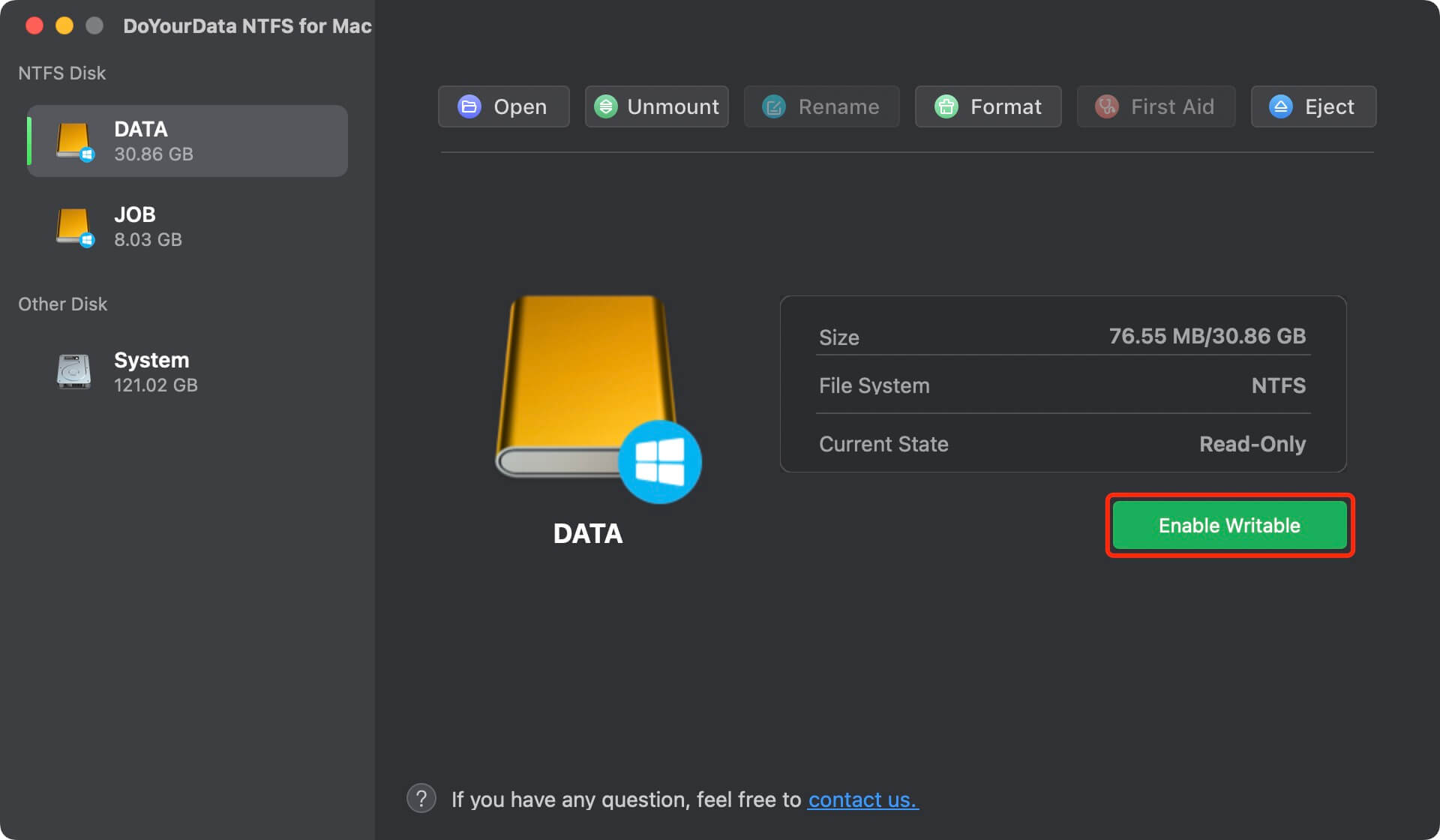
Enable writable access for NTFS
- Launch the NTFS for Mac software.
- Select the NTFS drive in the interface.
- Click the Enable Writable button.
- Then the NTFS drive is full read-and-write on the M5 chip Mac.
Troubleshooting Tips
- Reboot after installation
- Check System Settings > Privacy & Security
- Reconnect the NTFS drive
- Update to the latest version
FAQs about NTFS for Mac Tools for M5 Chip
Conclusion:
As Apple continues to refine its M-series chips, the M5 Mac delivers exceptional speed and efficiency. However, NTFS write support remains absent from macOS, making third-party tools essential for users who rely on Windows-formatted drives.
Among the available options, DoYourData NTFS for Mac stands out as the most reliable and high-performance solution. Tuxera offers strong technical capabilities, iBoysoft provides a clean and easy-to-use experience, Donemax offers a beginner-friendly solution, and Mounty remains a decent free alternative for light use.
Choosing the right NTFS tool ensures smooth file transfers, data safety, and full compatibility with your M5 chip Mac — helping you work efficiently across platforms.
DoYourData NTFS for Mac
DoYourData NTFS for Mac is a safe, powerful and easy-to-use NTFS for Mac tool. It allows macOS to read & write files on NTFS drives without any limitation. It is also a comprehensive disk management tool for Mac to mount/unmount disk, format disk, repair disk, read-write disk...on Mac.
Written & Updated by Justin Kenny
Justin Kenny is a writer & editor of DoYourData. He joined DoYourData in 2016 and focuses on writing articles about Windows data recovery, Mac data recovery, external device data recovery, hard drive clone, data erasure, Mac cleanup, computer issue fixes, etc. He is a super fan of Apple devices and is big on testing new digital device and system utility software.