How to Clean Old Desktop Computer Hard Drive Before Disposal
Upgrading to a shiny new PC or finally getting rid of an old desktop computer is always an exciting feeling. However, before you sell, donate, recycle, or throw away your old desktop computer, there is one crucial task you cannot afford to skip: properly wiping your hard drive.
 Updated by Shirly Chen on October 21, 2026
Quick Navigation:
- Why a Standard Deleting or Formatting Is Not Enough
- Steps to Permanently Clean Old Desktop Computer
- Best Practices for Disposing of an Old Desktop Computer
- FAQs about Clean Old Desktop Computer Completely
- Conclusion
Your old desktop computer hard drive stores years of accumulated personal data. This includes saved passwords, browser history, tax forms, financial statements, medical records, private emails, and family photos. Leaving this sensitive information on an old hard drive when disposing of your PC exposes you to serious risks of identity theft and data leaks.
Many users assume that dragging files to the Recycle Bin or performing a standard Windows factory reset is enough to protect them. Unfortunately, that is not true. In this comprehensive guide, we will show you step-by-step how to clean old desktop computer hard drive before disposal completely and permanently, ensuring your private data remains 100% unrecoverable.
Why a Standard Deleting or Formatting Is Not Enough
To understand how to securely clean your desktop hard drive, it helps to know how operating systems like Windows handle deleted files.
When you delete a file or format a partition through standard Windows commands, the operating system does not actually overwrite or destroy the physical data on the disk sectors. Instead, it simply deletes the file's index pointer and marks that storage space as 'available' for future use.
Until new data is written directly over those exact sectors, the original files remain fully intact on your drive. Anyone who gets hold of your disposed desktop computer can use readily available data recovery tools to retrieve your confidential records within minutes. That is why a complete, multi-step erasure process is necessary before saying goodbye to your old PC.
Steps to Permanently Clean Old Desktop Computer
Step 1: Backup Your Important Files First
Before starting the wiping process, make sure you have backed up all important files from your old desktop computer. Once data is permanently erased using secure erasure software, it cannot be recovered by any means.
- Copy essential personal documents, family photos, and work files to an external hard drive, USB flash drive, or cloud storage service (such as Google Drive or OneDrive).
- Export your web browser bookmarks, saved passwords, and software license keys.
- Log out of all personal accounts, including Microsoft, Apple ID, Google, and paid application licenses registered to that desktop PC.
Step 2: Factory Reset the Computer System (Windows 11)
The first operational step in preparing your desktop computer for disposal is resetting the operating system. Doing a factory reset cleans out user accounts, applications, desktop settings, and system files.
How to Factory Reset Windows 11 Step-by-Step
- Open Windows Settings: Click the Start menu icon on your taskbar and select Settings (or press Windows Key + I).
- Navigate to Recovery: Under the System menu, scroll down and click on Recovery.
- Initiate Reset: Locate Reset this PC and click the Reset PC button on the right side.
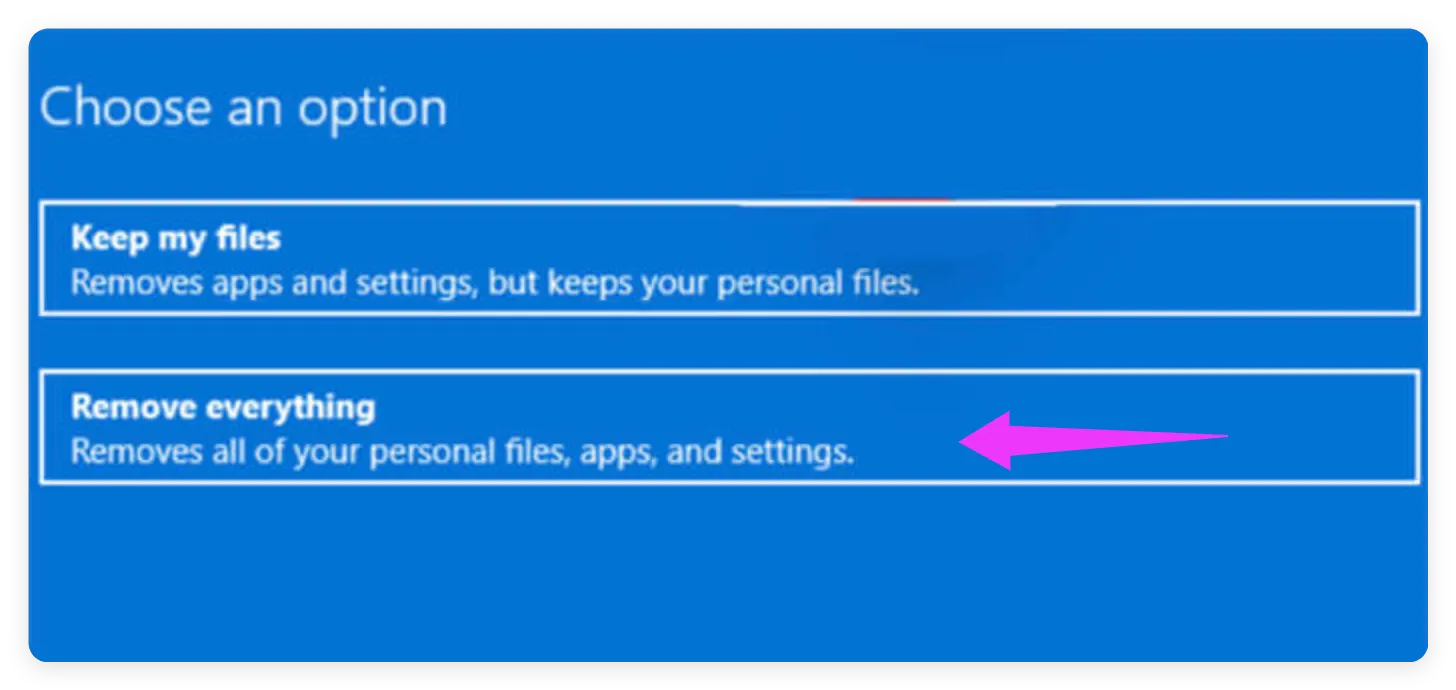
- Choose 'Remove Everything': You will be presented with two choices: 'Keep my files' or 'Remove everything'. Select Remove everything to ensure user accounts, personal files, and installed apps are cleared.
- Select Reinstallation Method: Choose Cloud download (to download a fresh copy of Windows) or Local reinstall.
- Confirm and Start Reset: Review your choices and click Reset. Your computer will restart and undergo the reset process, leaving you with a fresh Windows setup screen.
Step 3: Wipe Free Space on the System Drive with DoYourData Super Eraser
While a factory reset removes operating system user accounts, the deleted traces of your old files still remain buried in the free storage space of your primary system drive (C: drive). Data recovery software can still recover those leftover file fragments.
To ensure that all previously deleted personal files, temporary system caches, and sensitive records on the system drive are gone forever, you need to wipe the free space using DoYourData Super Eraser.
How to Use 'Wipe Free Space' on the System Drive
Step 1. Download and Install: Download DoYourData Super Eraser from the official DoYourData website and install it on your reset Windows desktop.
Step 2. Select 'Wipe Free Space': Open DoYourData Super Eraser and choose the Wipe Free Space mode from the main navigation panel.
Step 3. Choose the System Drive: Select your primary system partition (usually C: drive). This mode selectively overwrites only the unused/free storage sectors where deleted files linger, while leaving the operating system and system files completely intact.
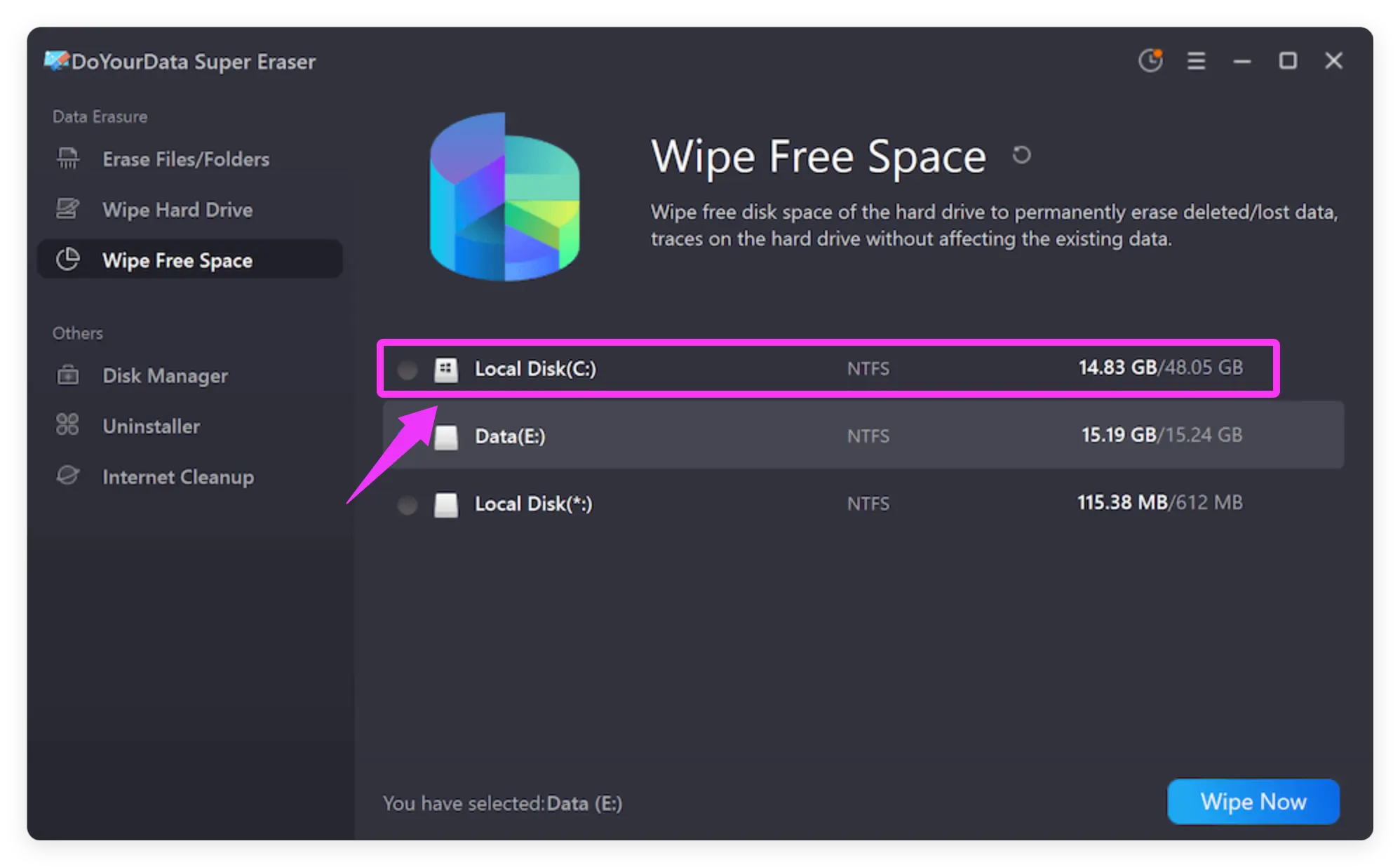
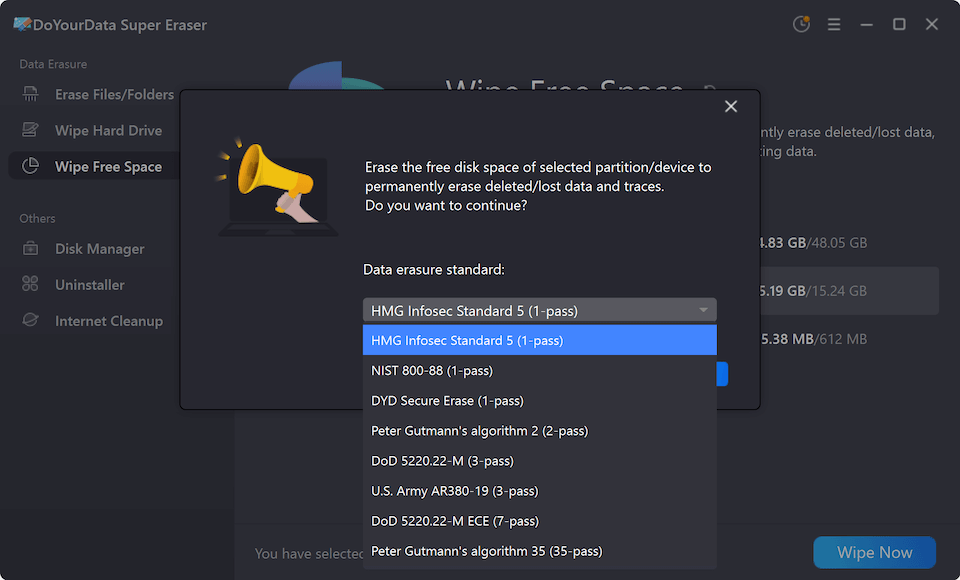
Step 4. Click 'Wipe Now': Click the Wipe Now button. The software will overwrite all free space using advanced algorithms like DoD 5220.22-M or Gutmann, permanently destroying any residual data traces beyond recovery.
Step 4: Wipe Other Data Partitions One by One with 'Wipe Hard Drive'
If your old desktop computer has multiple hard drives or extra non-system data partitions (such as D:, E:, or F: drives used for storing media, games, or archives), simply formatting them is not enough.
To completely sanitize these non-system partitions before disposal, use the Wipe Hard Drive feature in DoYourData Super Eraser to wipe them clean one by one.
How to Use 'Wipe Hard Drive' on Secondary Partitions
1. Launch DoYourData Super Eraser: Open the application and select the Wipe Hard Drive mode.
2. Select the Data Partition: Choose one of your secondary data partitions (e.g., D: drive or an external attached disk).
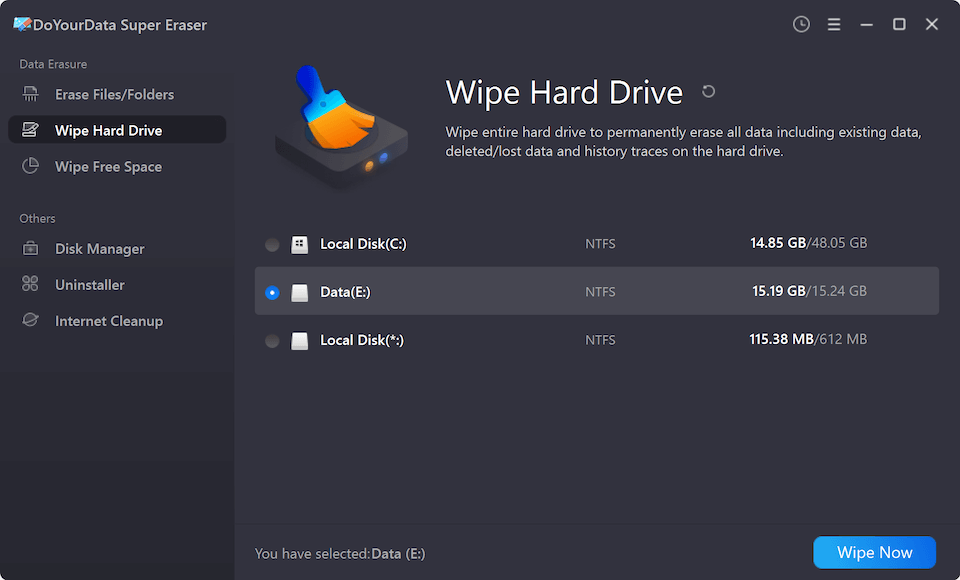
3. Execute Partition Wipe: Click the Wipe Now button. Select the data wiping method and start to wipe the partition.
4. Repeat for All Partitions: The software will permanently erase all existing data, files, and hidden structures on that partition. Repeat this step individually for every remaining non-system drive on your desktop computer.
Best Practices for Disposing of an Old Desktop Computer
Once your hard drive and partitions have been thoroughly wiped, keep these helpful disposal tips in mind:
- Responsible Recycling: Never throw desktop computers or hard drives into standard household trash. E-waste contains heavy metals and recyclable materials. Take your desktop PC to a certified e-waste recycling center.
- Unlink Peripheral Devices: Unpair Bluetooth accessories and remove external USB dongles or SD cards before handing over the PC.
- Ensure Physical Safety: If the desktop drive is damaged or non-functional and cannot be powered on to run software wiping, physically destroying the drive (or using a professional degausser) is the safest alternative.
FAQs about Clean Old Desktop Computer Completely
Conclusion
Knowing how to clean old desktop computer hard drive before disposal gives you total peace of mind when selling, donating, or recycling your computer. Simply deleting files or performing a standard Windows reset leaves sensitive personal data vulnerable to recovery.
By first factory resetting your Windows 11 system, wiping the free space on your system drive, and then wiping secondary partitions one by one using DoYourData Super Eraser, you ensure that every byte of your personal information is permanently erased beyond recovery.
DoYourData Super Eraser
DoYourData Super Eraser, the award-winning data erasure software, offers certified data erasure standards including U.S. Army AR380-19, DoD 5220.22-M ECE to help you securely and permanently erase data from PC, Mac, HDD, SSD, USB drive, memory card or other device, make data be lost forever, unrecoverable!
Written & Updated by Shirly Chen
Shirly Chen has been writing data recovery, data erasure articles for DoYourData over 4 years. She has been working as a professional website content writer & editor for quite a long time. She also writes articles about disk clone, Mac optimization, disk backup, etc.