How to Unformat a Sony Memory Card and Recover Your Files
After formatting Sony memory card or any other storage device, stop using it and don't writing to it. Then use professional software like Do Your Data Recovery to get back the missing files as soon as possible.
 Updated by Justin Kenny on November 25, 2026
PAGE CONTENT:
There is no universal 'undo format' option for Sony memory cards. Formatting typically removes the file system's records of where files are stored. The data may remain on the card until new files overwrite it, so data recovery software may be able to find and reconstruct some files.
This guide will show you how to unformat Sony memory card and recover your files. However, recovery is not guaranteed. The result depends on how the card was formatted, how much it has been used since, the condition of the card, and whether new data has overwritten the old files.
What to Do Immediately after Formatting Memory Card
The first steps matter because continued use can overwrite recoverable data. Stop using the Sony card as soon as you realize it was formatted.
- Remove the card from the camera or device. Do not take more photos or videos.
- Do not format it again. Reformatting can make recovery harder.
- Do not copy files to the card. New data may overwrite the content you want.
- Avoid running repair or initialization tools. A repair may alter the card's file system. Recover files first if the data matters.
- Use a card reader to connect it to a computer. If possible, use a reliable reader and connect directly to the computer rather than through an unstable hub.
- Recover files to another storage device. Choose your computer's internal drive or a separate external drive, not the Sony card.
If the card is physically damaged, disconnects repeatedly, or is not detected, stop trying different software. Repeated attempts may worsen the problem. For irreplaceable files, consider a professional data recovery service.
How to Recover a Formatted Sony Memory Card
A recovery program can scan the card for file records and data that remain after formatting. Do Your Data Recovery is one option to consider for scanning a formatted memory card and recovering files. The exact features and supported file systems depend on the current software version and operating system, so check its product documentation before use.
Before You Start
- Use a card reader that supports the card type, such as SD, SDHC, SDXC, or Memory Stick, depending on your Sony device.
- Make sure the card appears in your computer's disk or drive list.
- Do not initialize or format the card if the computer prompts you to do so.
- Have enough free space on a separate drive for the files you hope to recover.
Recovery Steps
Step 1. Connect the Sony memory card to your computer. Use a card reader and confirm that the card is detected. If the system asks to format or initialize it, cancel the prompt.
Step 2. Install and open Do Your Data Recovery. Install the program on your computer, not on the memory card.
Do Your Data Recovery
- Best recovery software for formatted Sony memory card.
- Data recovery for deleted, formatted, or other lost data.
- Recover photos, videos, documents, and other files.
Step 3. Select the Sony card as the scan location. Check the drive's capacity and label to avoid selecting the wrong disk.
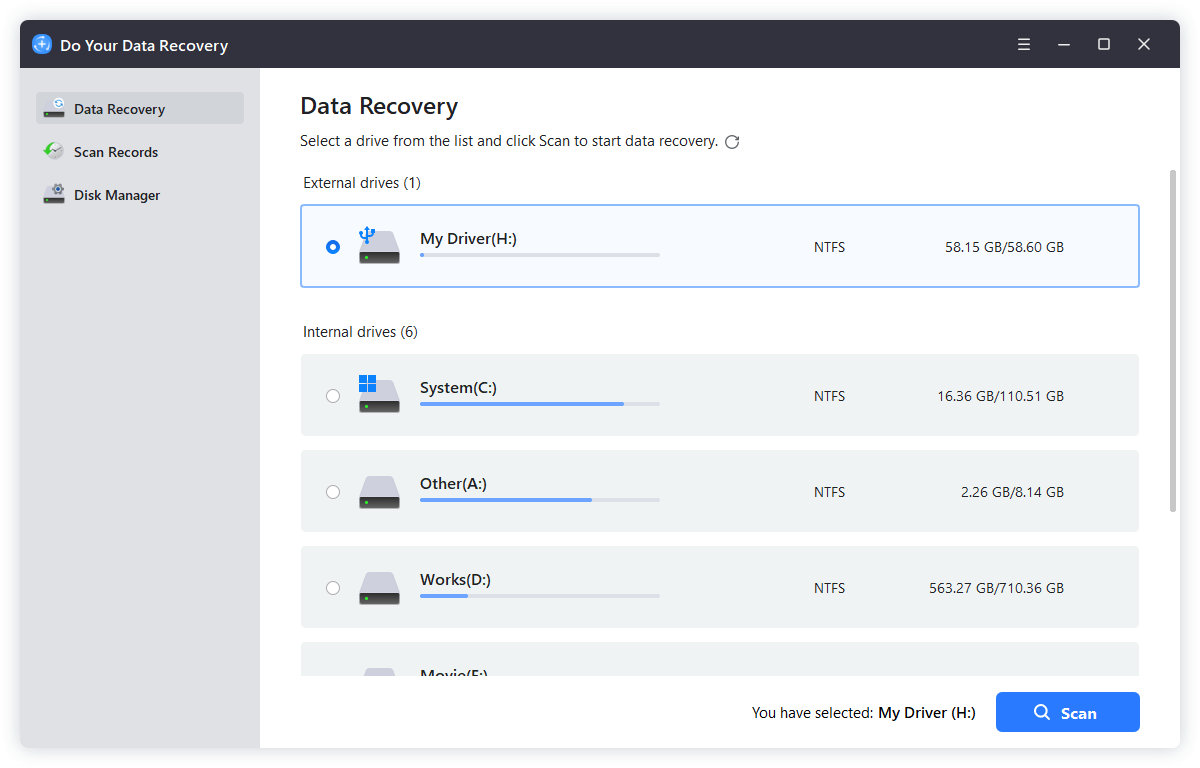
Step 4. Start a scan. If the program offers different scan modes, begin with its recommended scan for formatted or lost files. A deeper scan may take longer.
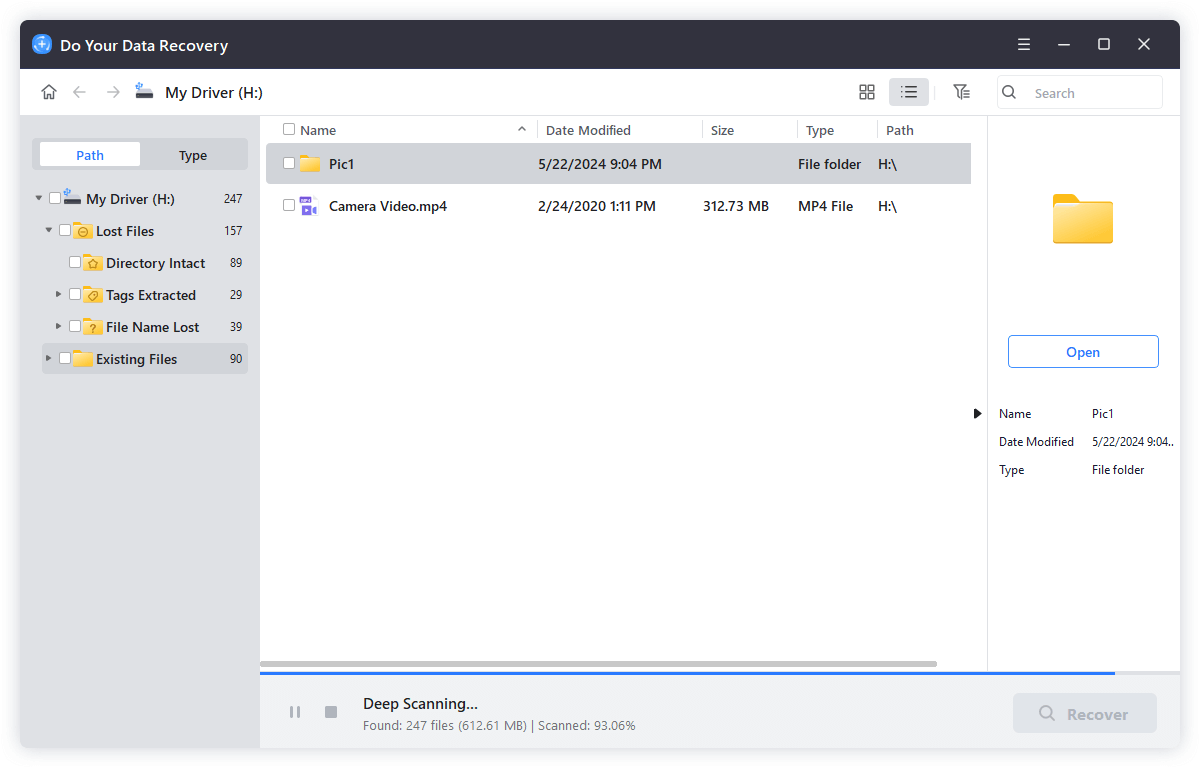
Step 5. Recover to another drive. After the scanning process is done, use file type, name, or preview options where available. File names and folder structure may not always be preserved after formatting. Prioritize the most important photos and videos if the scan finds a large number of results. Save recovered files to the computer or a separate external disk, never to the Sony card.
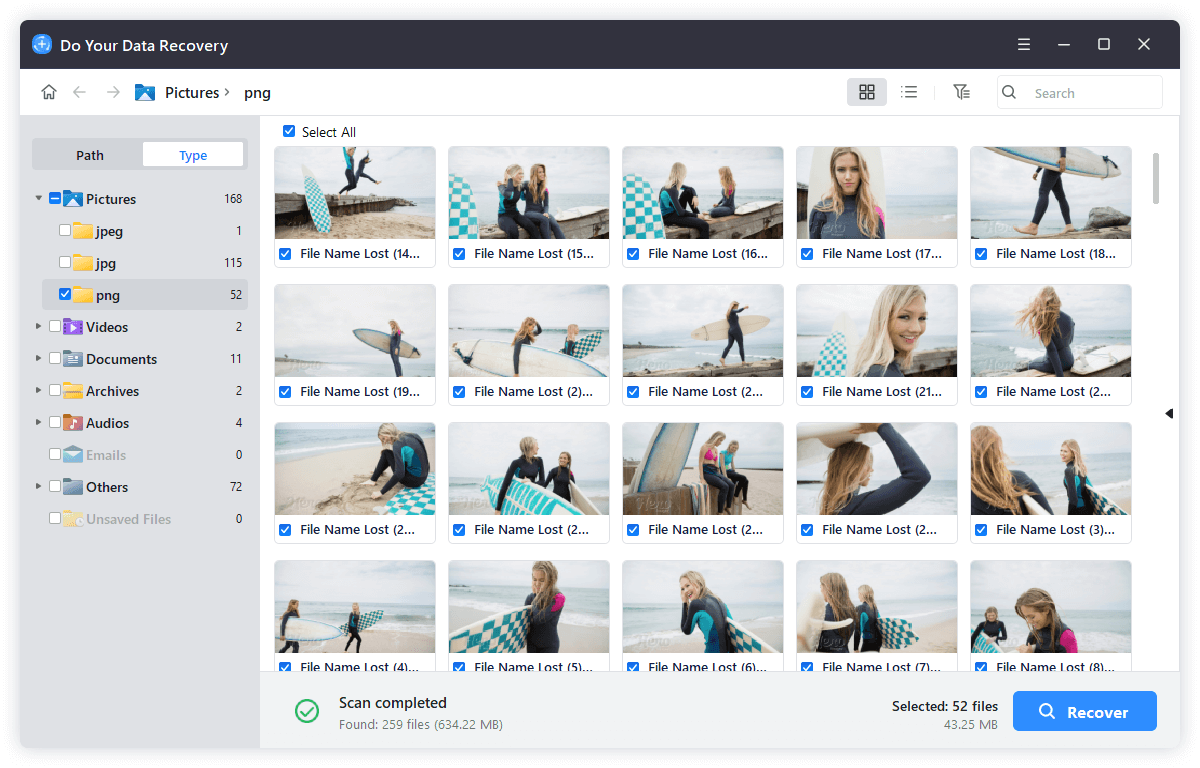
Step 6. Open and verify the recovered files. Check that photos display correctly and that videos play before deciding what to do with the card.
A scan can find files that a normal file browser cannot see, but it cannot restore data that has already been overwritten. If the software finds no usable files, do not keep writing to the card in hopes of improving the result.
How to Prevent Accidental Formatting
A few habits can reduce the chance of losing photos and videos in the future:
- Back up files before formatting. Open the backup and confirm that the files are there.
- Check the selected card. Some cameras allow formatting from a menu; verify the card before confirming.
- Use a separate card for important shoots. Avoid deleting or formatting a card until its files have been copied and checked.
- Keep more than one copy of important files. A computer copy and an external or cloud backup provide better protection than a single copy.
- Replace unreliable cards. Frequent errors, read failures, or unexpected disconnects can signal a failing card.
FAQs about Recover Data from Formatted Card
Conclusion:
You usually cannot undo a Sony memory card format with one command, but you may be able to recover files if they have not been overwritten. Stop using the card immediately, connect it to a computer with a card reader, and scan it with data recovery software. Save recovered files to a different drive, never back to the card.
Do Your Data Recovery
The safe, powerful and easy-to-use data recovery program to help you recover deleted, formatted or lost data, recover lost data from damaged hard drive, from HDD, SSD, USB flash drive, memory card, digital camera, etc, fix damaged drive and external devices.
Written & Updated by Justin Kenny
Justin Kenny is a writer & editor of DoYourData. He joined DoYourData in 2016 and focuses on writing articles about Windows data recovery, Mac data recovery, external device data recovery, hard drive clone, data erasure, Mac cleanup, computer issue fixes, etc. He is a super fan of Apple devices and is big on testing new digital device and system utility software.