How to Erase External Hard Drive for Recycling Data Privacy?
External hard drives and portable SSDs are fantastic for storing data. However, when an external drive reaches the end of its life cycle or when you decide to upgrade to a higher-capacity portable drive, recycling or donating the old device is a great environmental step. But how to protect your data privacy? DoYourData Super Eraser can help you permanently wipe all data from the external hard drive.
 Updated by Shirly Chen on October 22, 2026
Quick Navigation:
- Pre-Erasure Checklist: Prepare Your Drive Before Wiping
- How to Permanently Erase External Hard Drive
- Best Practices for Safe E-Waste Drive Recycling
- FAQs about Permanently Wiping External Hard Drive
- Conclusion
Your external hard drive likely holds years of accumulated private data. This can include privacy information, like financial records, personal family photos, and work archives. Before you drop off your drive at an e-waste collection center, pass it to a friend, or sell it online, you must address one critical concern: data privacy. Simply dropping these drives into a recycling bin without proper data destruction leaves your sensitive personal records exposed to potential data theft and identity fraud.
Many users believe that simply deleting files or performing a quick format is sufficient to protect their personal privacy. Unfortunately, that is far from the truth. In this comprehensive guide, we will walk you through everything you need to know about how to erase external hard drive for recycling data privacy permanently, ensuring your sensitive files are 100% unrecoverable before the hardware leaves your hands.
Pre-Erasure Checklist: Prepare Your Drive Before Wiping
Before initiating any permanent data erasure process, take a few moments to perform these essential preparation steps:
- Backup Essential Files: Permanent data wiping is completely irreversible. Double-check your external hard drive and copy any remaining important photos, documents, or backups to another secure drive or cloud storage service.
- Safely Connect the Drive: Ensure your external hard drive is securely connected to your computer using a reliable USB or Thunderbolt cable to prevent accidental disconnection mid-wipe.
- Verify Drive Selection: When using wiping software or formatting commands, always double-check the drive letter (e.g., E:, F:, or External Disk) to avoid accidentally wiping your computer's primary system drive.
How to Permanently Erase External Hard Drive
Method 1: Use DoYourData Super Eraser (The Easiest & Safest Solution)
If you want a foolproof, certified method that guarantees complete data destruction on your external hard drive without requiring technical command-line skills, using professional software is the gold standard.
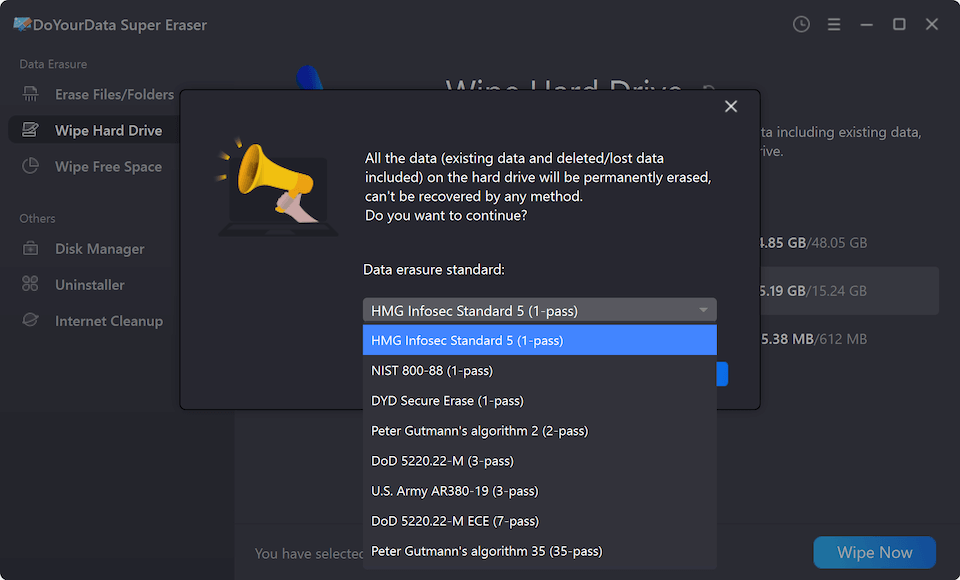
DoYourData Super Eraser is a trusted data sanitation tool engineered to securely wipe external hard drives, USB flash drives, memory cards, and internal disks across both Windows and macOS platforms. It utilizes advanced military-grade erasure algorithms (such as DoD 5220.22-M, NIST 800-88, and Gutmann) to overwrite every byte of storage with random data binary patterns, rendering recovery completely impossible.
Step-by-Step Guide: Wiping Your External Drive for Recycling with DoYourData
Follow these simple steps to permanently sanitize your external hard drive before recycling:
Step 1. Download and Install the Software: Visit the official DoYourData website, download DoYourData Super Eraser for Windows or macOS, and complete the installation wizard.
DoYourData Super Eraser
- Top data erasure software for Windows and Mac.
- Support shredding files, wipe deleted files and erase entire drive.
- Safe and easy to erase data permanently from different drives.
Step 2. Connect Your External Hard Drive: Plug your external drive into your PC or Mac using a USB cable and launch DoYourData Super Eraser.
Step 3. Select 'Wipe Hard Drive' Mode: Choose the Wipe Hard Drive option from the main menu. This mode is specifically designed to wipe entire external drives, partitions, or secondary storage media. Select your connected external hard drive from the device list. Always verify the drive capacity and label to ensure you have chosen the correct target.
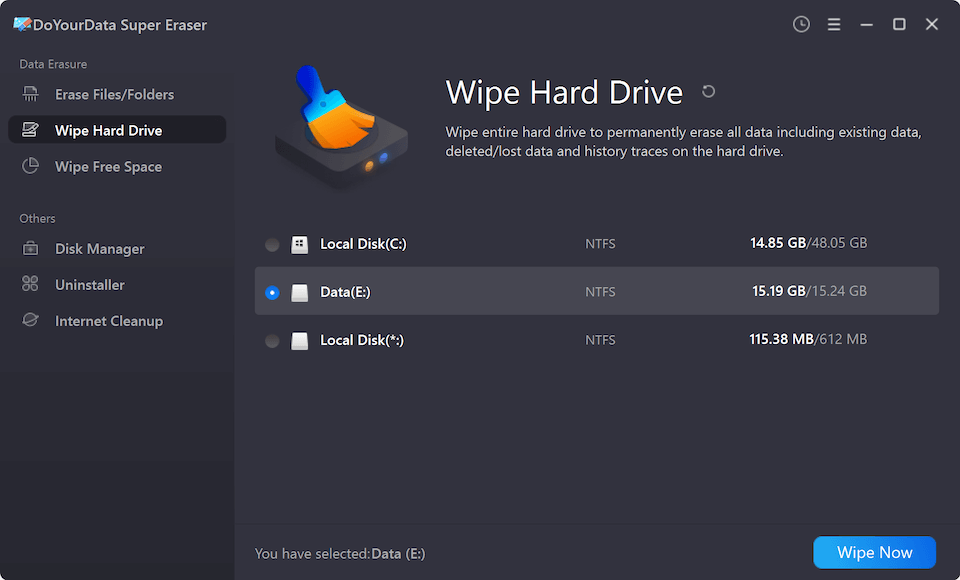
Step 4. Choose the Data Wiping standard: Click the Wipe Now button and choose a data erasure standard from the list. The software will overwrite all sectors across the entire drive.
Step 5. Complete Permanent Erasure: Once the wiping process is finished, all existing data, hidden partition tables, and deleted file traces are permanently destroyed, making the drive 100% clean and ready for safe recycling.
Method 2: Using Built-In Windows Tools (Full Format & Command Line)
If you are using a Windows computer and prefer using native tools, Windows provides built-in options to format or erase external drives.
Option 1: Using Windows Full Format
Unlike Quick Format, a Full Format in modern Windows (Windows 10/11) performs a single-pass zero overwrite across the entire drive, making basic data recovery impossible.
Step 1: Connect your external hard drive and open 'This PC'.
Step 2: Right-click your external drive and select 'Format'.
Step 3: Uncheck the 'Quick Format' box. This ensures Windows performs a full sector-by-sector scan and zero-fill.
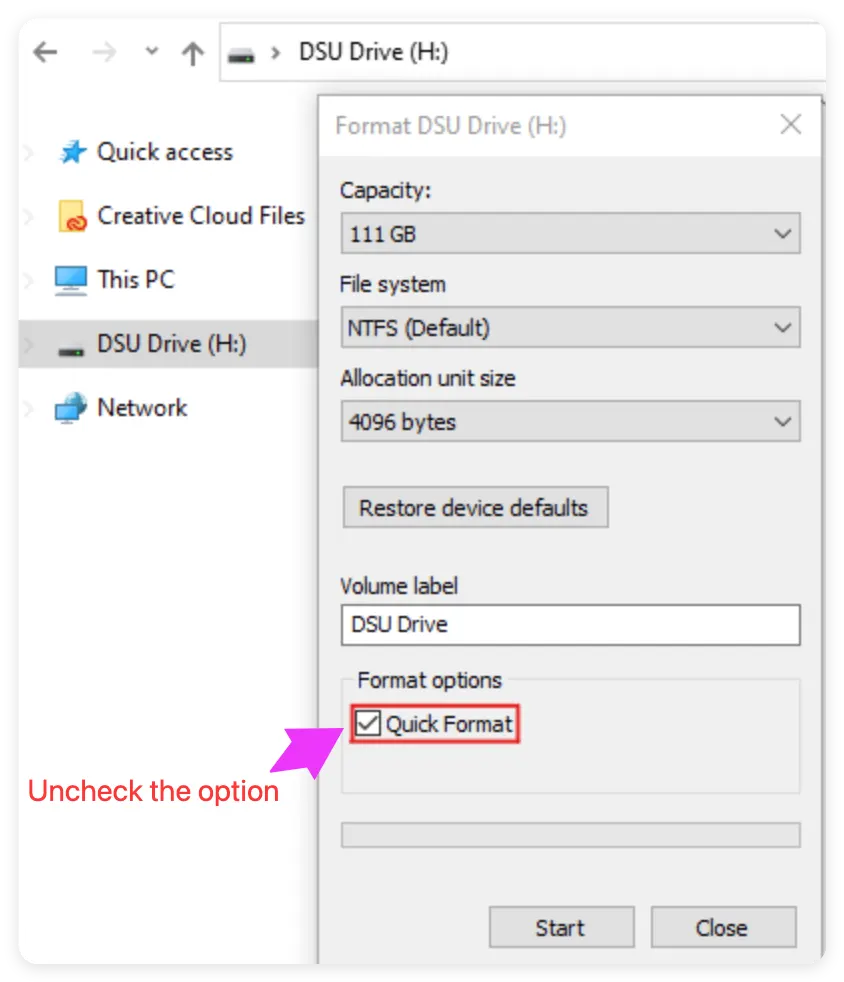
Step 4: Click 'Start' and wait for the process to complete. Note that a Full Format on a large 2TB or 4TB drive can take several hours.
Why Quick Formatting Fail to Protect Your Privacy: When you select 'Quick Format', your computer's operating system does not actually overwrite the data. Instead, it merely removes the file allocation table or index pointer, marking those storage sectors as 'available' for future data writes. Until new data is written directly over those exact sectors, your original confidential information remains completely intact on the drive. Anyone who acquires your recycled external hard drive can easily download free data recovery software and restore your private files in just a few minutes.
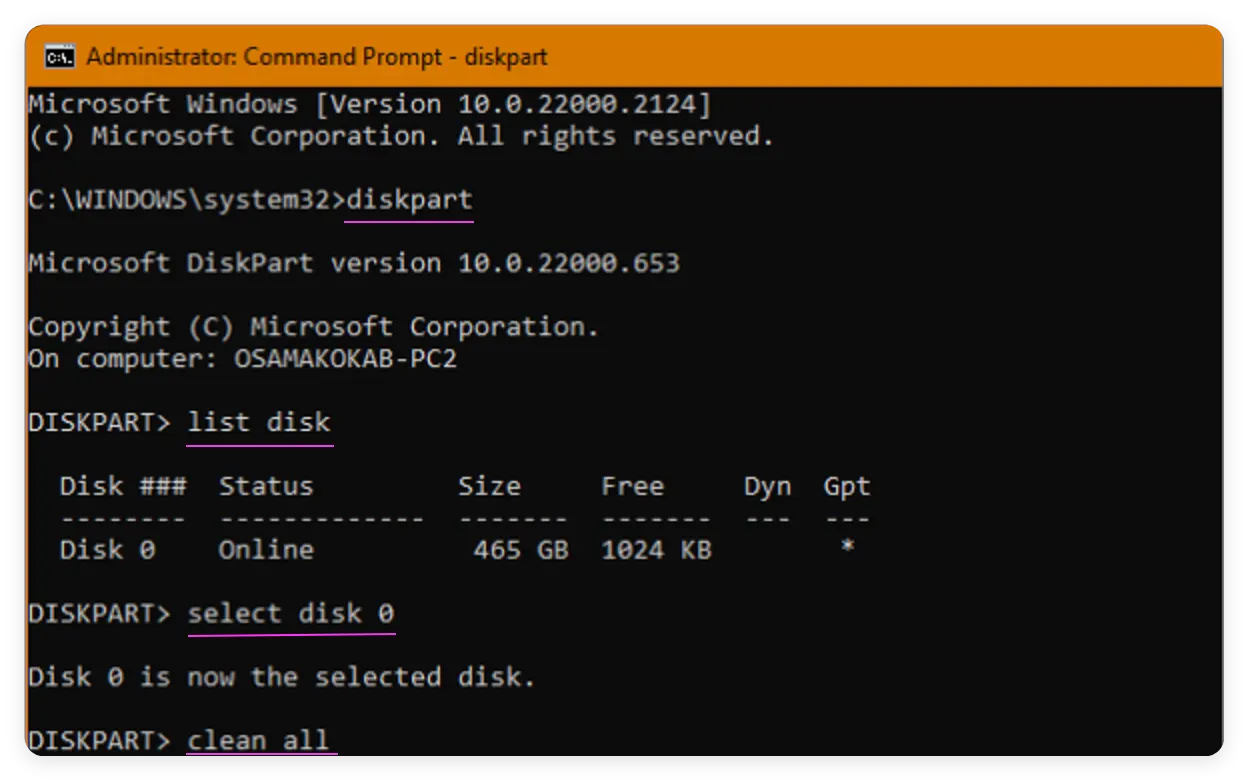
Option 2: Using Diskpart Clean All Command
For advanced users, the Windows command-line utility Diskpart offers a 'clean all' command that writes zeros to every sector of the external drive.
Step 1: Open Command Prompt as Administrator.
Step 2: Type 'diskpart' and press Enter.
Step 3: Type 'list disk' to display all connected drives, then type 'select disk X' (replace X with your external drive number).
Step 4: Type 'clean all' and press Enter. This will overwrite every sector on the drive with zeros.
Best Practices for Safe E-Waste Drive Recycling
Once your external hard drive has been thoroughly wiped, keep these helpful recycling recommendations in mind:
- Choose Certified E-Waste Recyclers: Hand your sanitized drive to certified electronics recyclers (such as R2 or e-Stewards certified facilities) to ensure environmentally responsible recycling.
- Physical Destruction for Damaged Drives: If your external hard drive is physically broken, clicking, or won't power on to perform software wiping, physical destruction (such as drive shredding or degaussing) is necessary to protect your privacy.
- Recycle Cables and Enclosures: Don't forget to recycle USB cables, power adapters, and plastic external enclosures along with the drive.
FAQs about Permanently Wiping External Hard Drive
Conclusion
Understanding how to erase external hard drive for recycling data privacy gives you total peace of mind when getting rid of old hardware. Simply deleting files or performing quick formats leaves your personal records vulnerable to unauthorized access.
By utilizing trusted, certified data erasure tools like DoYourData Super Eraser, you can permanently destroy all stored files and traces in just a few simple steps, protecting your personal privacy while responsibly contributing to e-waste recycling.
DoYourData Super Eraser
DoYourData Super Eraser, the award-winning data erasure software, offers certified data erasure standards including U.S. Army AR380-19, DoD 5220.22-M ECE to help you securely and permanently erase data from PC, Mac, HDD, SSD, USB drive, memory card or other device, make data be lost forever, unrecoverable!
Written & Updated by Shirly Chen
Shirly Chen has been writing data recovery, data erasure articles for DoYourData over 4 years. She has been working as a professional website content writer & editor for quite a long time. She also writes articles about disk clone, Mac optimization, disk backup, etc.