How to Recover Lost Files After Windows 11 26H2 Update?
Data Loss happened after Windows 11 26H2 update? We will explain why this happens, how to dig your files out using built-in system tools, and how to use professional data recovery software like Do Your Data Recovery to get back everything you lost.
 Updated by Justin Kenny on June 30, 2026
Quick Navigation:
- Why Files Disappear After Windows 11 26H2 Update
- 5 Ways to Recover Windows 11 26H2 Lost Files
- Tip: Always Back Up Data Before Windows Update
- FAQs About Windows 11 26H2 Data Loss
- Conclusion
Updating your operating system is always an exciting event. It brings fresh features, improved security measures, and slick UI changes. But sometimes, updates can bring unexpected surprises. Imagine installing the latest Windows 11 26H2 update, waiting for your PC to reboot, logging back in, and suddenly realizing your desktop icons are gone, your Documents folder is completely empty, and your important family photos have vanished. It is a terrifying moment that millions of Windows users have faced at some point.

If you are currently staring at an empty folder wondering where your life's work went, please take a deep breath. Do not panic. Your data is likely still on your hard drive, hidden away or waiting to be restored. In this comprehensive guide, we will walk you through the most reliable, step-by-step methods to fix the 'Windows 11 26H2 lost files after update' problem.
Why Files Disappear After Windows 11 26H2 Update
Before jumping into the rescue mission, it helps to understand what happened behind the scenes. Windows updates are massive overhauls that rewrite core system settings, move user profiles, and rearrange data architectures. When your files seem missing after an update, it usually boils down to one of these common technical scenarios:
- Temporary Windows Profile: During a major update like 26H2, Windows might struggle to read your user profile details. Instead of locking you out, it creates a temporary user account (TEMP) that looks completely fresh and empty. Your real files are safe, but they are hiding in your original user folder.
- Files Moved or Hidden: Sometimes, the installation assistant moves user data to a backup directory like Windows.old, or resets your File Explorer preferences to hide system and hidden files.
- OneDrive Cloud Sync Issues: The Windows 11 26H2 update heavily integrates OneDrive cloud storage. Sometimes, the update changes your backup rules, making your local folders appear empty while uploading everything to the cloud.
- Antivirus Quarantine: Security features like Windows Defender or third-party antivirus apps might flag completely harmless user files as threats during the update process and isolate them.
- Actual Data Corruption: In rare cases, a sudden power failure, interrupted installation, or drive conflict can cause file system glitches that delete or corrupt personal data segments.
5 Ways to Recover Windows 11 26H2 Lost Files
Now, let's explore the solutions to safely bring your data back home. We recommend following these methods in the order they are listed.
Method 1: Log Out of the Temporary Profile
This is the most common reason for missing data. If Windows boots into a temporary account, your desktop and libraries will appear completely blank.
Here is how to check and fix it:
- Open your Start Menu and click on Settings (the gear icon).
- Navigate to Accounts > Windows backup, and then click on Remember my preferences.
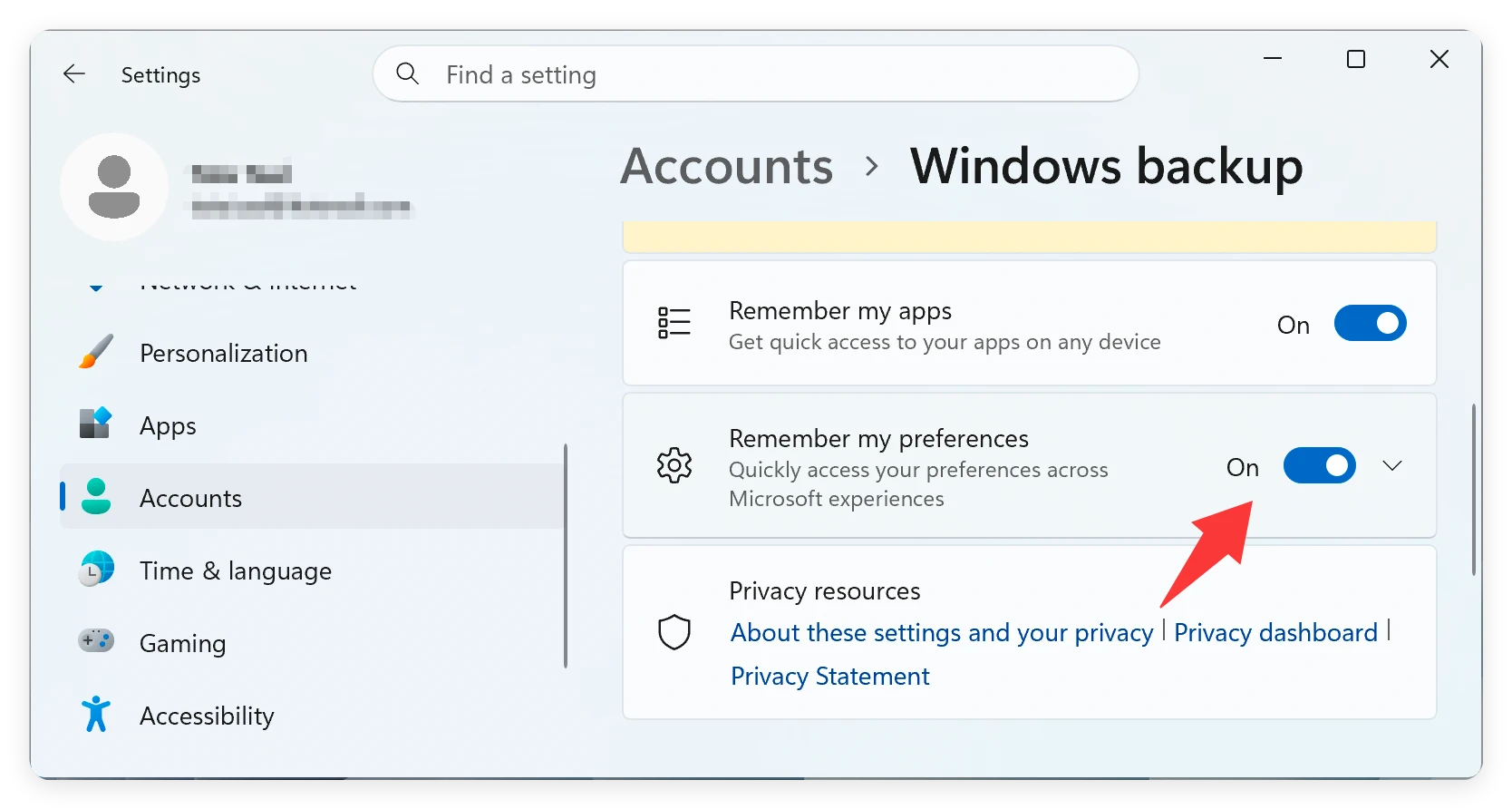
- Look for a message that says: 'You are logged on with a temporary profile. Roaming options are currently unavailable.'
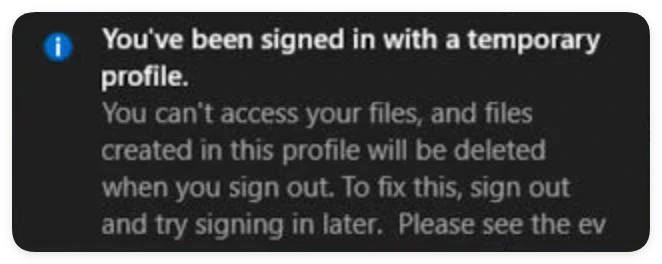
- If you see this message, do not save any new work to this account. Simply restart your computer and try signing back into your primary Microsoft or local account.
- You might need to restart your PC two or three times to force Windows to clear the temporary profile glitch. Once logged back into your real account, your files should reappear instantly.
Method 2: Use Windows Search and Unhide Hidden Files
If you are in your correct user account but the folders are still empty, the files might have been marked as hidden or moved to a different directory during the update.
- Open File Explorer by pressing the Windows Key + E on your keyboard.
- Click on 'This PC' in the left-hand navigation pane.
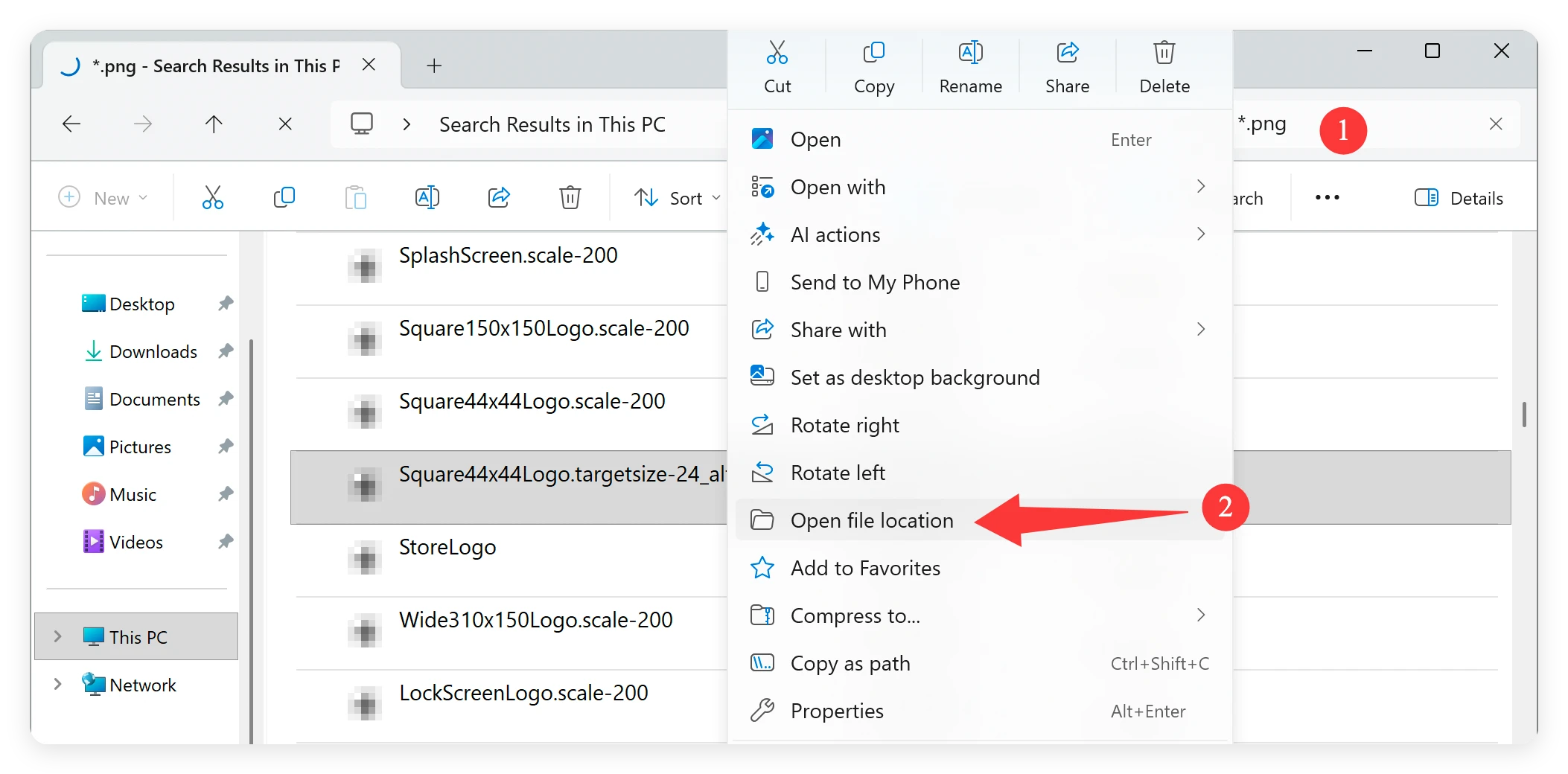
- In the top-right search box, type the exact name of a missing document or use a wildcard search like *.docx or *.jpg to find files by extension.
- If the files show up in the search results, right-click on them, select Open file location, and move them back to your preferred folder.
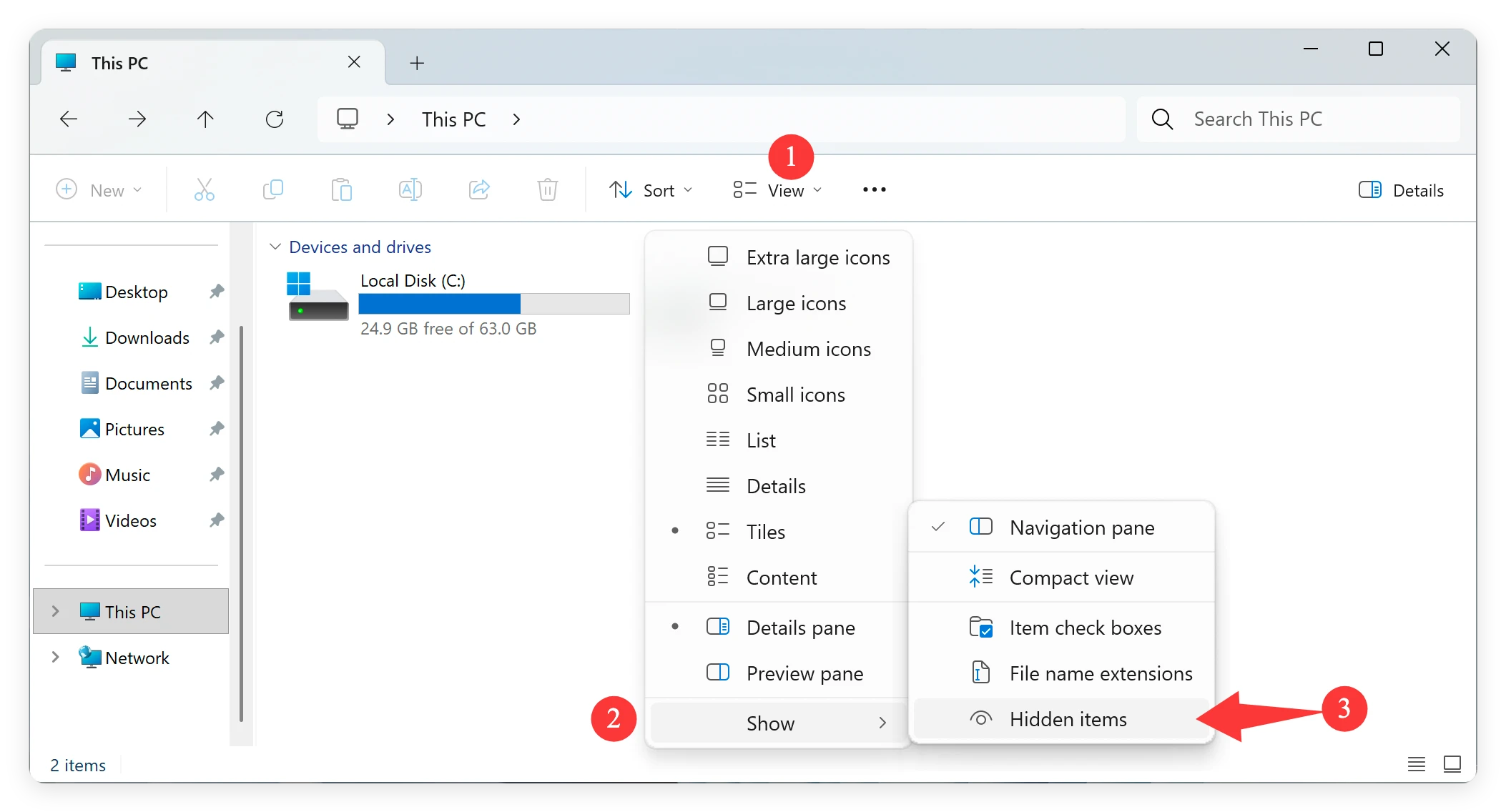
- To make sure files aren't simply hidden, look at the top menu bar in File Explorer, click on View, hover over Show, and make sure 'Hidden items' is checked.
Method 3: Check OneDrive and Antivirus Protection History
As mentioned earlier, cloud synchronization and overzealous antivirus tools can occasionally hide your files from local directories.
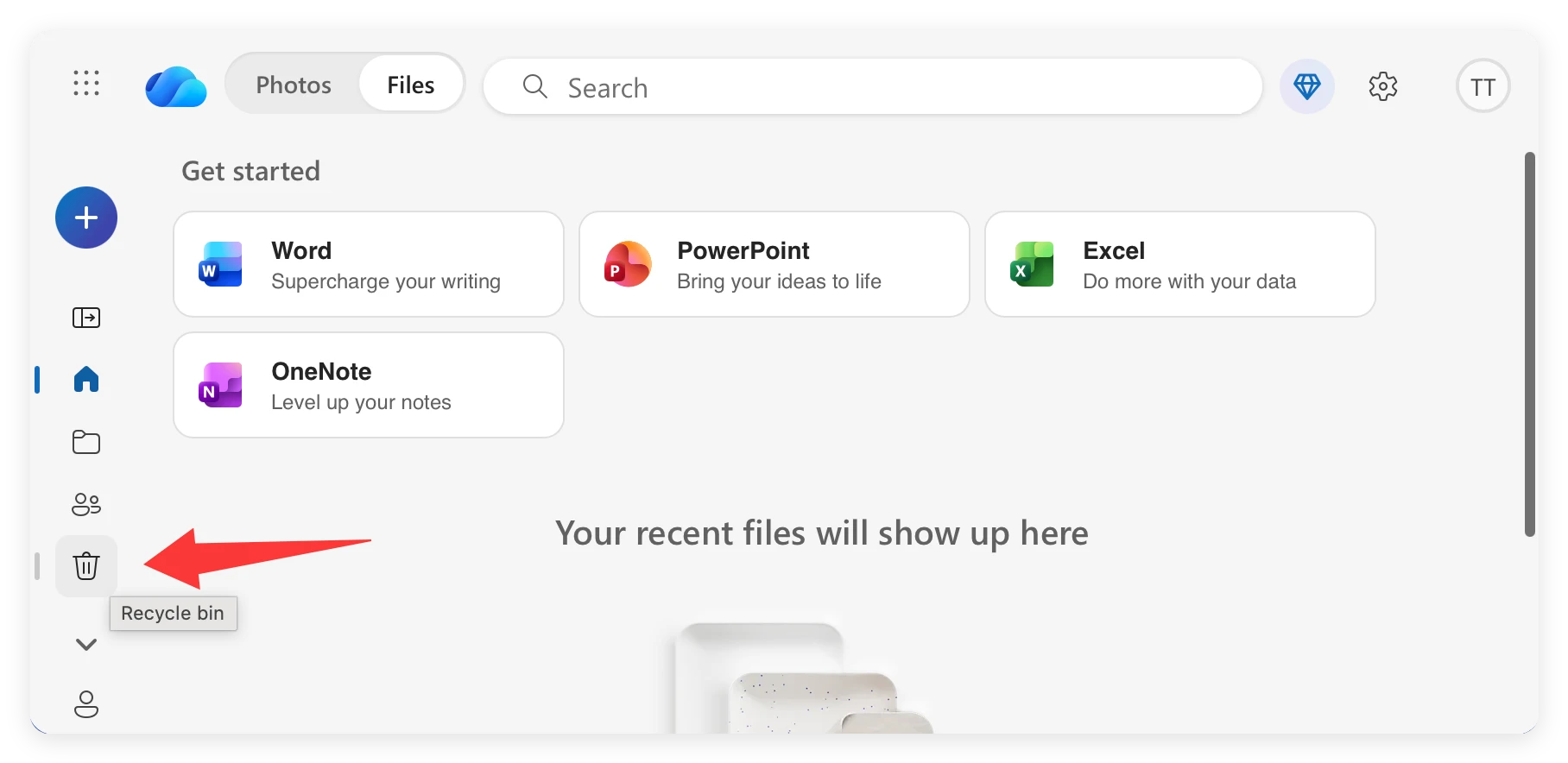
- Check your OneDrive icon in the taskbar tray. Log into onedrive.live.com on your web browser. Check the online Recycle Bin to see if your missing documents were accidentally moved to the cloud storage vault during the 26H2 setup.
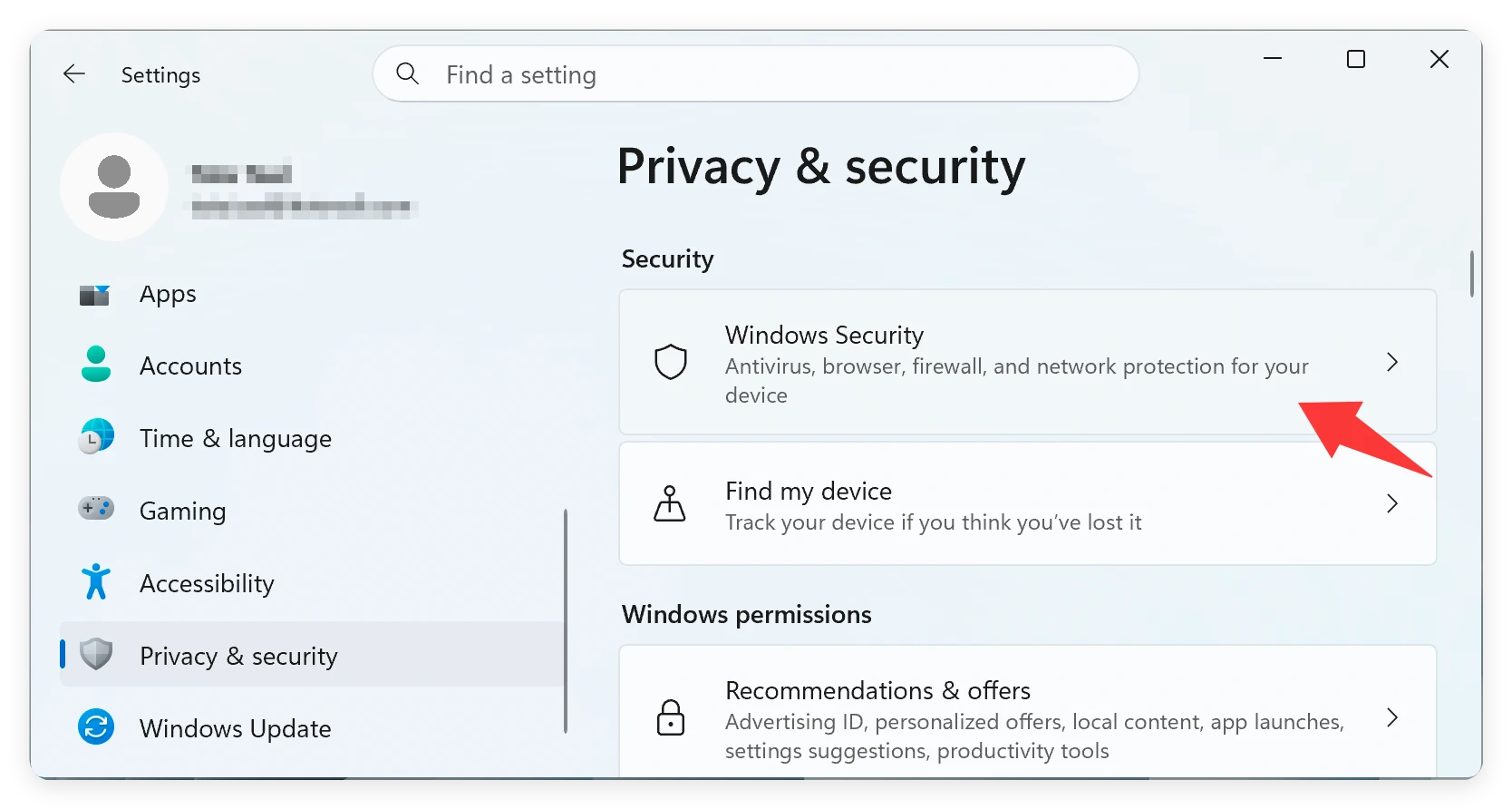
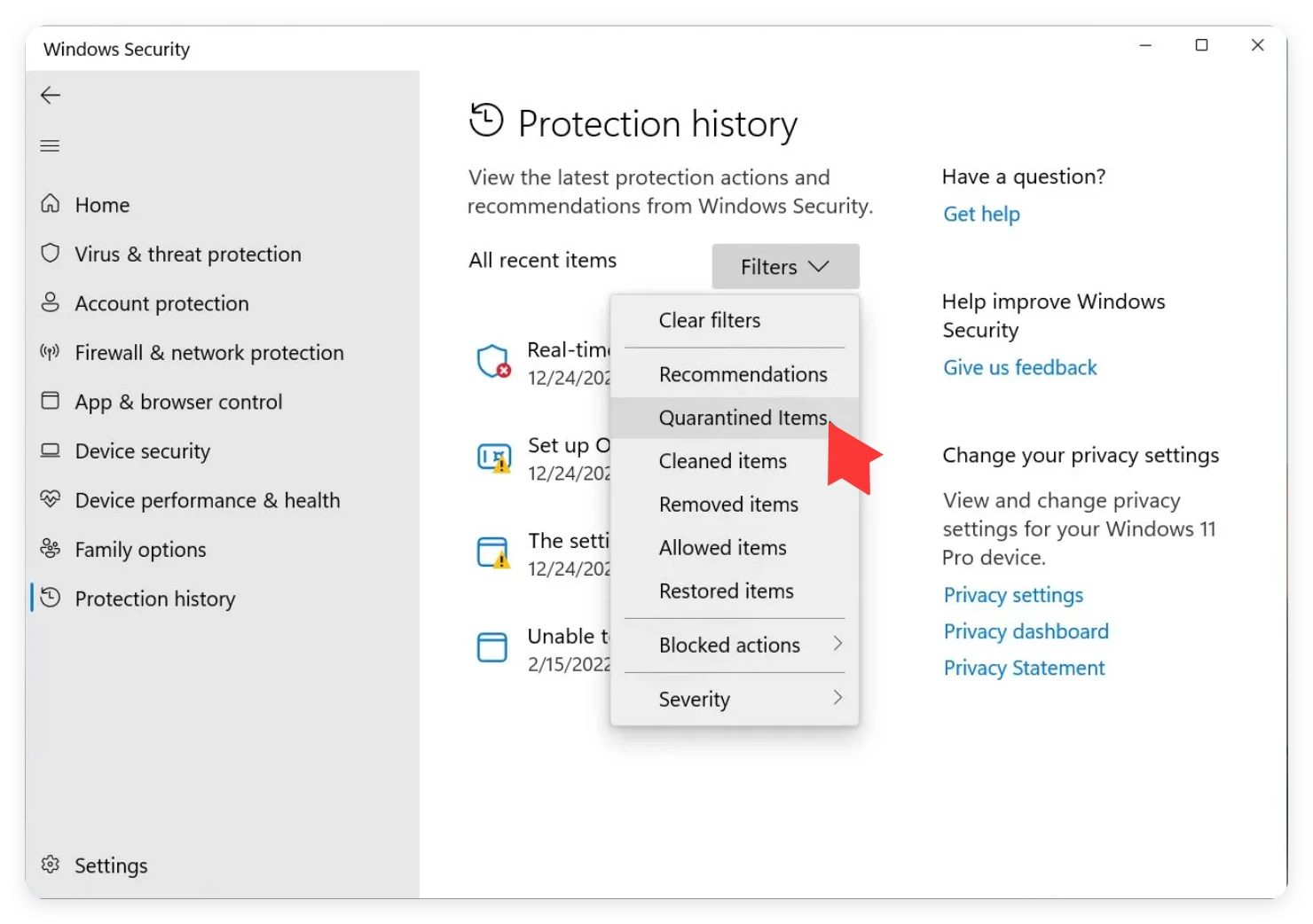
- Open the Start Menu, click Settings and then Privacy & security, Click Windows Security.
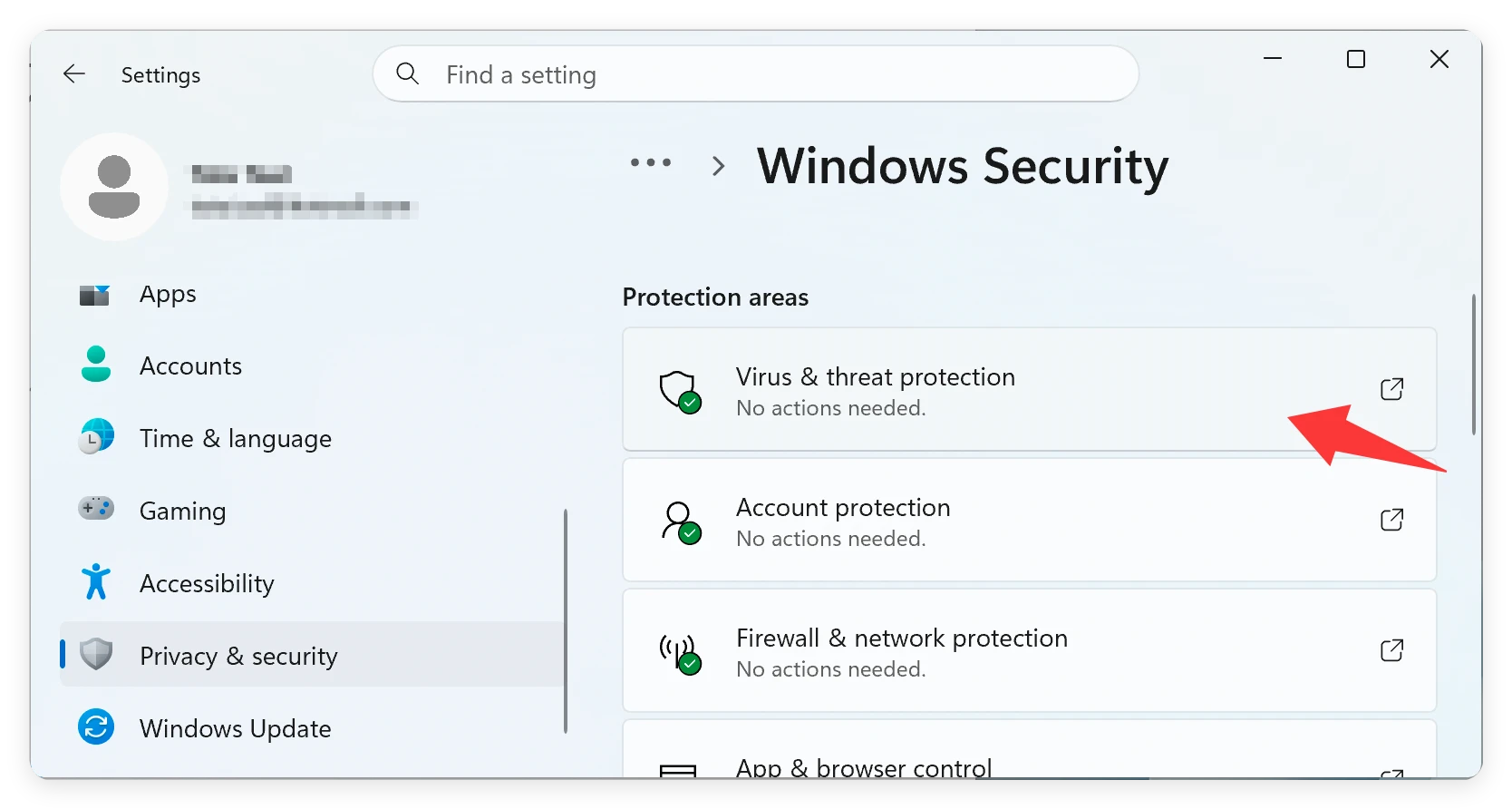
- Go to 'Virus & threat protection' and .
- Click on Protection history.
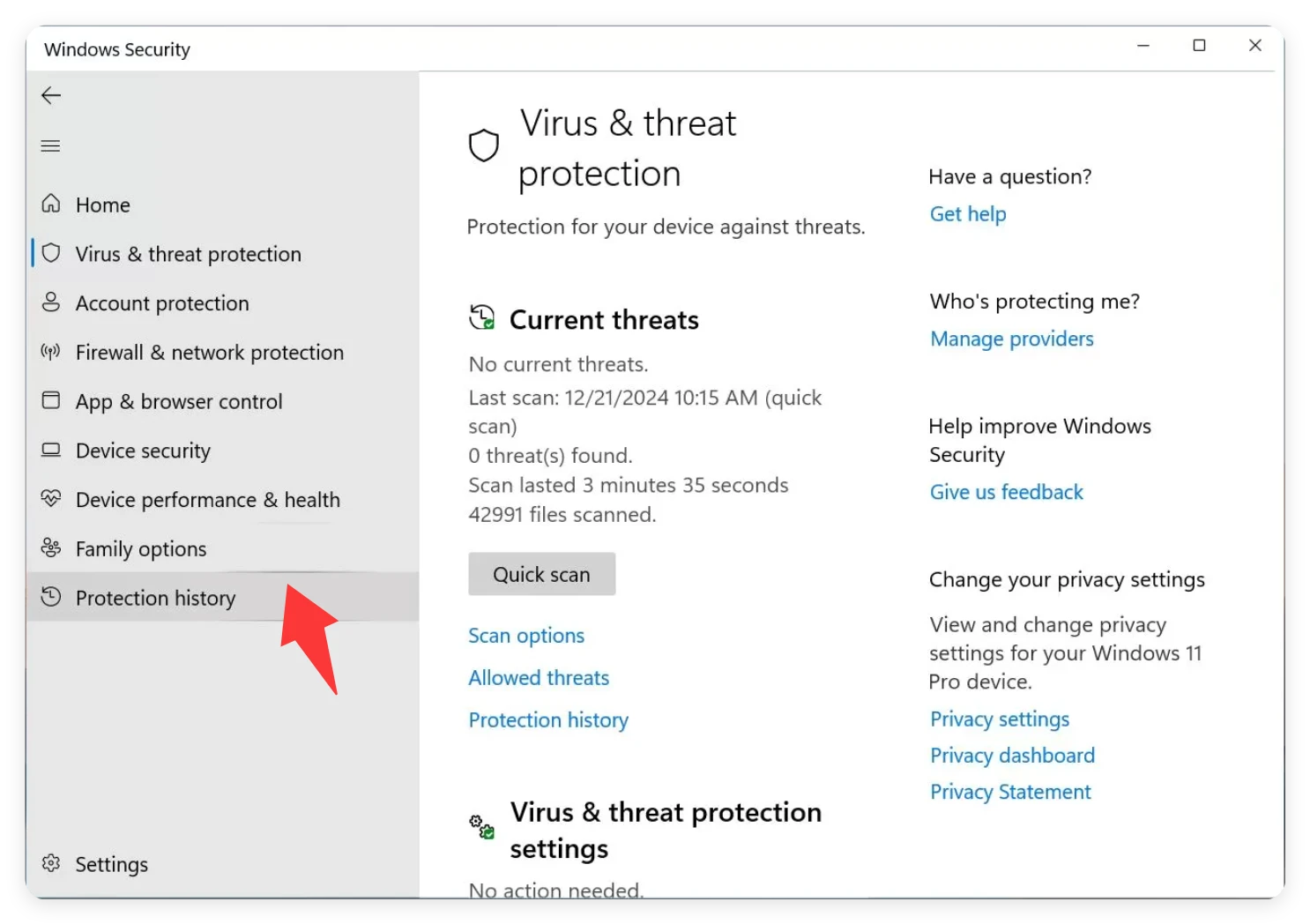
- Look closely to see if any of your personal files were mistakenly quarantined during the update. If you find them, you can select Restore to return them to their original location.
Method 4: Use Windows 11 Point-in-Time Restore
Microsoft has added a highly advanced feature to its operating system called Point-in-Time Restore, which utilizes the built-in Volume Shadow Copy Service (VSS). It automatically takes snapshots of your personal data and configuration states.
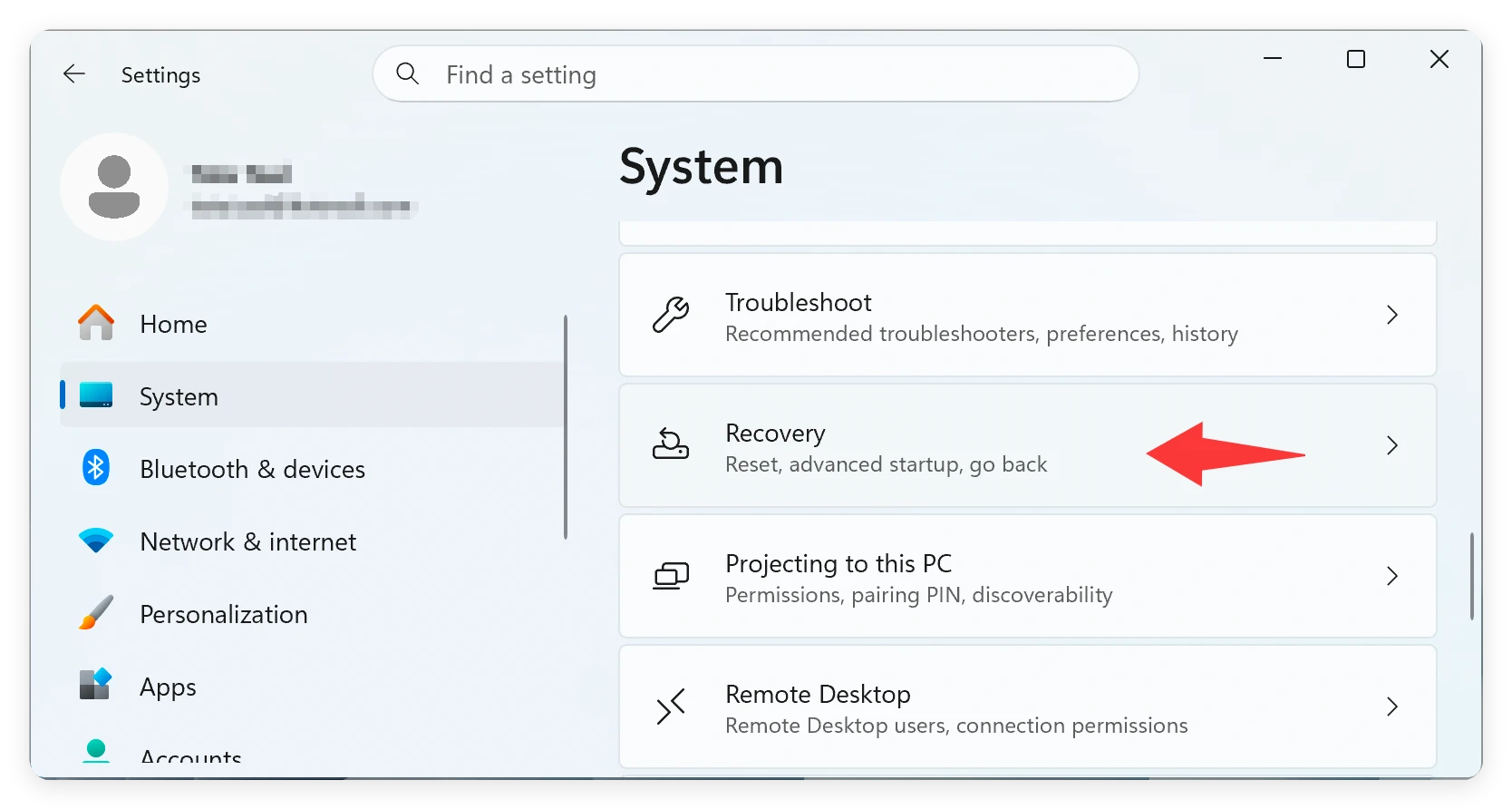
- Go to Settings > System > Recovery.
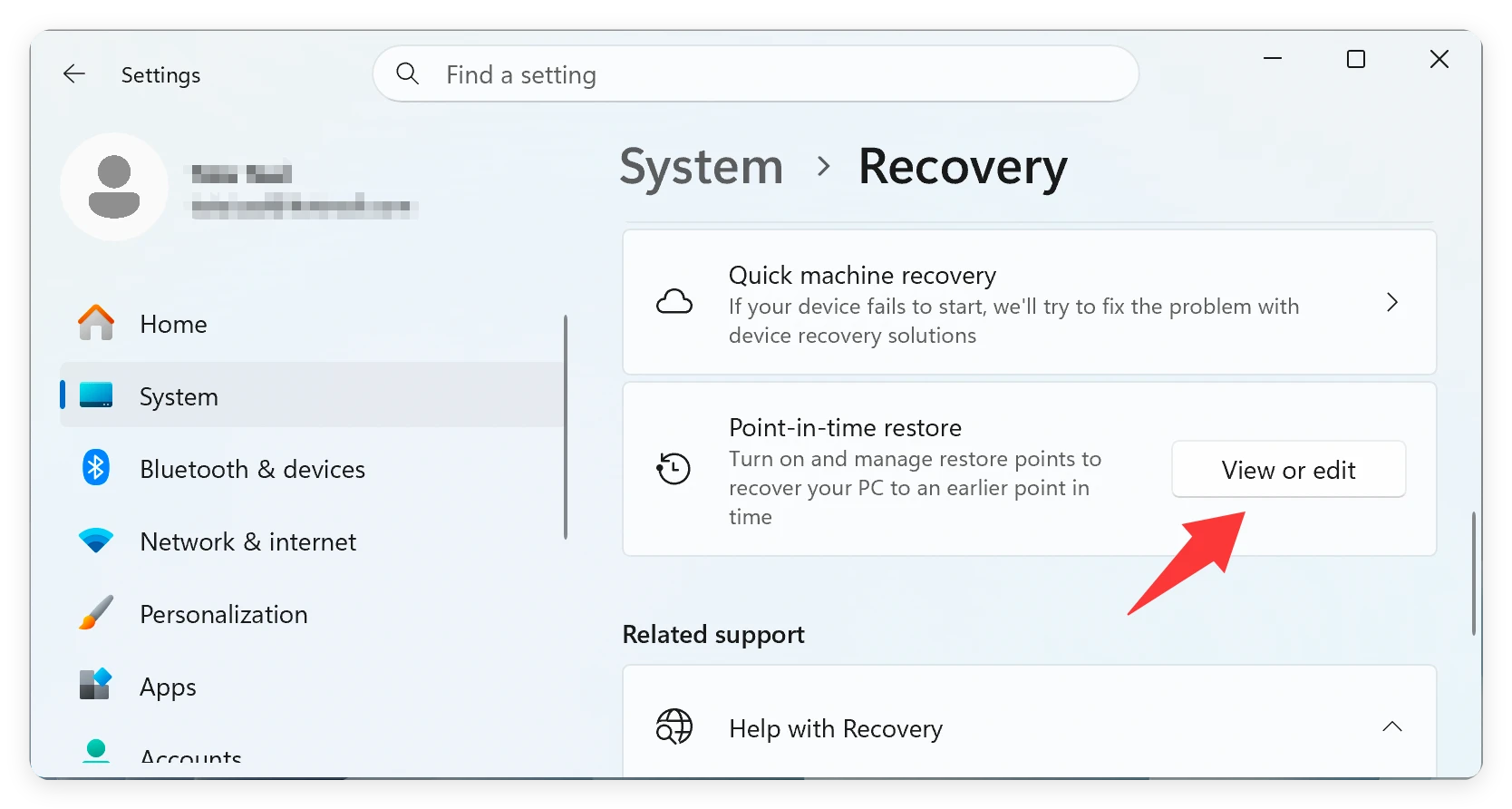
- Locate 'Point-in-time restore' and click View or edit.
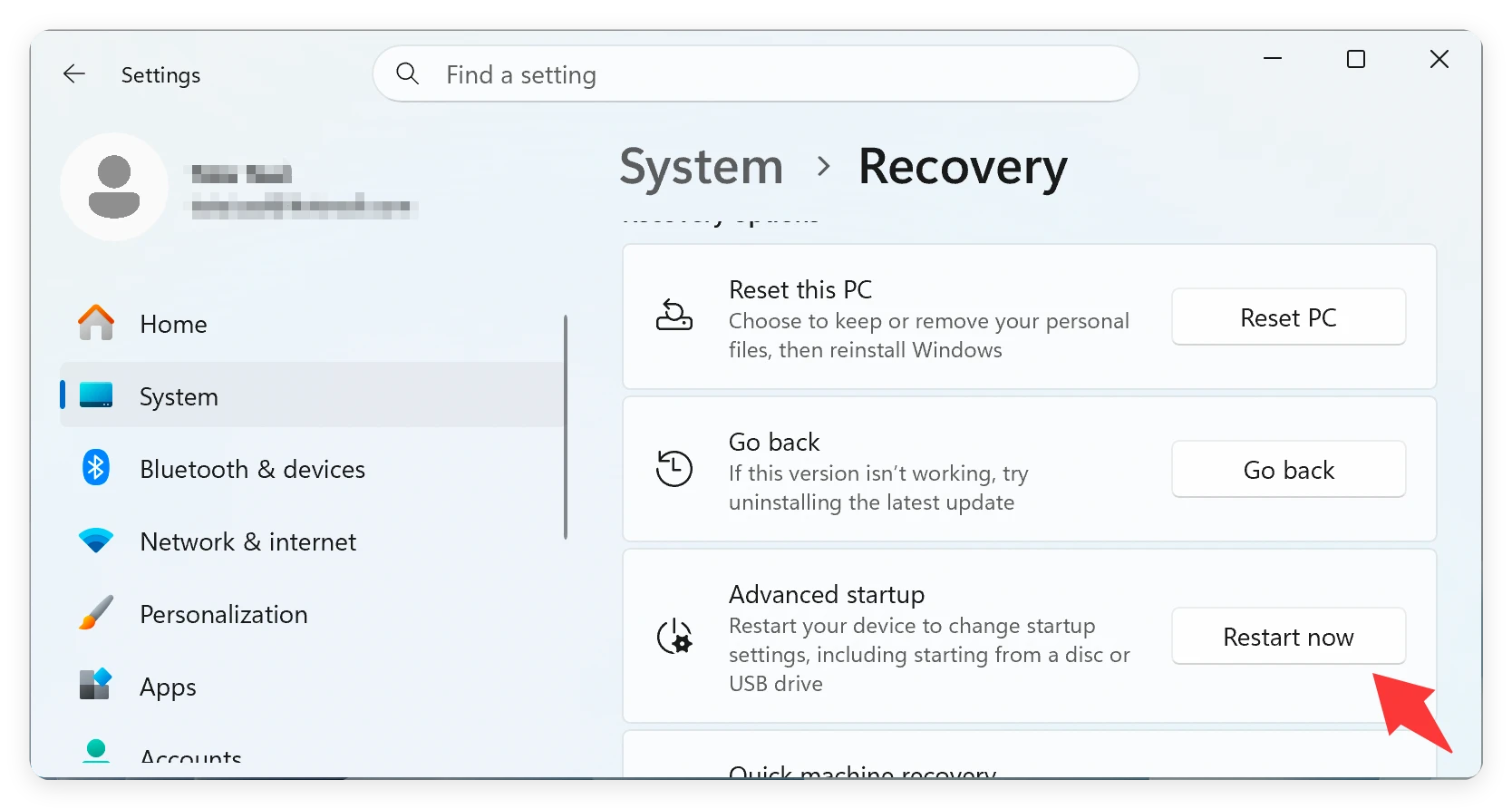
- If your system created a snapshot right before the 26H2 update went live, you can enter the Windows Recovery Environment (WinRE) by clicking 'Restart now' under Advanced startup.
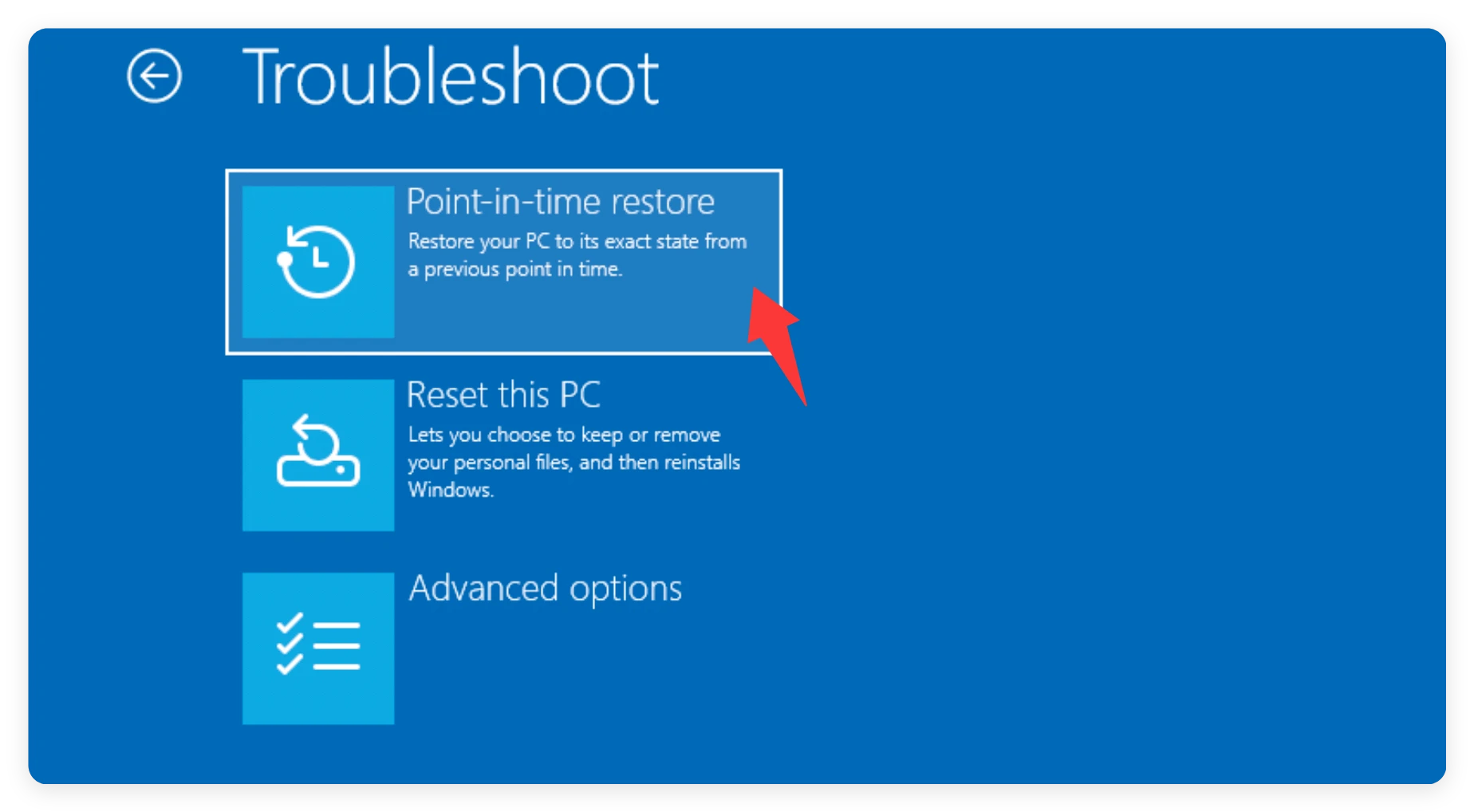
- In the WinRE menu, go to Troubleshoot > Point-in-time restore, select the appropriate historical timestamp, and follow the simple on-screen prompts to roll your data back to safety.
Method 5: Recover Lost Files with Do Your Data Recovery
If you have tried all the built-in Windows solutions and your data is still nowhere to be found, it means your files were likely erased or lost due to file system corruption during the update. This is where you need a powerful, professional data recovery software to salvage your hard drive. We highly recommend using Do Your Data Recovery.
Do Your Data Recovery is a leading, user-friendly software explicitly designed to handle file loss from system upgrades, formatting, or accidental deletions. It works by scanning the deep sectors of your hard drive to reconstruct lost file fragments before they get overwritten by new system processes.
Follow these simple steps to recover your Windows 11 26H2 lost files using Do Your Data Recovery:
Step 1: Download and install Do Your Data Recovery on your PC.
💡 Tip: Install it on a separate drive partition (like your D: drive) instead of the partition where you lost your files (usually C:) to avoid overwriting data.
Step 2: Launch the program. From the clear home interface, select the specific hard drive partition or location where your files were stored prior to the update.
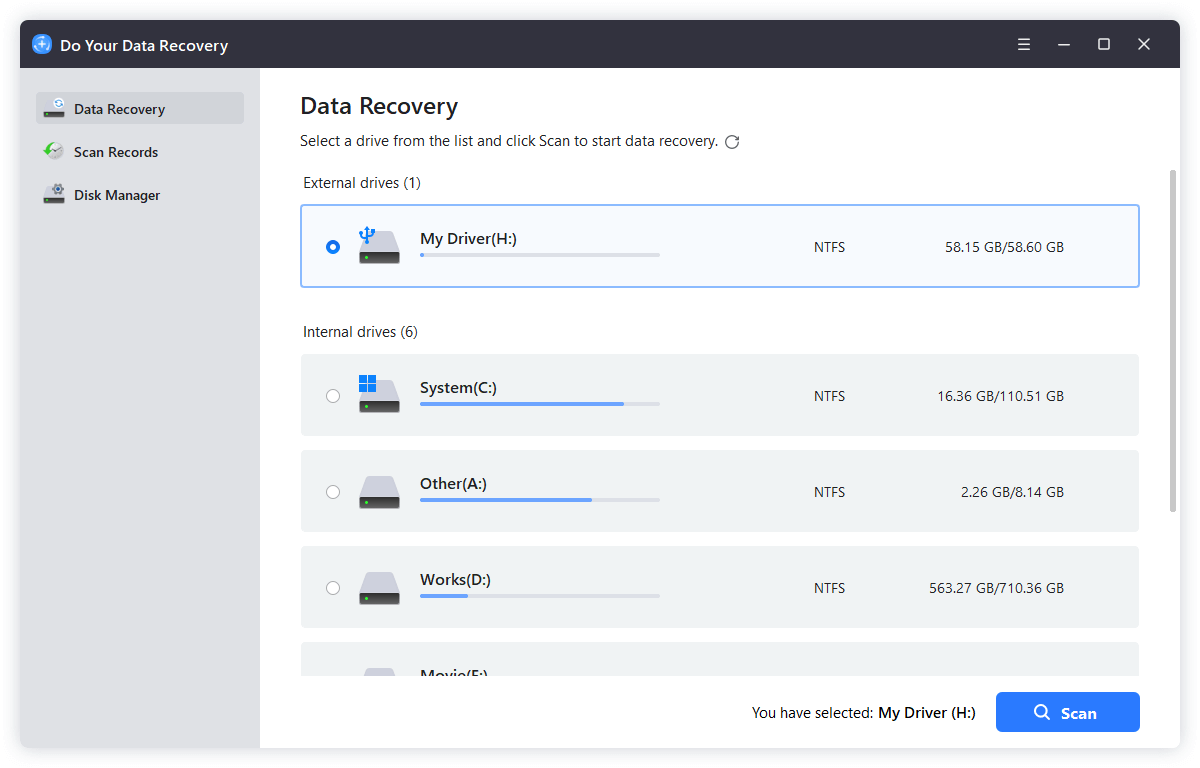
Step 3: Click the Scan button. The software will perform an initial Quick Scan followed by an automated Deep Scan to dig out every recoverable file, tracking hidden directories and deleted file trees.
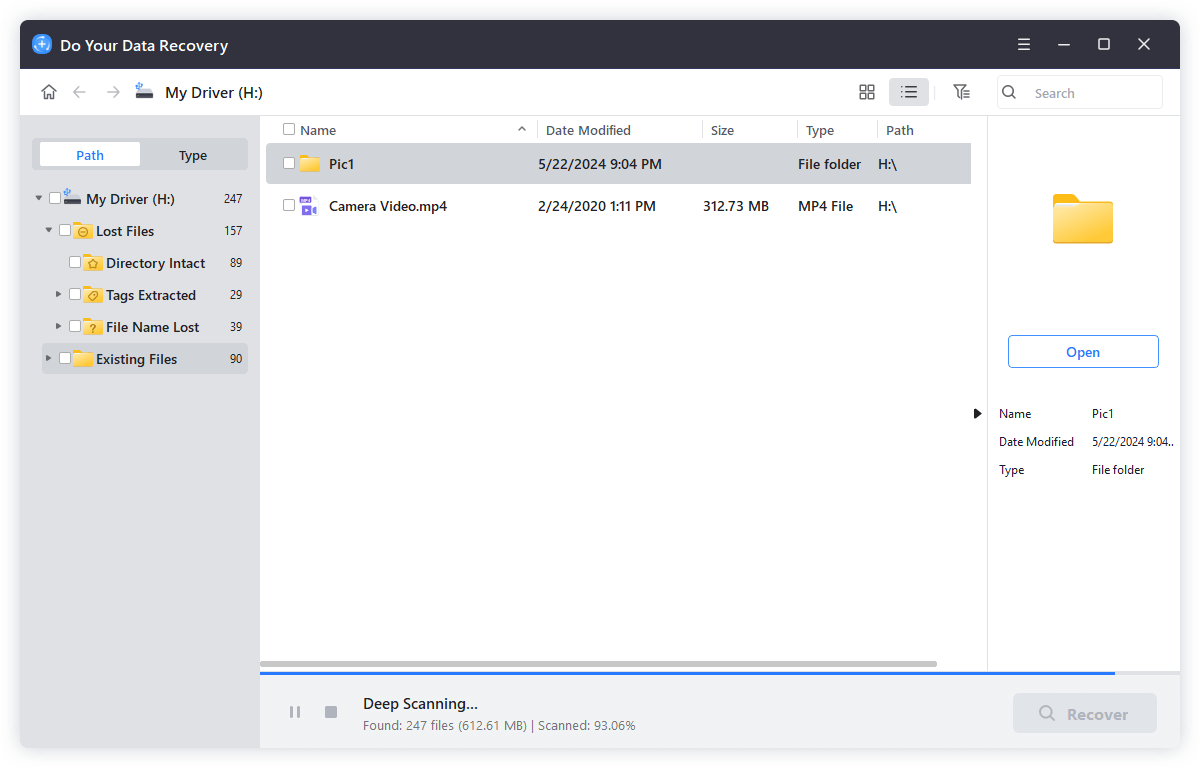
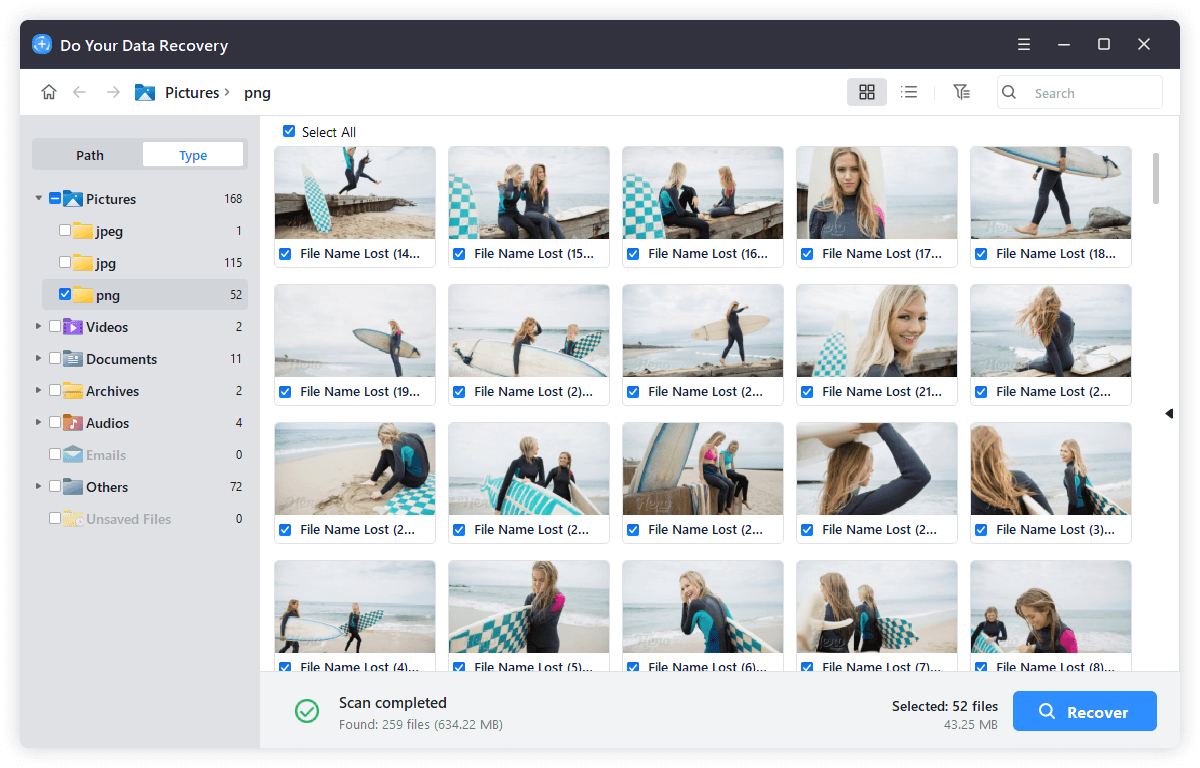
Step 4: Browse through the organized list of found items. You can use the built-in filter to sort by file type (images, videos, documents) and preview files to verify their integrity. Check the boxes next to the items you want to save, and click the Recover button to store them safely on an external drive or secondary partition.
Tip: Always Back Up Data Before Windows Update
While the recovery methods outlined above are highly successful, the best defense against data loss will always be a solid backup strategy. Major operating system upgrades like Windows 11 26H2 introduce sweeping architectural adjustments that carry small, inherent risks of software bugs or file corruption.
Before committing to any major Windows Update in the future, take five minutes to copy your irreplaceable photos, work folders, and financial documents to an external hard drive, a USB flash drive, or a cloud backup provider. It gives you absolute peace of mind knowing your digital life is completely safe, no matter how a system update behaves.
FAQs About Windows 11 26H2 Data Loss
Conclusion:
Experiencing sudden data loss after a major system update like Windows 11 26H2 can be a stressful and disruptive event. Fortunately, as we have explored in this guide, missing files are rarely gone for good. By systematically checking for temporary user profiles, adjusting your hidden file configurations, reviewing cloud or antivirus settings, or taking advantage of advanced system snapshots, you can resolve the majority of update conflicts natively.
When those built-in safety nets fall short, specialized data recovery software like Do Your Data Recovery provides an invaluable last line of defense. It searches the deepest layers of your hard drive to safely bring back your erased files before they are gone forever. Combine these recovery strategies with a proactive habit of backing up your data prior to future updates, and you can keep your computer fresh, updated, and completely stress-free.
Do Your Data Recovery
The safe, powerful and easy-to-use data recovery program to help you recover deleted, formatted or lost data, recover lost data from damaged hard drive, from HDD, SSD, USB flash drive, memory card, digital camera, etc, fix damaged drive and external devices.
Written & Updated by Justin Kenny
Justin Kenny is a writer & editor of DoYourData. He joined DoYourData in 2016 and focuses on writing articles about Windows data recovery, Mac data recovery, external device data recovery, hard drive clone, data erasure, Mac cleanup, computer issue fixes, etc. He is a super fan of Apple devices and is big on testing new digital device and system utility software.